Tutorials Salesforce

Restore a deleted contact in Salesforce
By PortifyLead · Updated 11 October 2026
Salesforce screen from the video: Select the demo contact, then click Restore.
The steps below in 33 seconds, recorded in a Salesforce test account. The video loads from YouTube when you press play.

How do I restore a deleted contact in Salesforce?

Restore one deleted contact in Salesforce Lightning, then open the restored record to check its details.

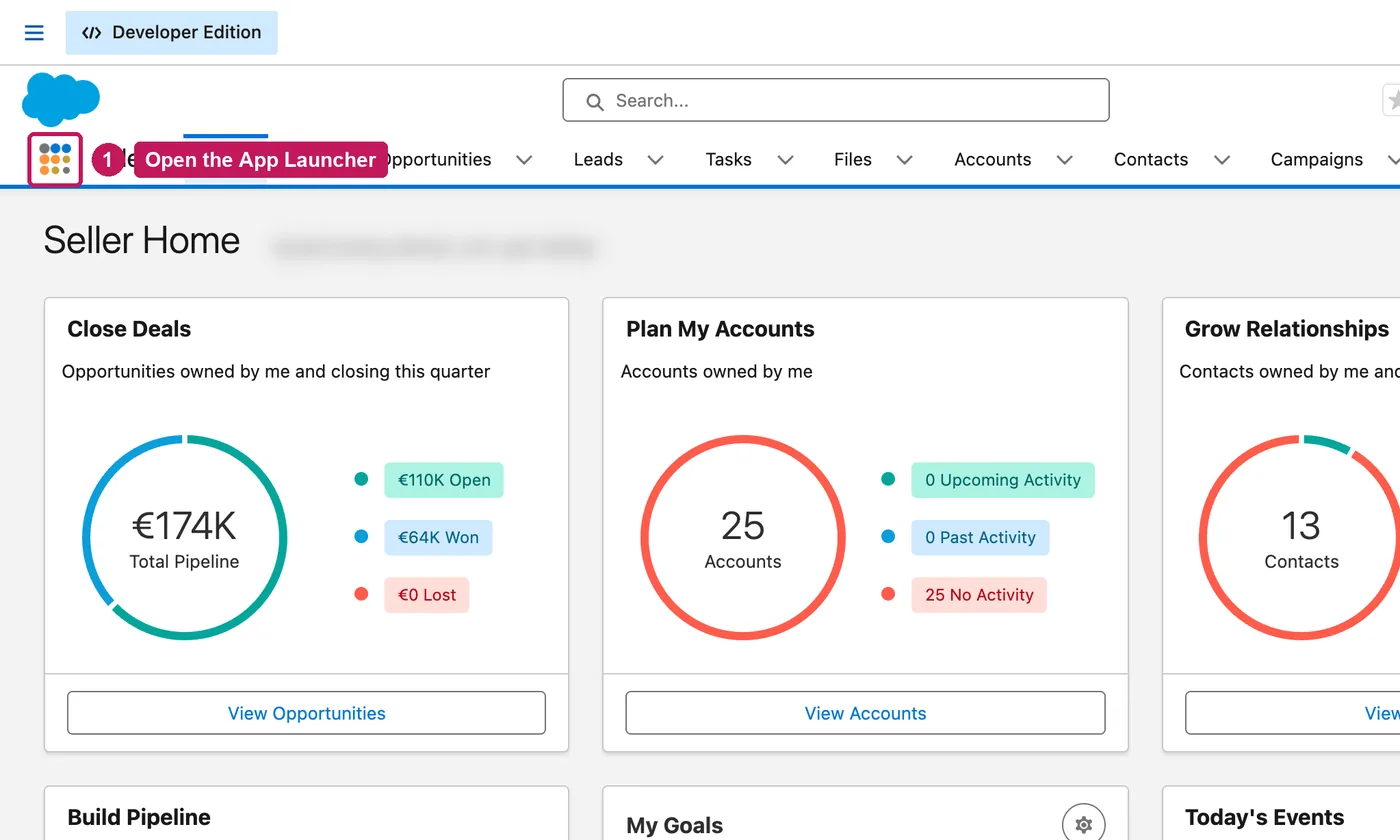
  1. Click the App Launcher.
    Salesforce screen for step 1: Click the App Launcher.
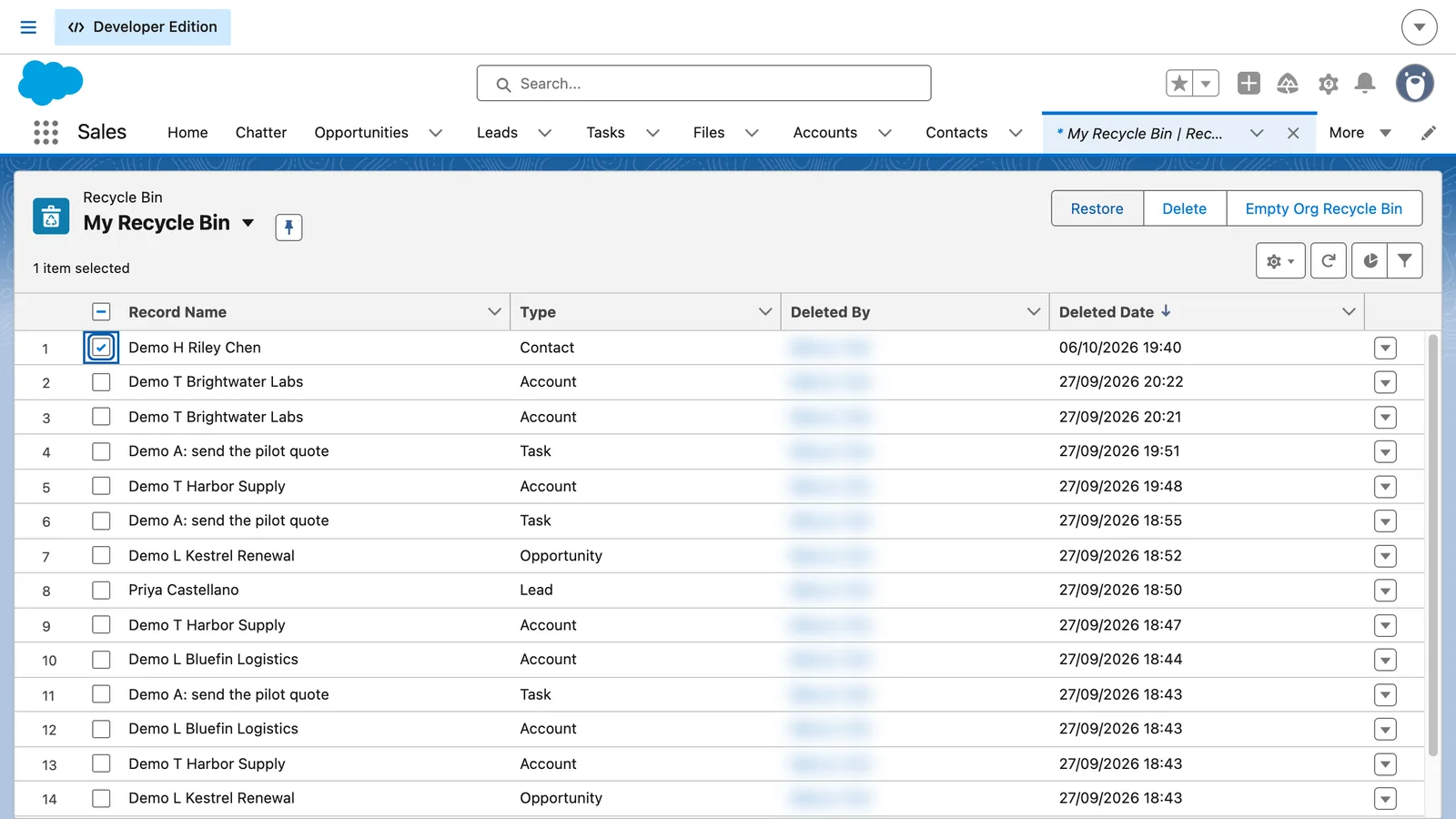
  2. Search for Recycle Bin, open it and choose your own bin.
    Salesforce screen for step 2: Search for Recycle Bin, open it and choose your own bin.
  3. Select the demo contact, then click Restore.
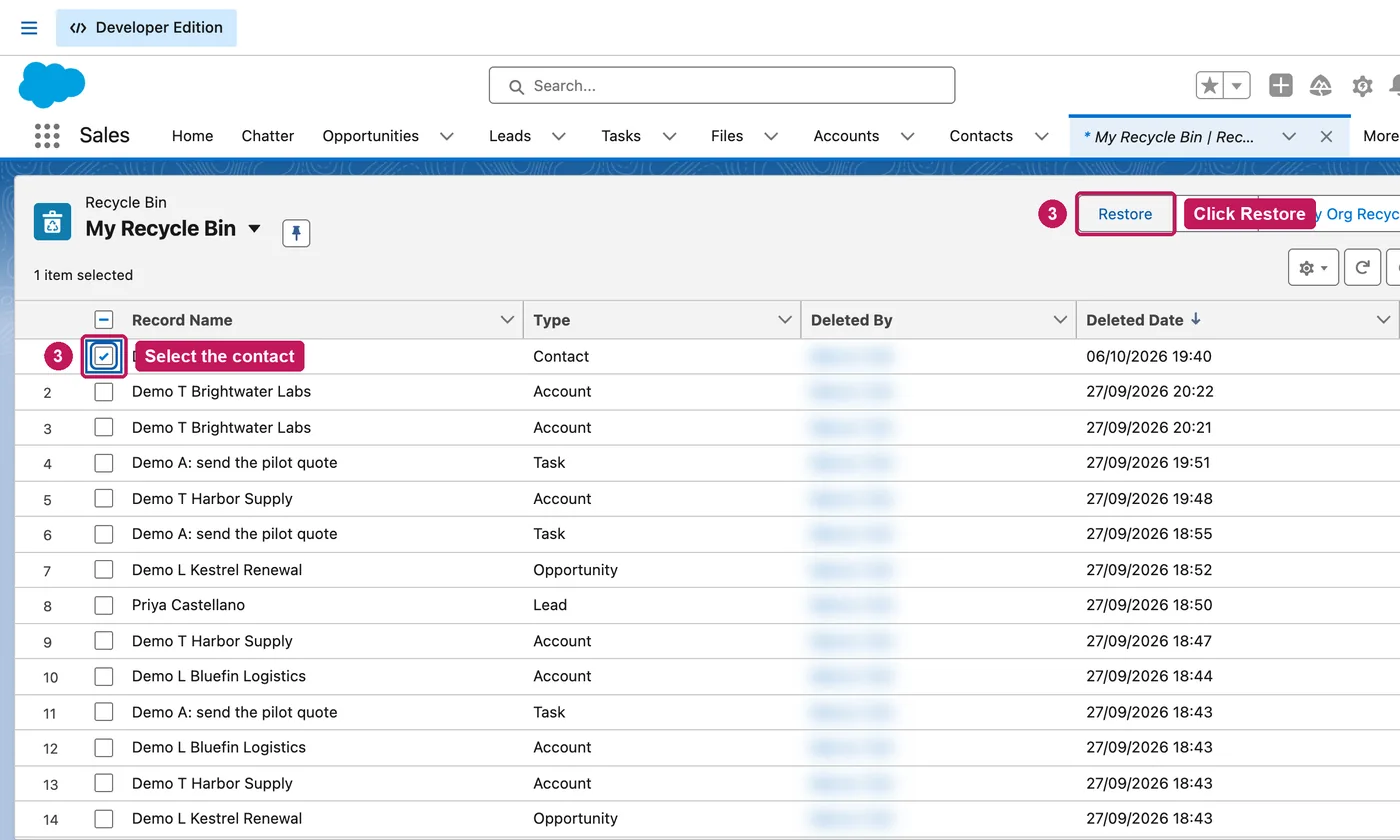
    Salesforce screen for step 3: Select the demo contact, then click Restore.
  4. Open Contacts, find the restored contact and open it to check its details.

Availability depends on the record and your access. This example uses a freshly deleted demo contact.

Source: Salesforce’s Manage the Recycle Bin in Lightning Experience help article, checked 11 October 2026.

Save LinkedIn contacts to Salesforce, and update the ones you already have.

PortifyLead saves the person you are looking at on LinkedIn as a Salesforce contact, after you review the details. It checks for the email first, so a contact you saved before is updated instead of added again.

Free plan available · No card required