Tutorials
Salesforce
How to delete a contact in Salesforce
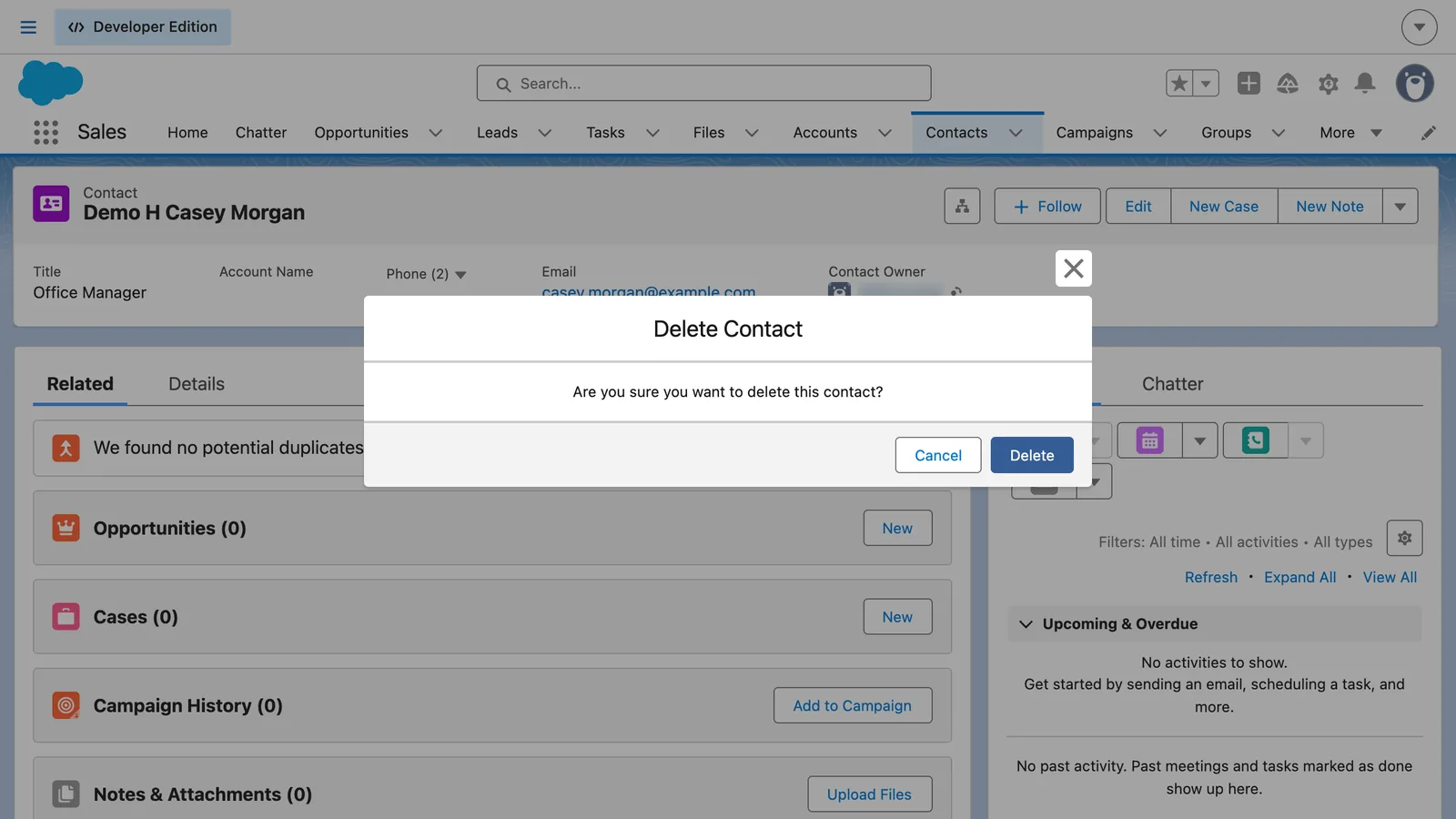
How do I delete a contact in Salesforce?
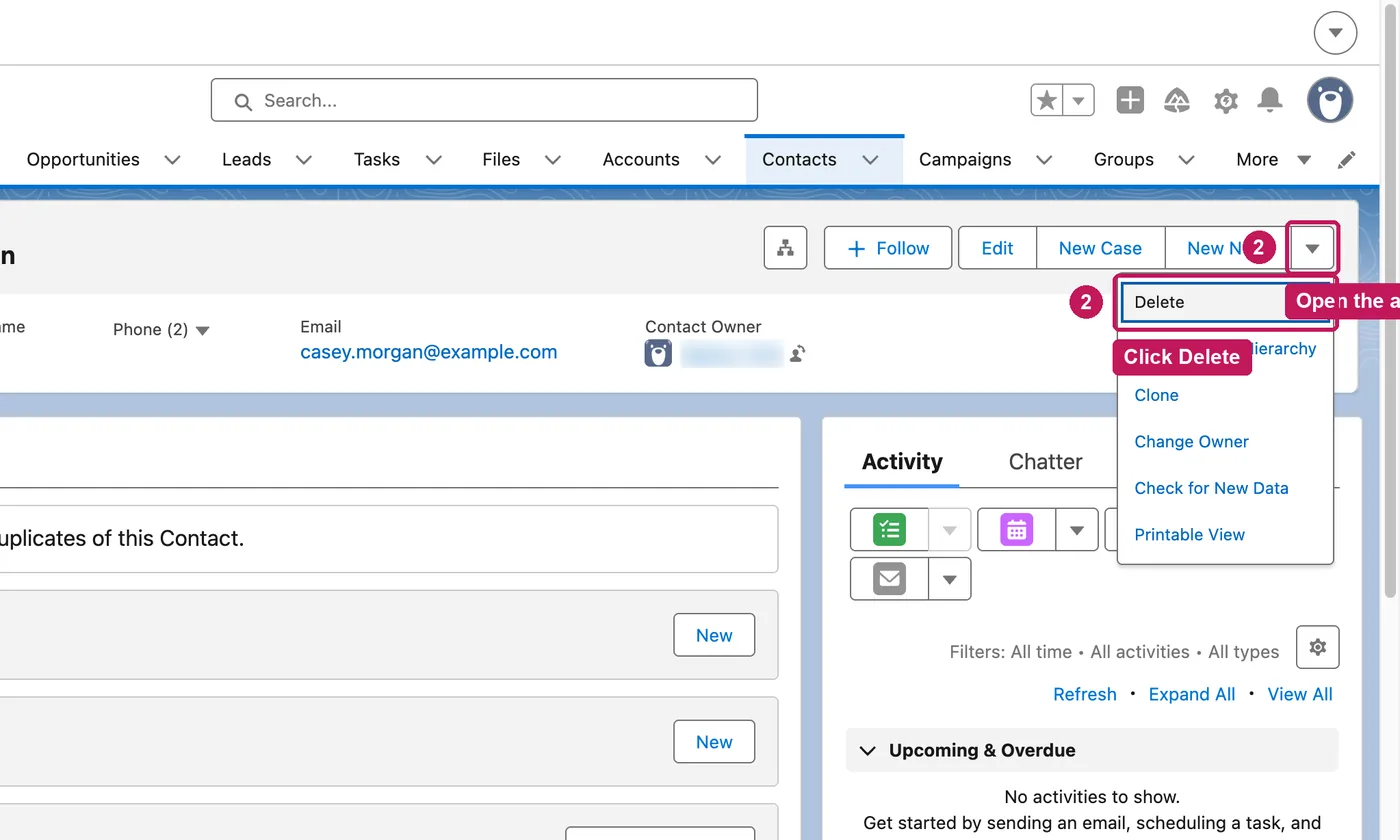
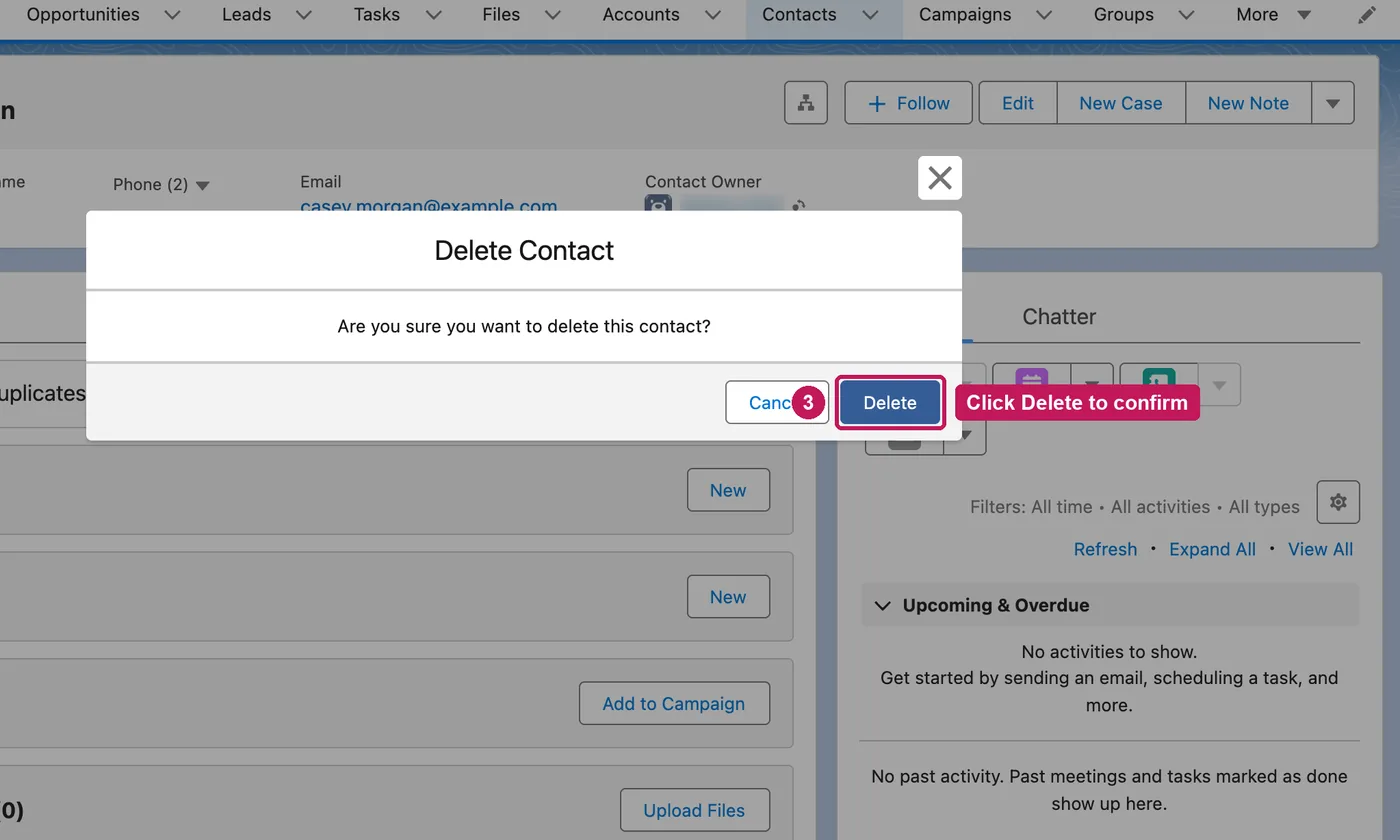
Open the contact, click the arrow at the end of the action buttons, choose Delete, then click Delete again to confirm. The contact moves to the Recycle Bin.
- Open the contact you want to delete.
- Click the arrow next to the action buttons, then Delete.
- Click Delete to confirm.
- The contact moves to the Recycle Bin, where it can be restored.
You can delete a contact if you're an admin, the contact owner, or above the owner in the role hierarchy, and you have Delete permission on contacts. Deleting a contact also deletes its tasks, events, notes, attachments and campaign history, but not its account or opportunities. A contact with cases or contracts can't be deleted. The contact moves to the Recycle Bin, and restoring it restores those records too.
Source: Salesforce’s Considerations for Deleting Contacts help article, checked 27 September 2026.