Help & troubleshooting.
If something below does not solve it, report the problem from inside the extension or the portal — you get a reference code, and it reaches us with the technical context already attached.
Connecting a CRM
Where do I connect my CRM?
In the portal, under Connections. Connecting and disconnecting always happen there — the extension never asks for your CRM credentials, because it never holds them.
My Zoho account is in the EU / India / Australia. Does that work?
Yes. Zoho runs separate datacenters per region, and the connection records which one your organization lives in when you authorize it. Everything afterwards goes to that datacenter. You do not need to configure anything.
The extension says my connection expired.
CRM authorizations can be revoked or time out — by an admin, by a password change, or by a security policy. The extension offers a Reconnect action inside the failed save: reconnect, come back, and retry. Your captured lead is kept while you do.
Salesforce: "app must be installed into org"
If a Salesforce connection fails with an OAuth error like
error=invalid_client and the message app must be installed into org,
Salesforce is blocking the login because the connected app has not been approved inside that
Salesforce org. Nothing is wrong with your account or your password.
Admins can confirm this in Setup → Connected Apps OAuth Usage. When the app appears with a denied attempt and an Install action, Salesforce is asking for an org-level approval before users can continue.
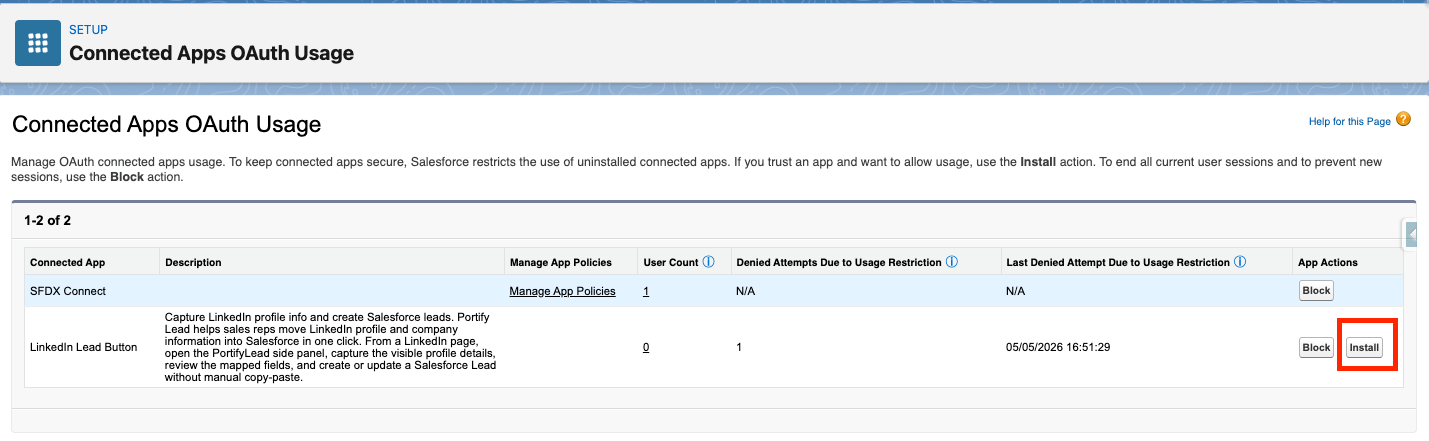
What this means:
- The app is trusted, but not yet approved in that Salesforce org.
- This is an org policy restriction, not a bad password or callback URL issue.
- Some orgs work immediately because the app was already installed or previously approved there.
How to fix it:
- In Salesforce, go to Setup.
- Search for Connected Apps OAuth Usage.
- Find PortifyLead in the list.
- Click Install.
- Retry the connection from the portal's Connections page.
If the app is already installed and you still cannot connect, the next checks are the app's permitted-users policy, assigned access, and any org-level IP or MFA restrictions.
HubSpot and Zoho: permission errors
If HubSpot or Zoho reports that your account is not allowed to create records, the connection itself is fine — the CRM user you authorized with does not have create permission on Contacts (HubSpot) or Leads (Zoho). Ask your CRM administrator to grant it, then try the save again. You do not need to reconnect.
Saves your CRM rejects
"A field your CRM requires is empty"
Your CRM requires a field that the LinkedIn profile did not provide, or that is not mapped yet. Fill it in before saving, or map it once on the portal's Field Mapping screen. That screen also warns you up front when a required field has no mapping.
"Your CRM flagged this as a possible duplicate"
Your CRM has its own duplicate rule and it matched. Update the existing record instead, or adjust the rule in your CRM. Portifylead.com's own duplicate check runs before this, matching on email only — a CRM rule may match on more.
"A company page can't be saved on its own" (HubSpot)
HubSpot's primary record is a Contact, which is a person. A company page has no person on it, so there is nothing to create. Open someone's profile at that company and save them instead. Salesforce and Zoho save company pages as Leads, and Capsule saves them as organisations, so this applies to HubSpot only.
The save seemed to hang and I clicked again.
That is safe. A retry of a save that already reached your CRM is recognized as the same attempt and confirmed rather than sent twice, so an interrupted confirmation does not create a duplicate.
Capturing profiles
"Refresh the LinkedIn profile page and try again"
The extension was updated or reloaded while that tab was already open. Reload the LinkedIn tab once and the capture works again.
Email and phone are empty.
Those come from the profile's own contact info, and many members do not share them with people outside their network. The save still works — it just skips the duplicate check, since there is no email to match on.
Plan and account
I've used up my free saves.
The free allowance resets on the 1st of each month (UTC). Your captured lead is kept on screen when you hit the limit — upgrade and save it, or come back after the reset.