Tutorials
Salesforce
How to import contacts into Salesforce with the Data Import Wizard
How do I import contacts into Salesforce with the Data Import Wizard?
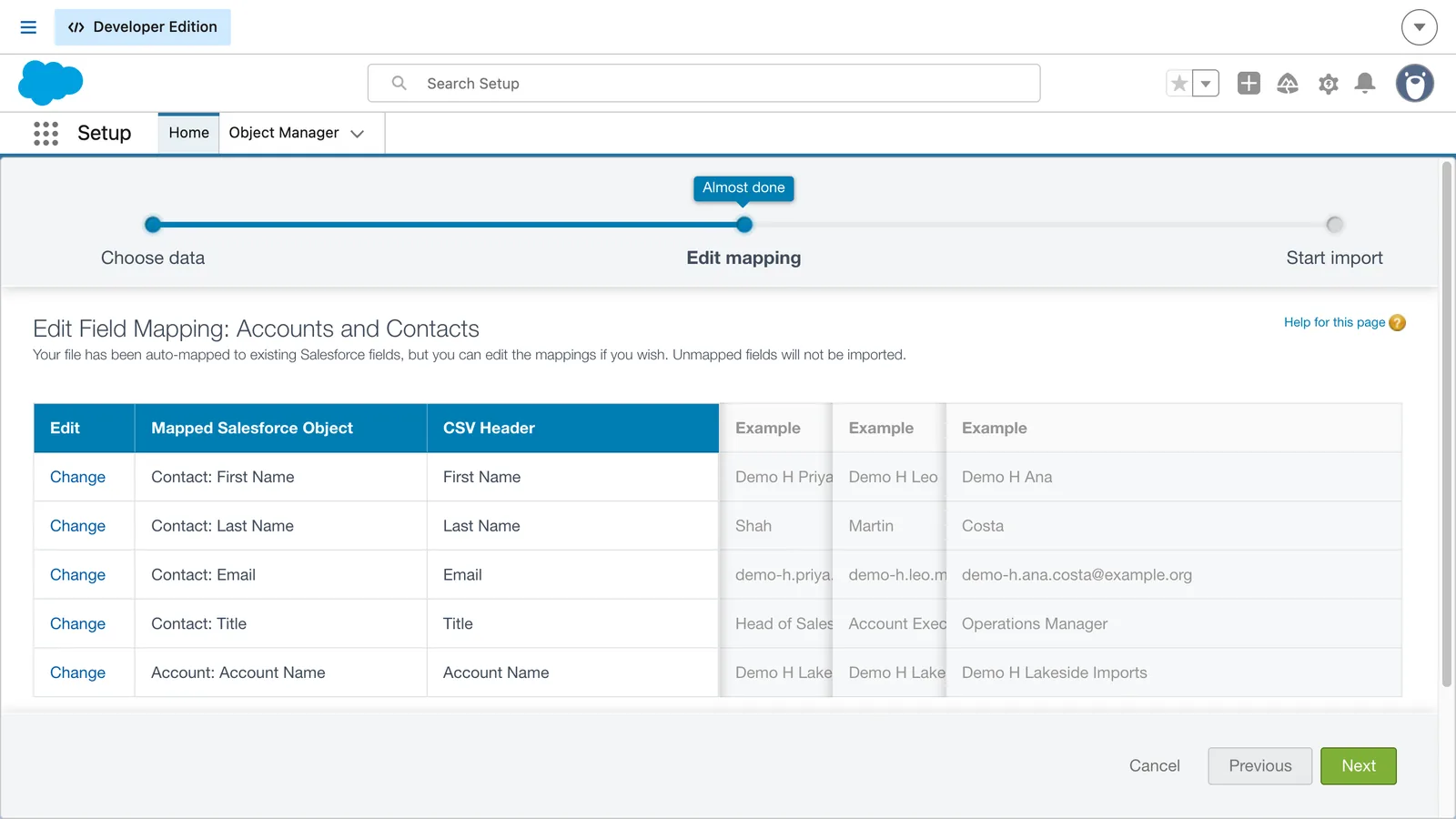
In Contacts, click Import to open the Data Import Wizard. Choose Accounts and Contacts, pick whether to add new records, update existing ones or both, and upload your CSV file. Check the field mapping, click Next, then Start Import.
- Prepare a CSV file with a header row and one contact per row, such as First Name, Last Name, Email and Account Name.
- In Contacts, click Import to open the Data Import Wizard.
- Choose Accounts and Contacts, then Add new and update existing records.
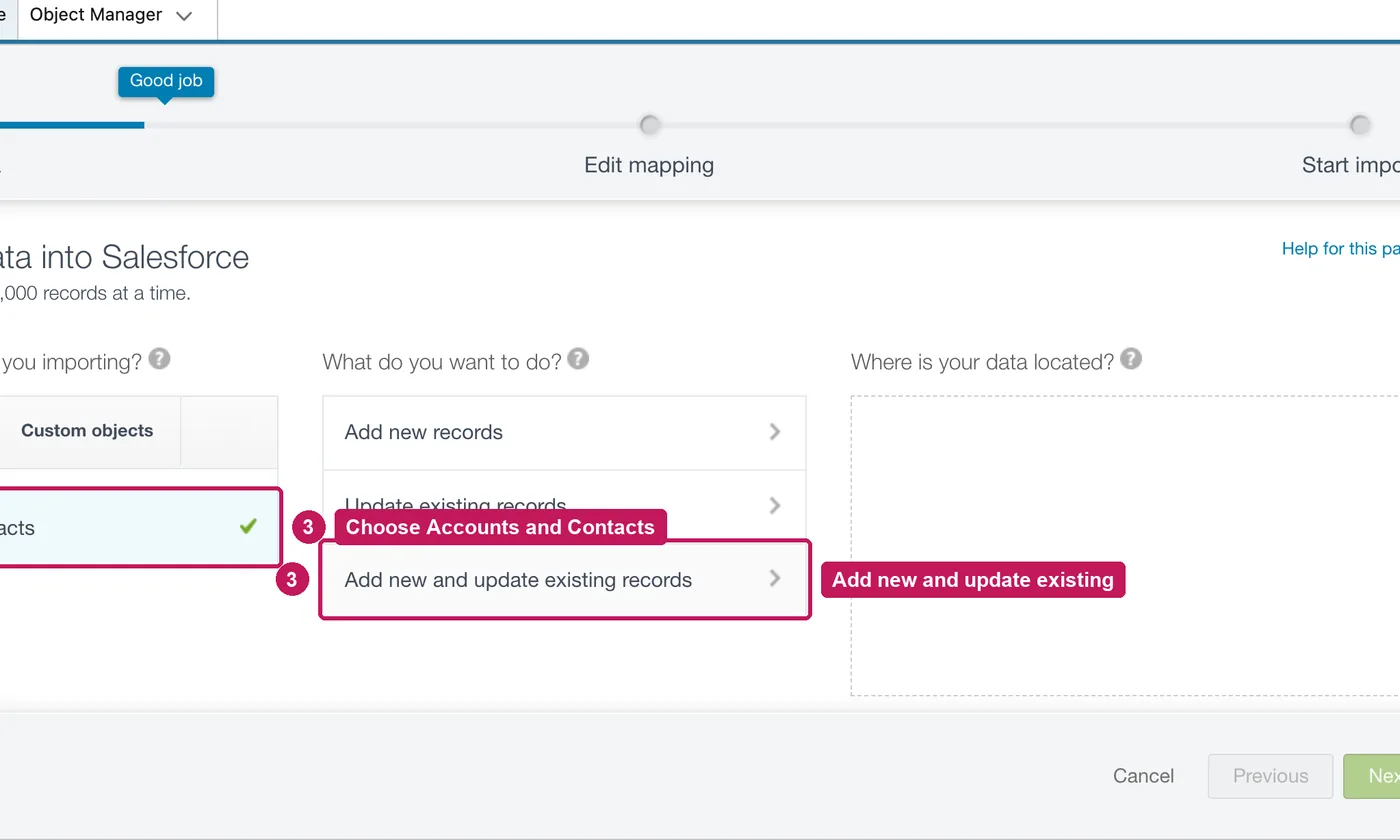
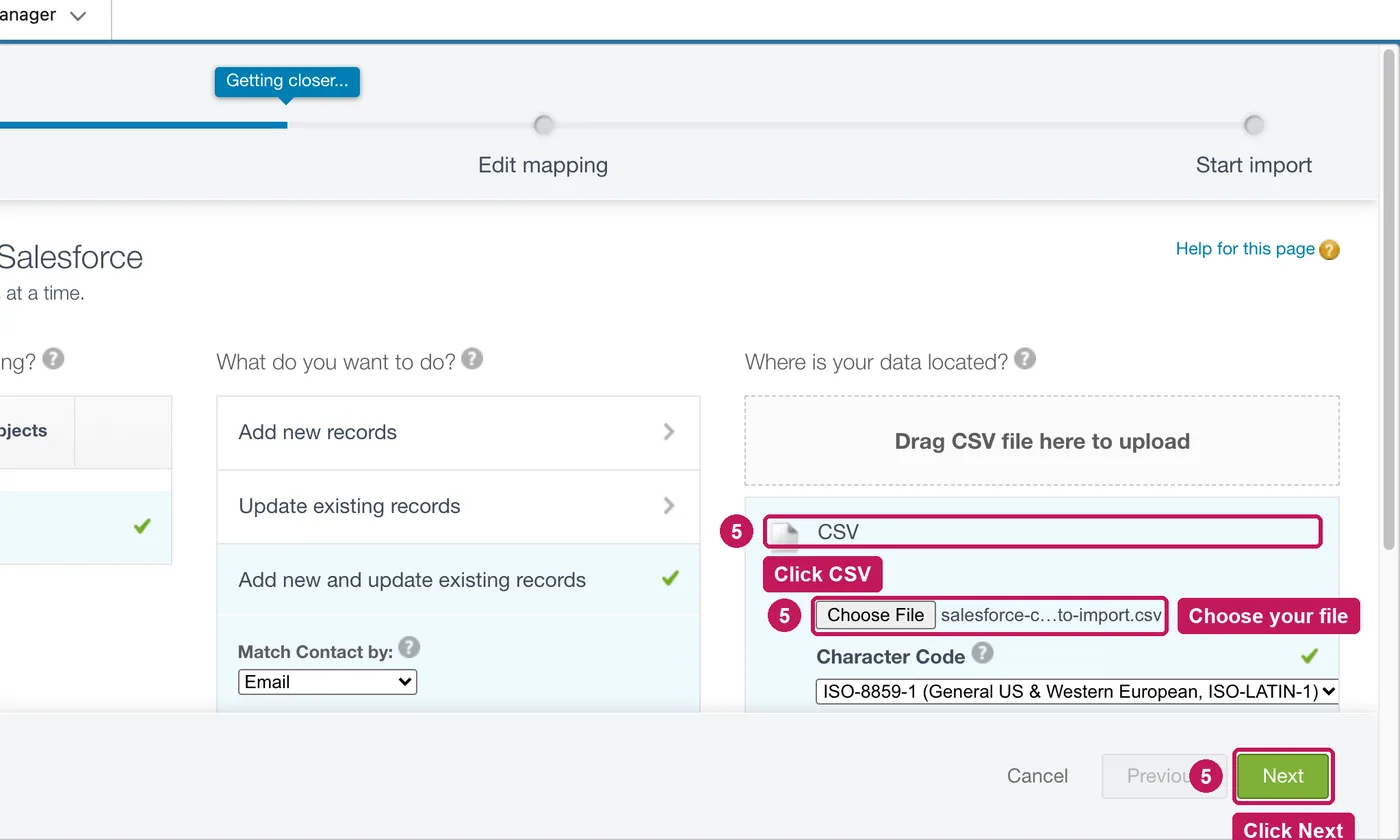
- Under Match Contact by, choose how to recognise existing contacts, such as Email.
- Click CSV, choose your file, and click Next.
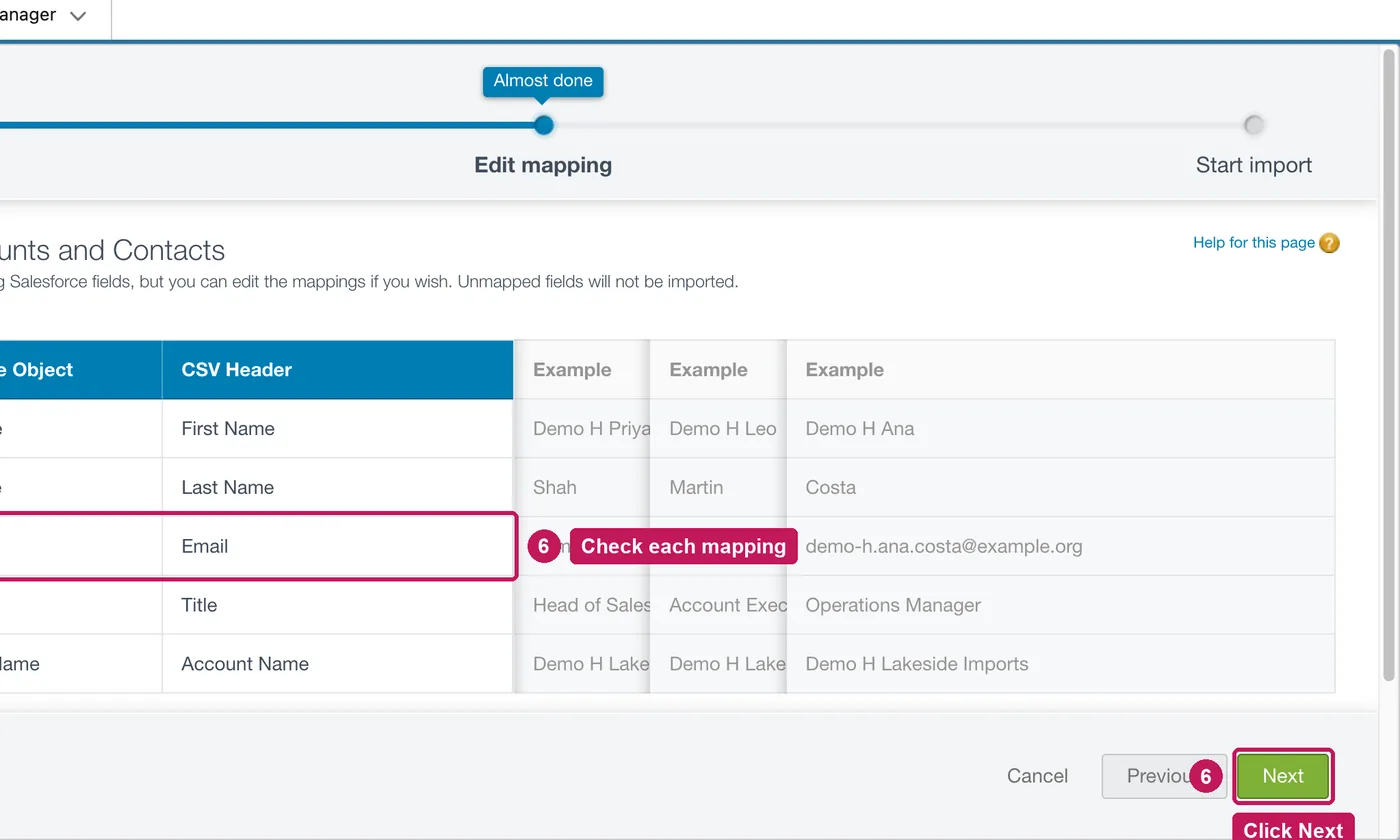
- Check that each column maps to the right field, using Change to fix one, then click Next.
- Review the import and click Start Import.
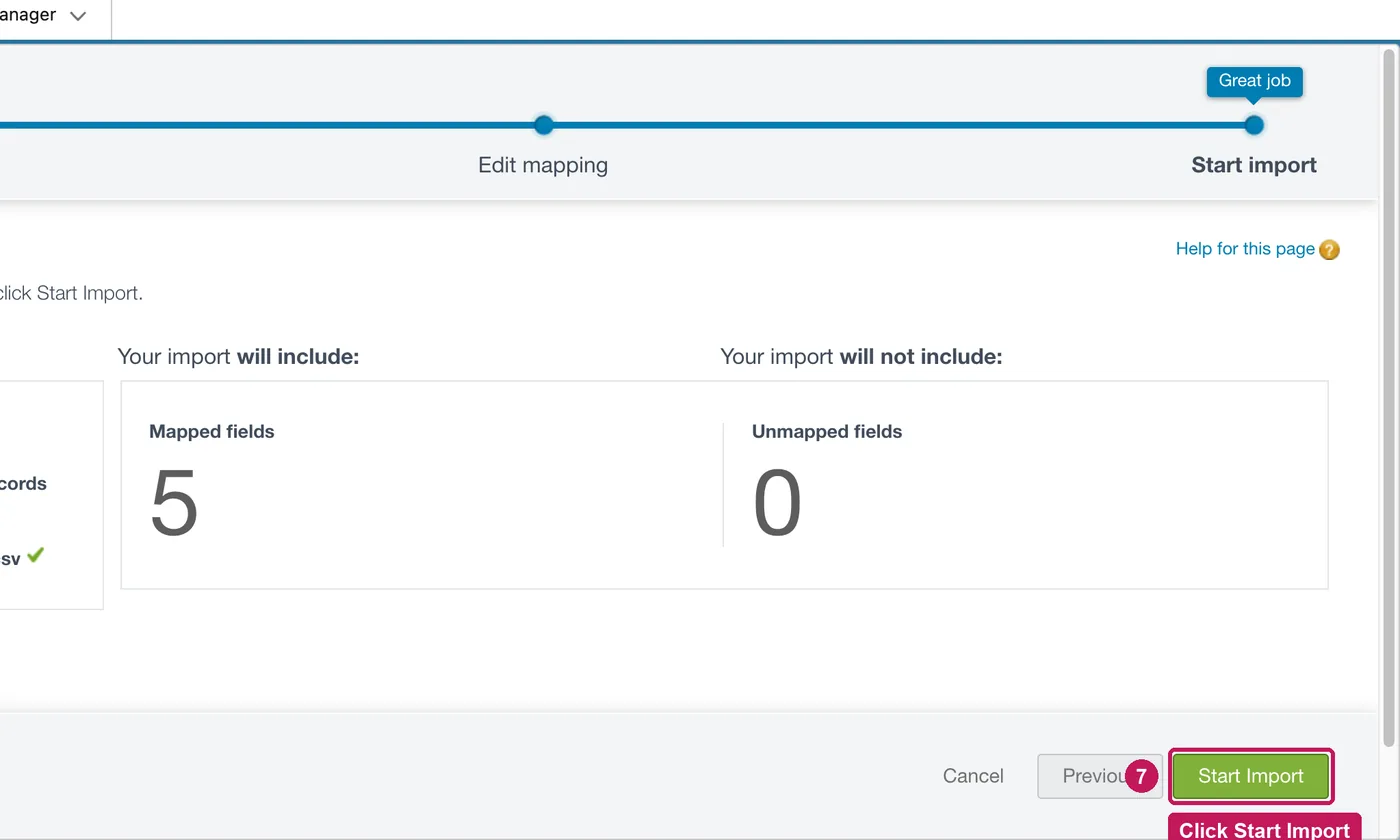
- The import runs in the background. OK opens its status on the Bulk Data Load Job page.
The Data Import Wizard imports accounts, contacts, leads, solutions, campaign members, person accounts and custom objects, up to 50,000 records at a time. It accepts only CSV files. Salesforce recommends testing a small file first, and running only one import job at a time.
Source: Salesforce’s Data Import Wizard help article, checked 26 September 2026.