Tutorials HubSpot

How to create a task in HubSpot
By PortifyLead · Updated 26 September 2026
HubSpot screen from the video: The task is on the contact and in your Tasks list.
The steps below in 39 seconds, recorded in a HubSpot test account. The video loads from YouTube when you press play.

How do I create a task in HubSpot?

Open the contact, click Task under their name, type what needs doing, set the type, due date and priority, and click Create. The task shows on the contact and in your Tasks list.

  1. Open the contact the task is about.
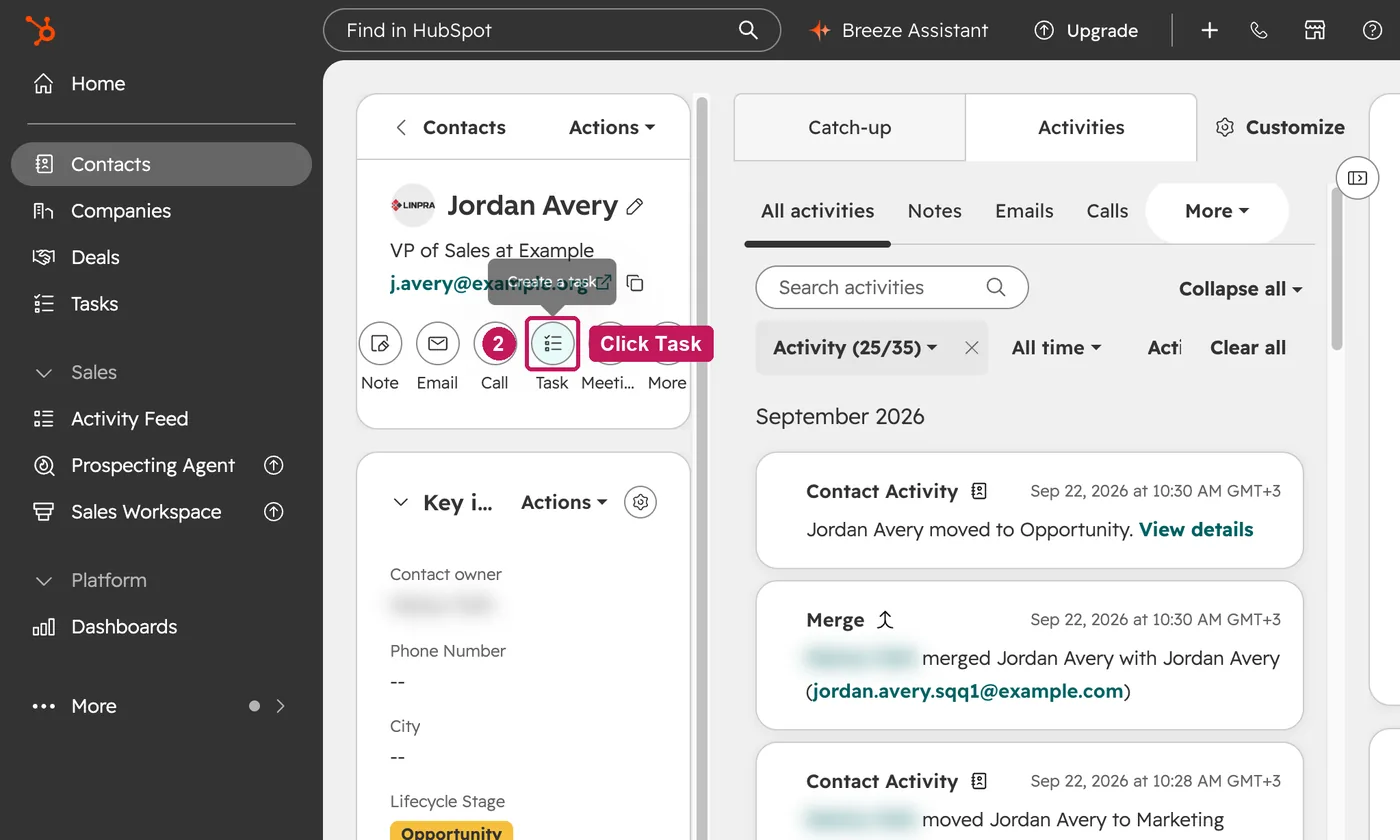
  2. Under the contact's name, click Task.
    HubSpot screen for step 2: Under the contact's name, click Task.
  3. Type what needs doing.
  4. Check the due date, then set Task type, for example to Call.
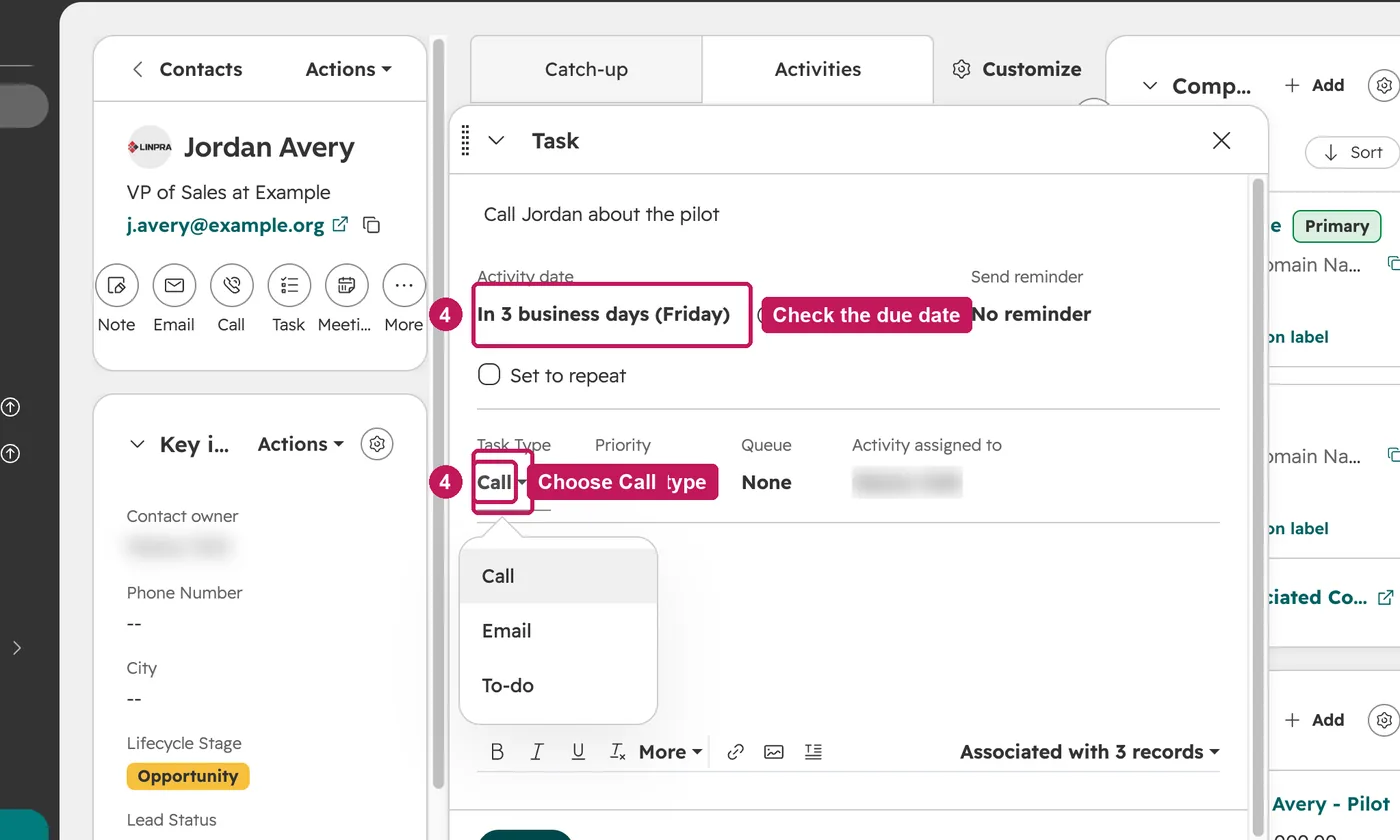
    HubSpot screen for step 4: Check the due date, then set Task type, for example to Call.
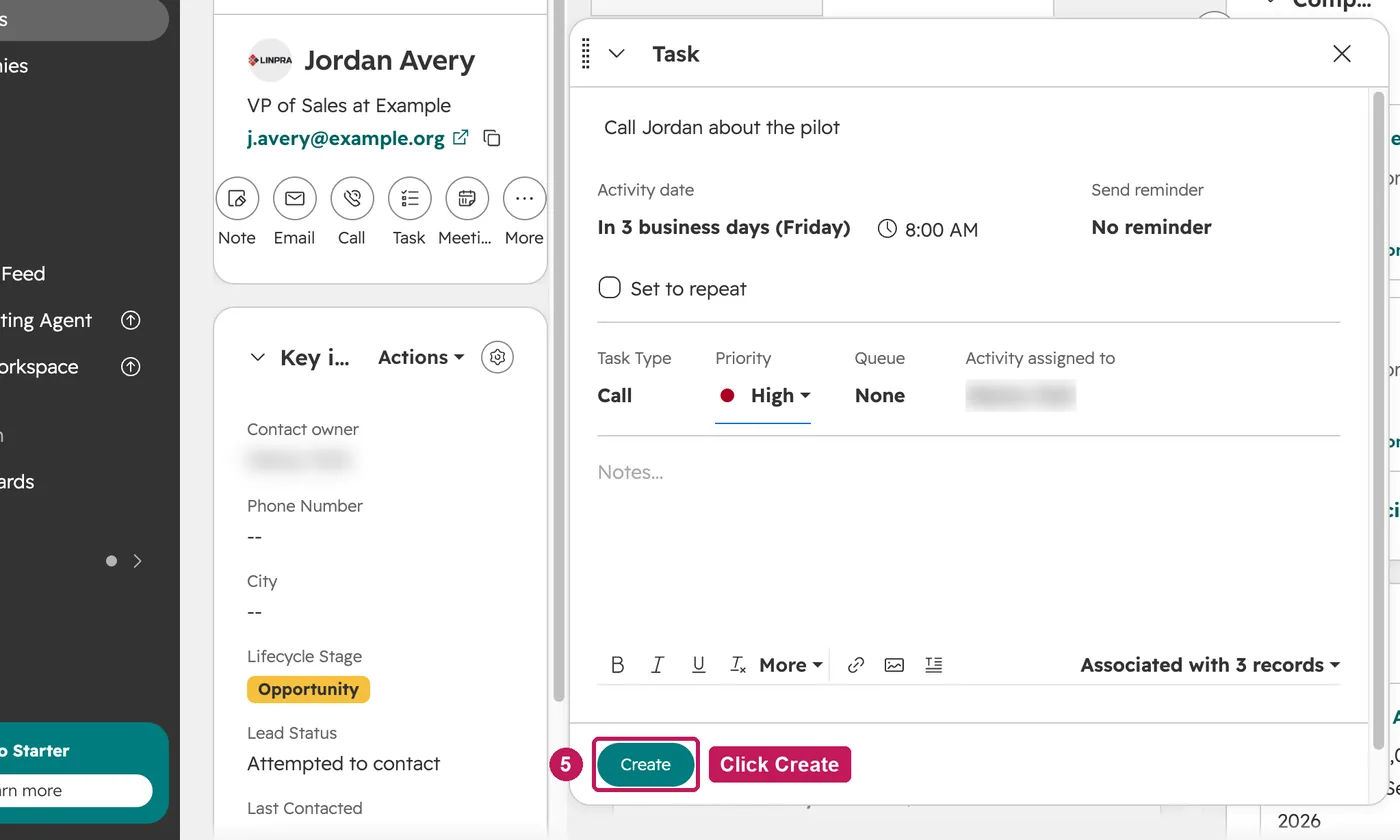
  5. Set the priority and click Create.
    HubSpot screen for step 5: Set the priority and click Create.
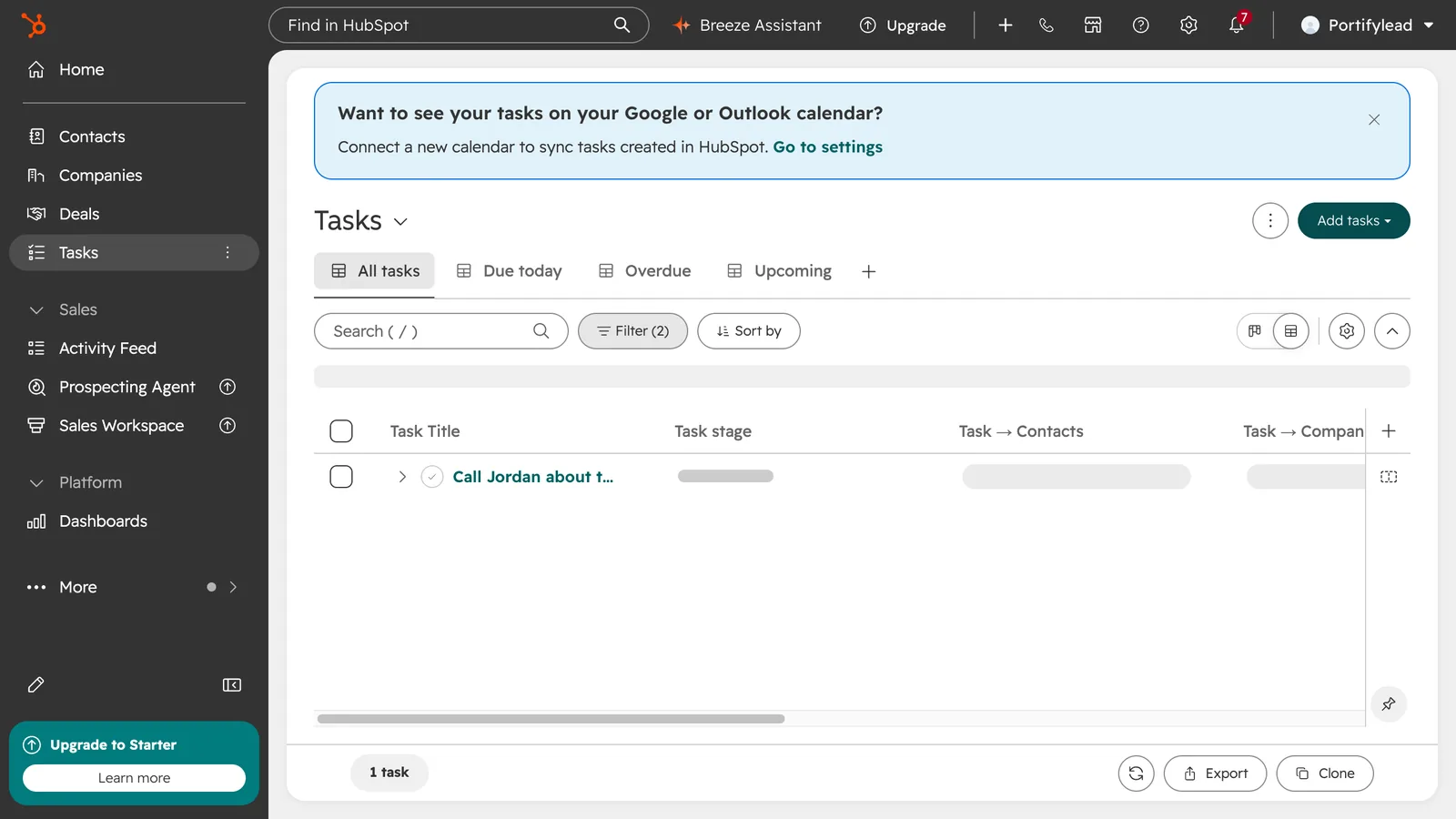
  6. The task is on the contact and in your Tasks list.
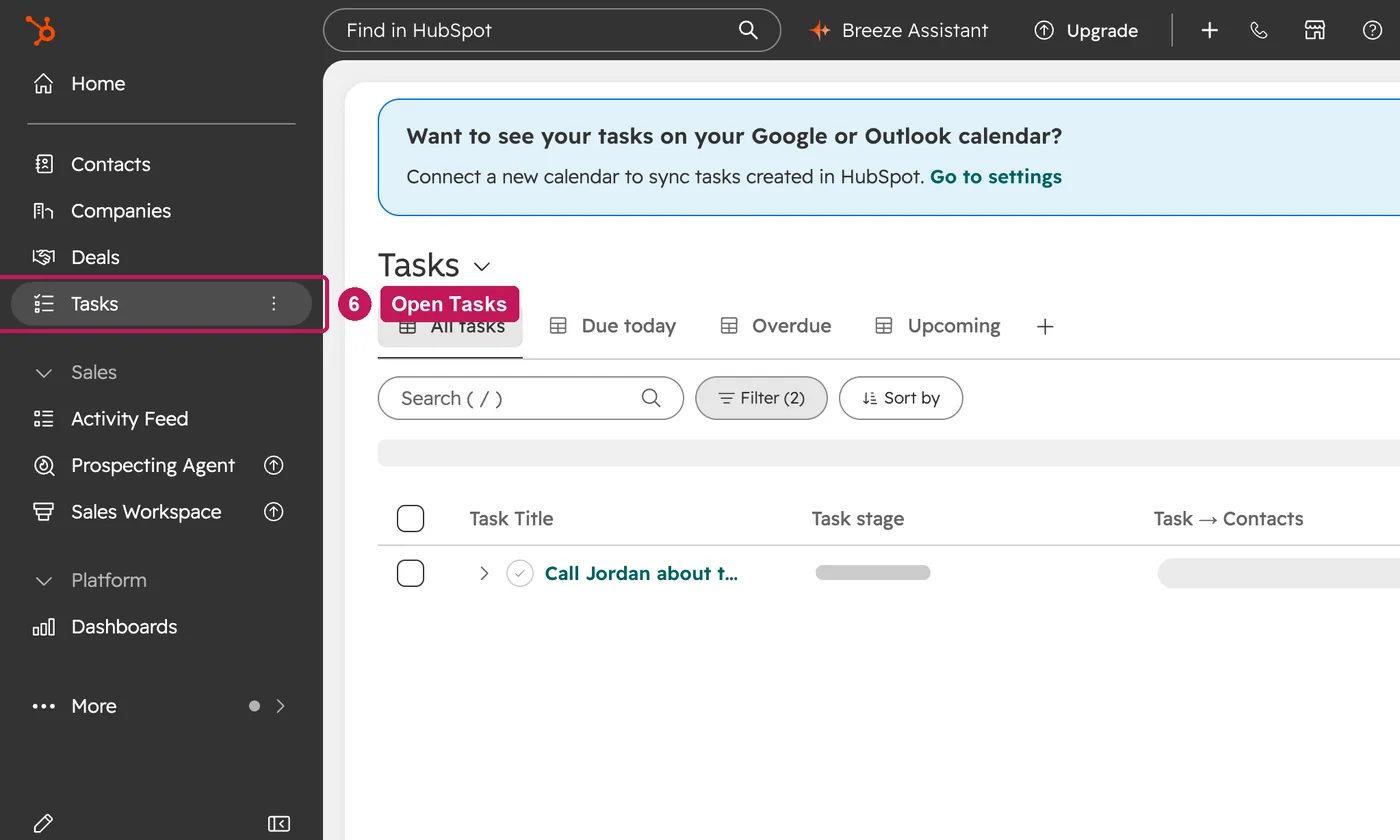
    HubSpot screen for step 6: The task is on the contact and in your Tasks list.

A task's type is Call, Email or To-do, and its priority low, medium or high. How far ahead a new task is due by default is a personal setting, under Profile & Preferences, then Tasks. Every task also appears under CRM, then Tasks.

Source: HubSpot’s Create tasks help article, updated 18 June 2026, checked 26 September 2026.

Save LinkedIn contacts to HubSpot, and update the ones you already have.

PortifyLead saves the person you are looking at on LinkedIn as a HubSpot contact, after you review the details. It checks for the email first, so a contact you saved before is updated instead of added again.

Free plan available · No card required