Tutorials
HubSpot
How to import contacts into HubSpot
How do I import contacts into HubSpot?
Go to Contacts, click Add contacts, then Import. Choose Import data and Quick import, upload your CSV or Excel file, check how its columns match HubSpot's properties, and click Finish import.
- Prepare a CSV or Excel file with one row per contact and a header row, such as First name, Last name and Email.
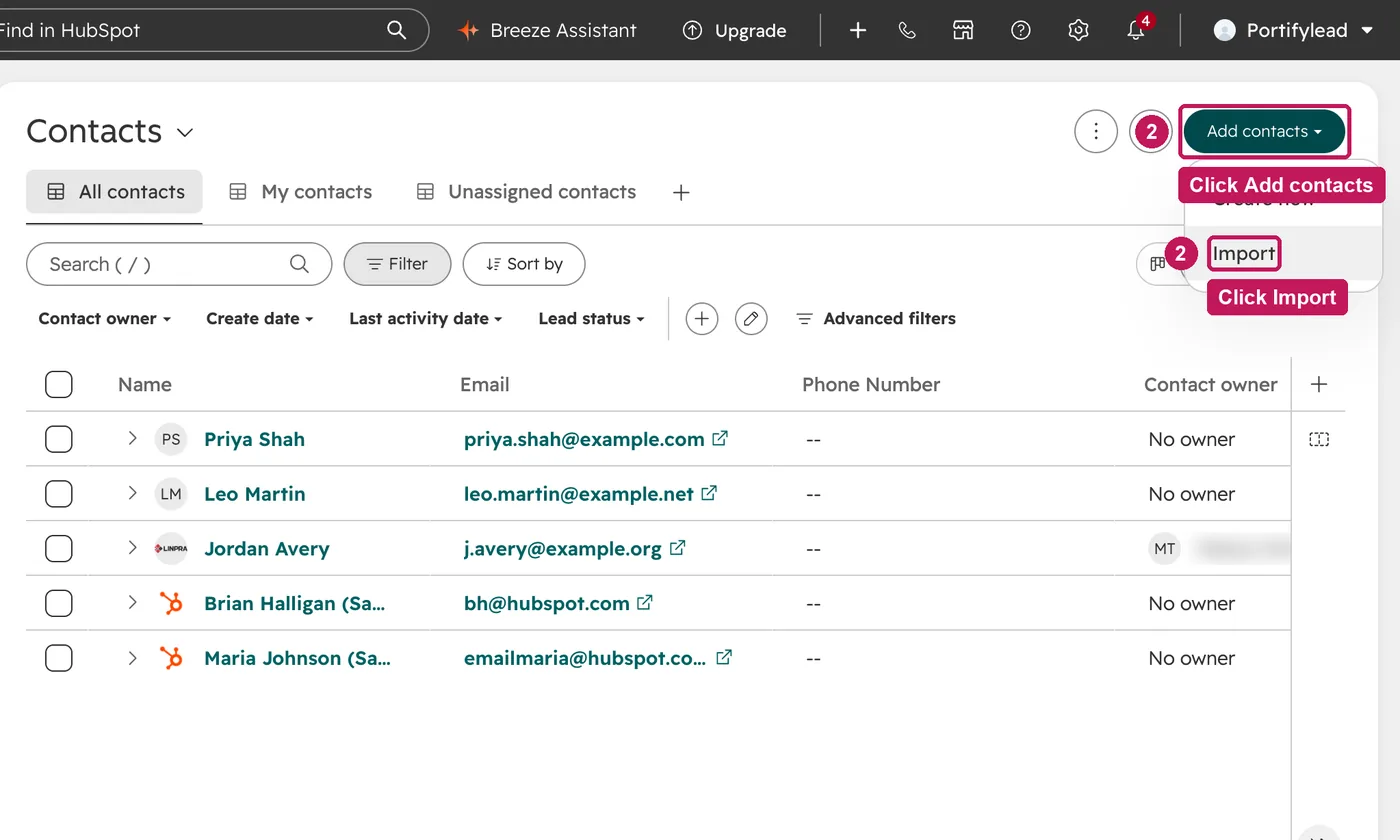
- In Contacts, click Add contacts, then Import.
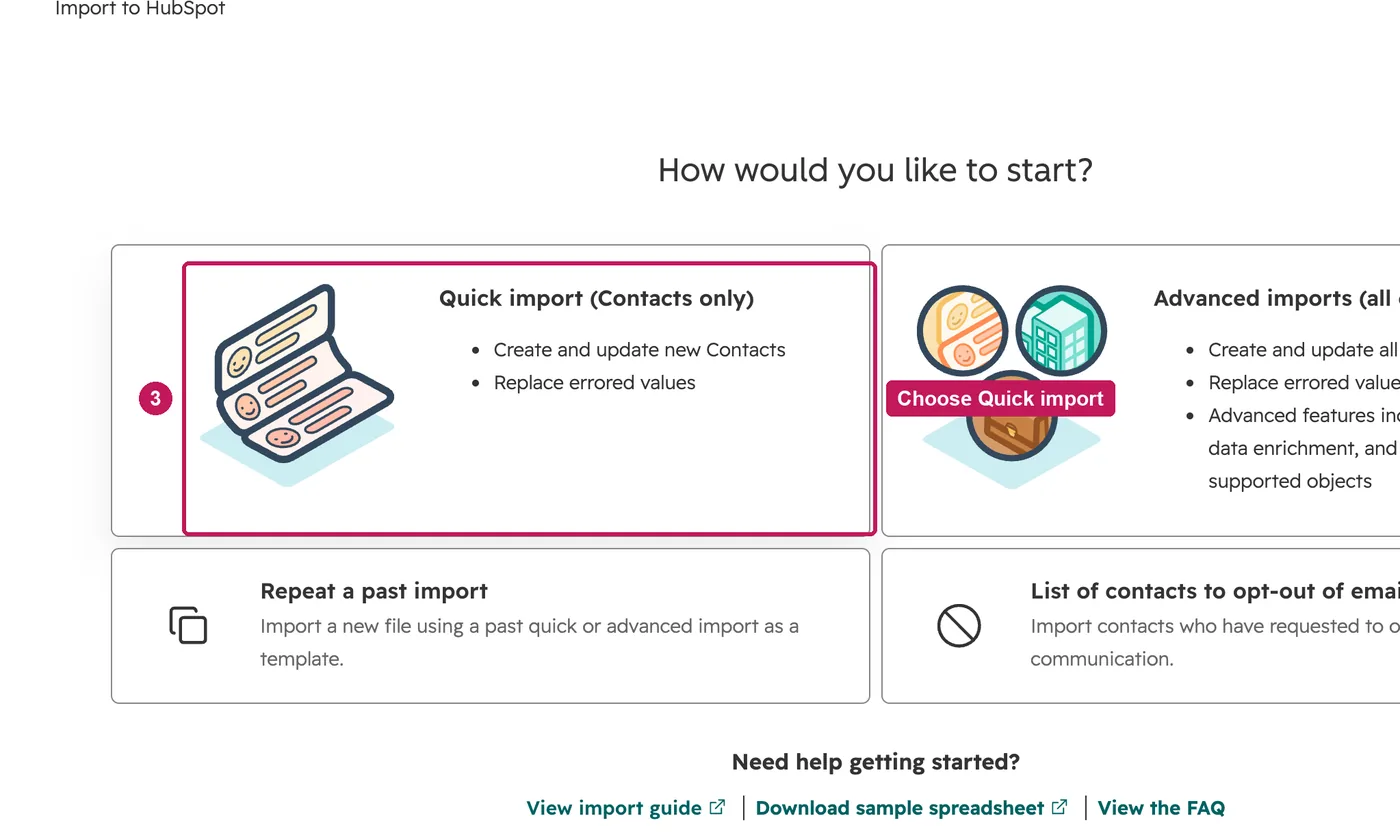
- Click Import data, then Quick import.
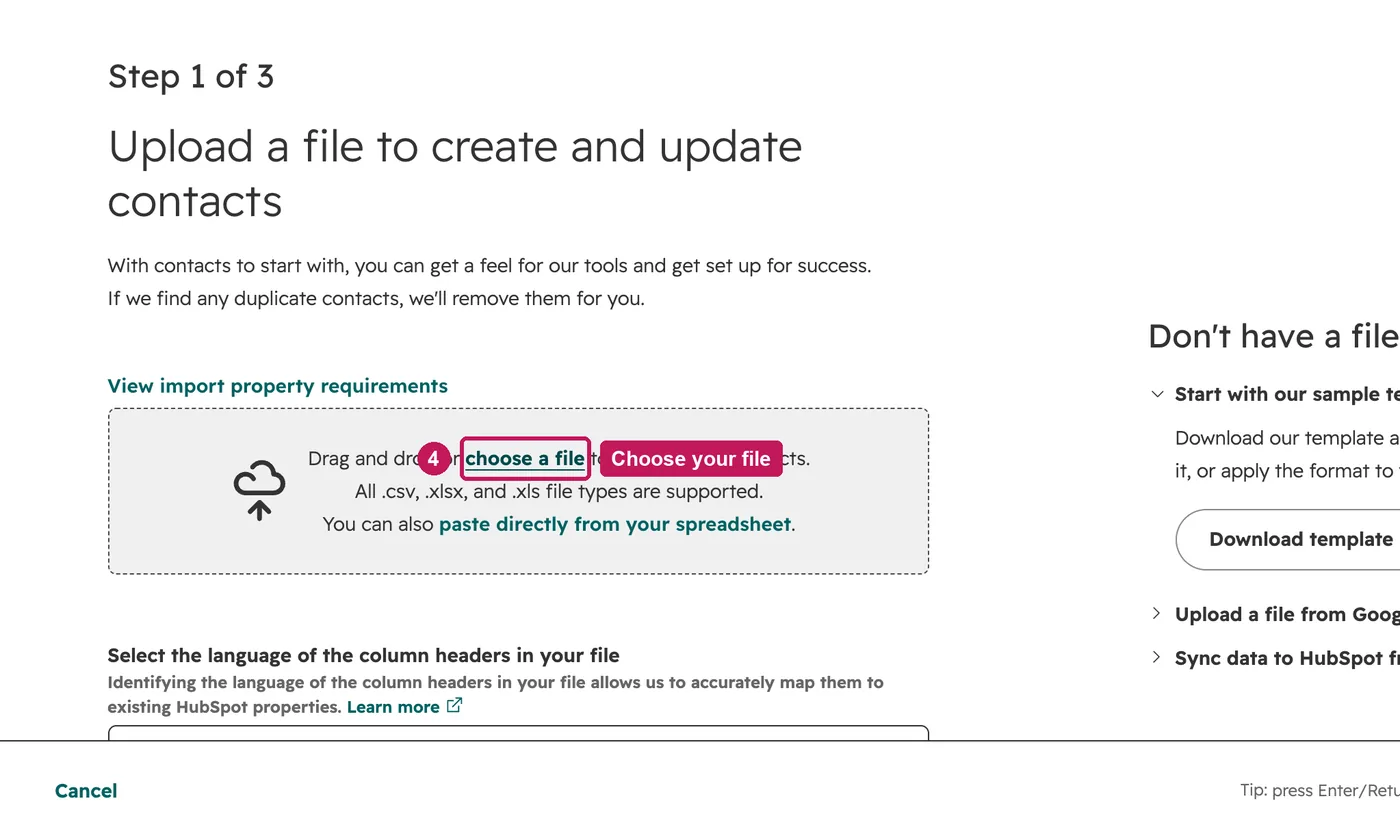
- Upload your file and click Next.
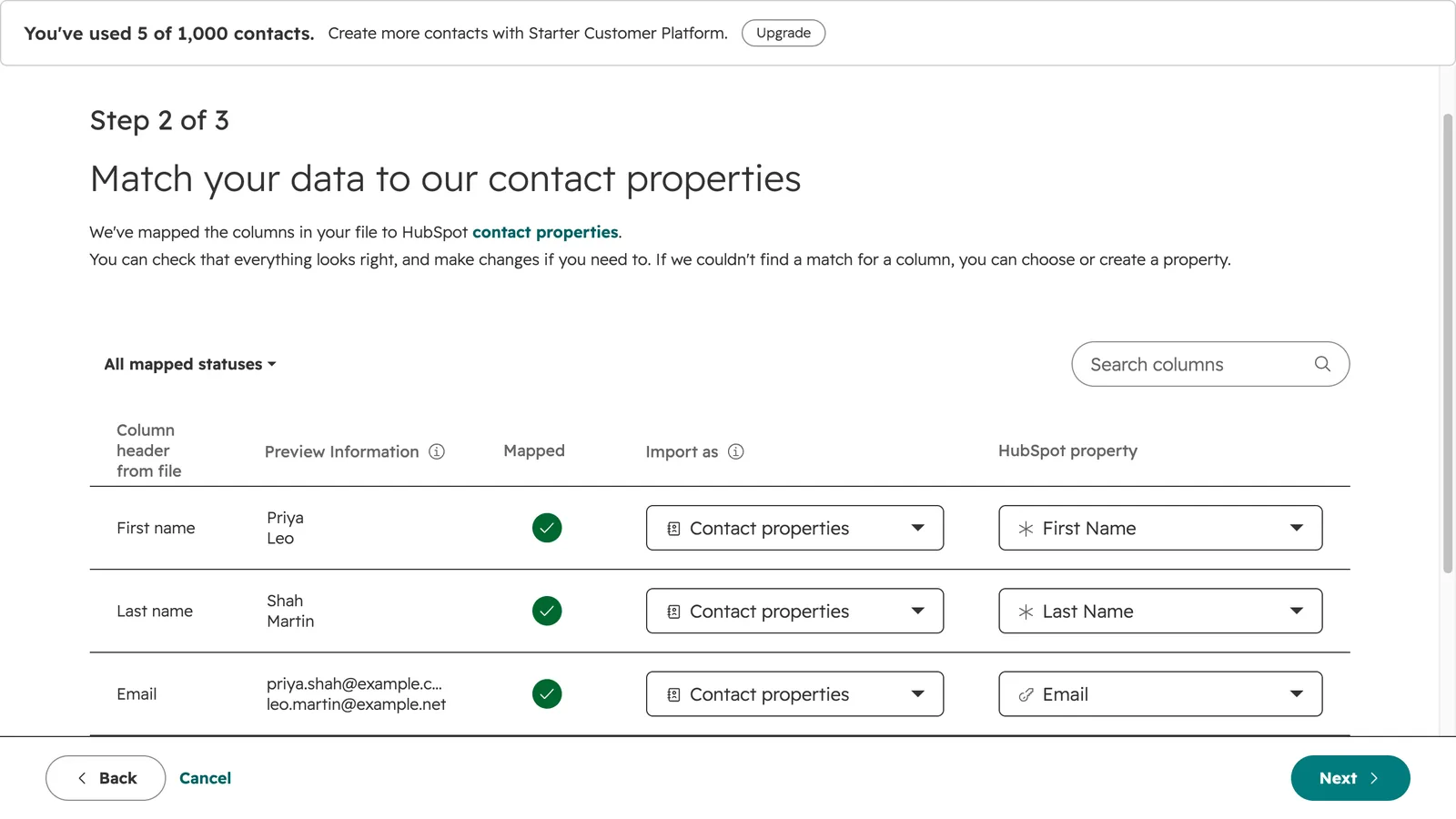
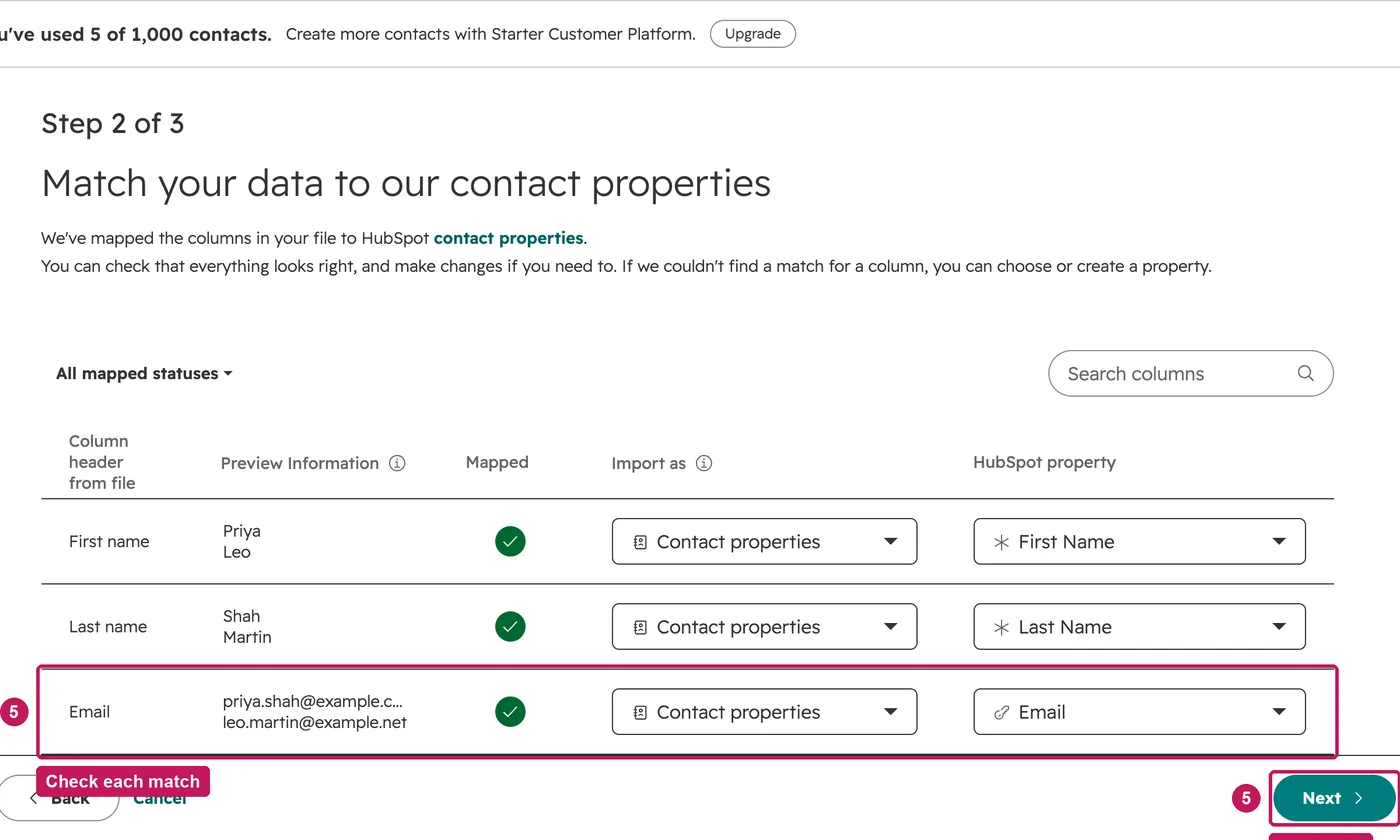
- Check that each column is matched to the right contact property, then click Next.
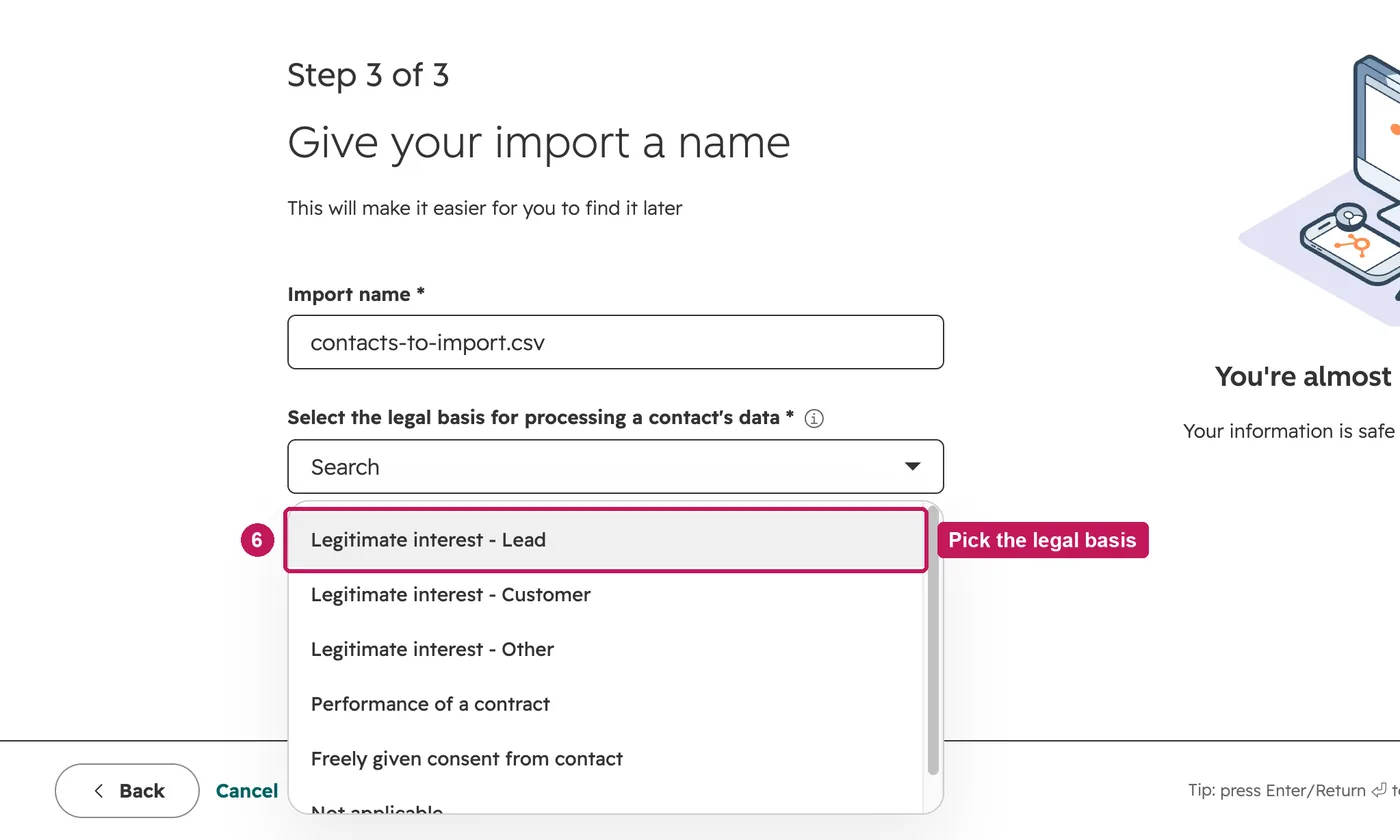
- Name the import. With GDPR switched on, also pick the legal basis for processing.
- Click Finish import. The summary links to the imported contacts.
The file must be a .csv, .xlsx or .xls file with a header row and one contact per row. Include an email column: HubSpot uses it to update contacts you already have instead of adding them again. On the free plan a file can be up to 20MB. Importing needs the Import permission.
Source: HubSpot’s Import contacts with quick import help article, updated 22 July 2026, checked 26 September 2026.