Tutorials
HubSpot
How to use the deal pipeline in HubSpot
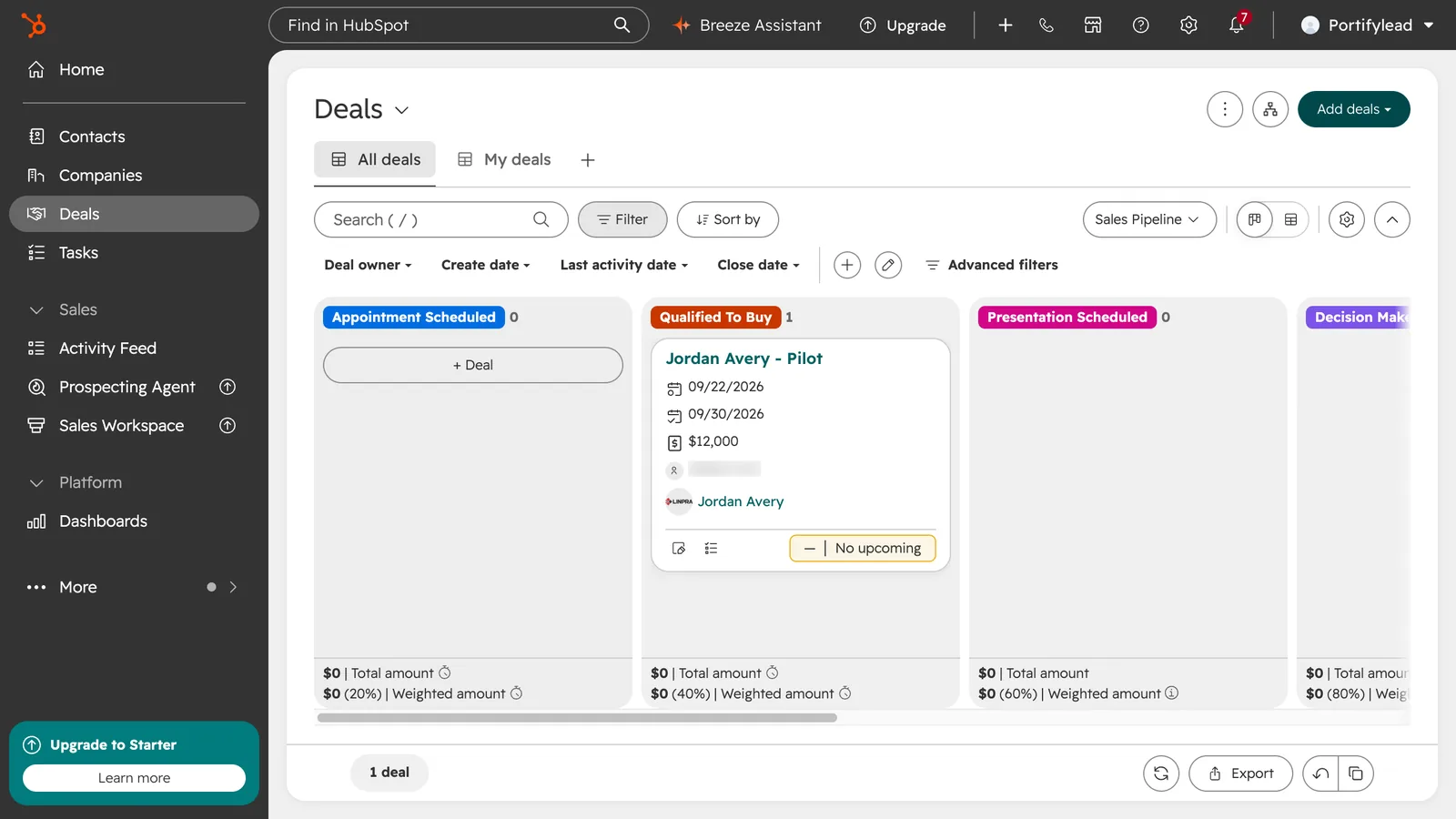
How do I create a deal and move it through the pipeline?
Go to Deals, click Add deals, then Create new. Name the deal, add the amount, associate the contact and click Create. On the board, drag the deal to the next stage as it moves forward.
- Go to CRM, then Deals. The board has one column per pipeline stage.
- Click Add deals, then Create new.
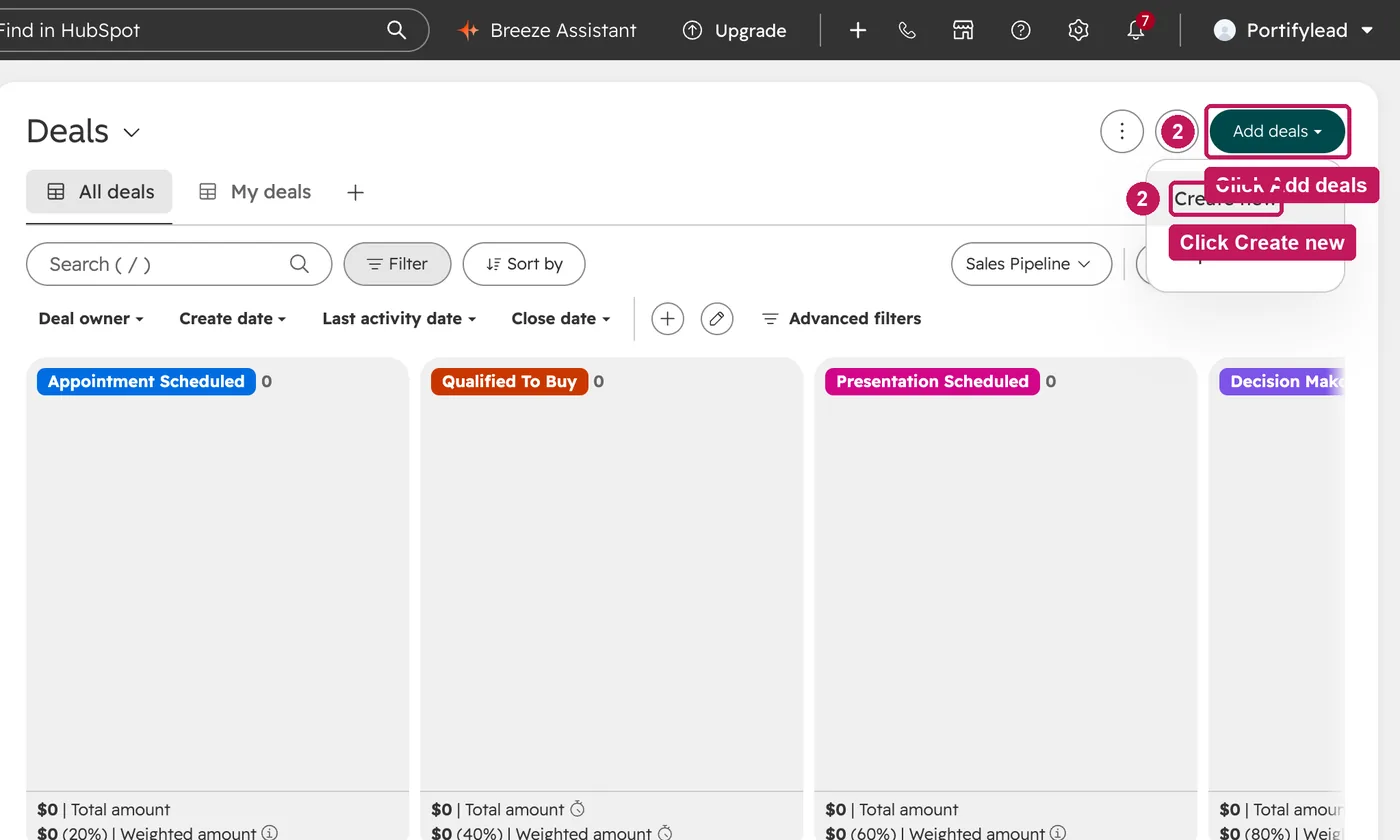
- Name the deal and add the amount.
- Check the starting stage, then search for the contact to associate.
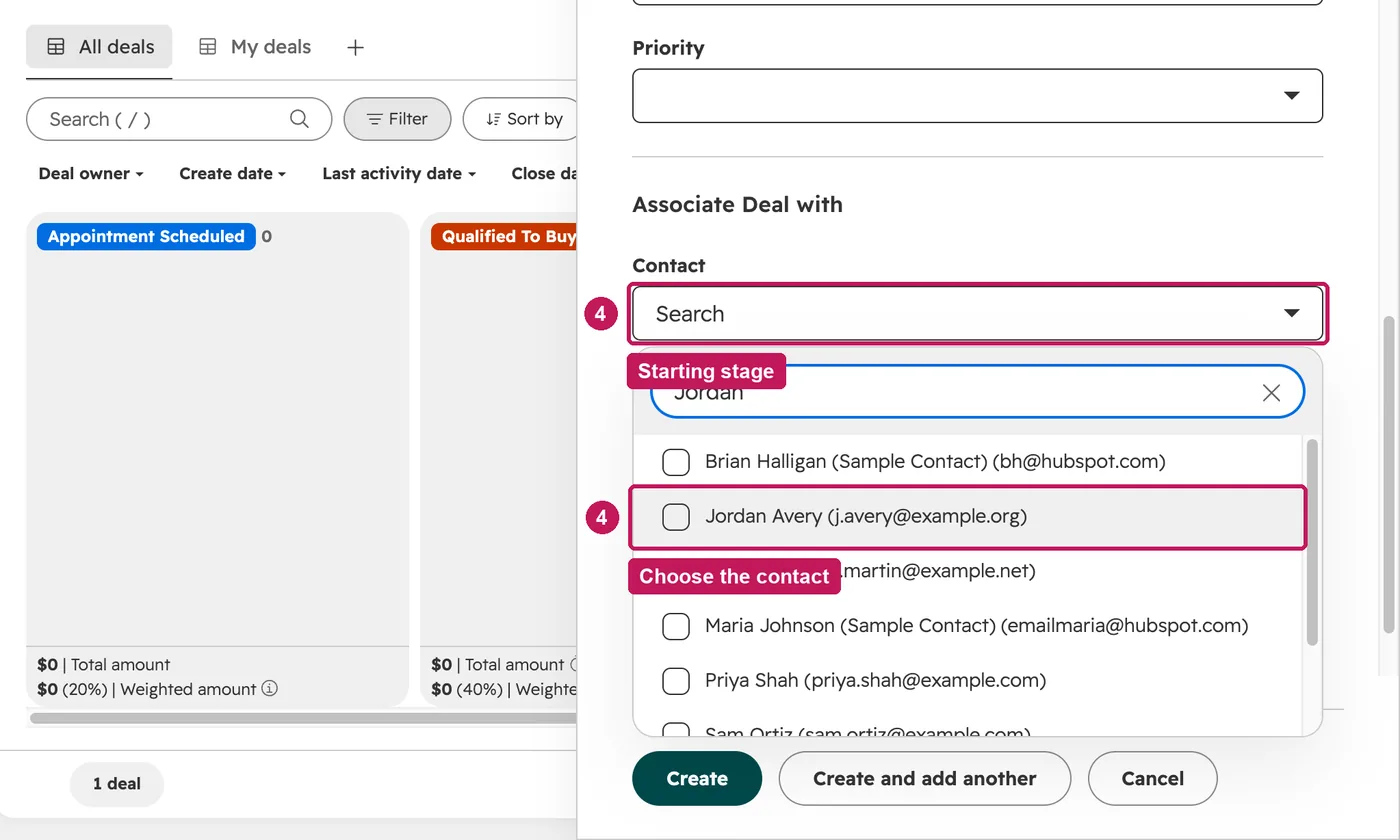
- Click Create. HubSpot opens the new deal; go back to Deals to see it on the board.
- As the deal progresses, drag it to the next stage.
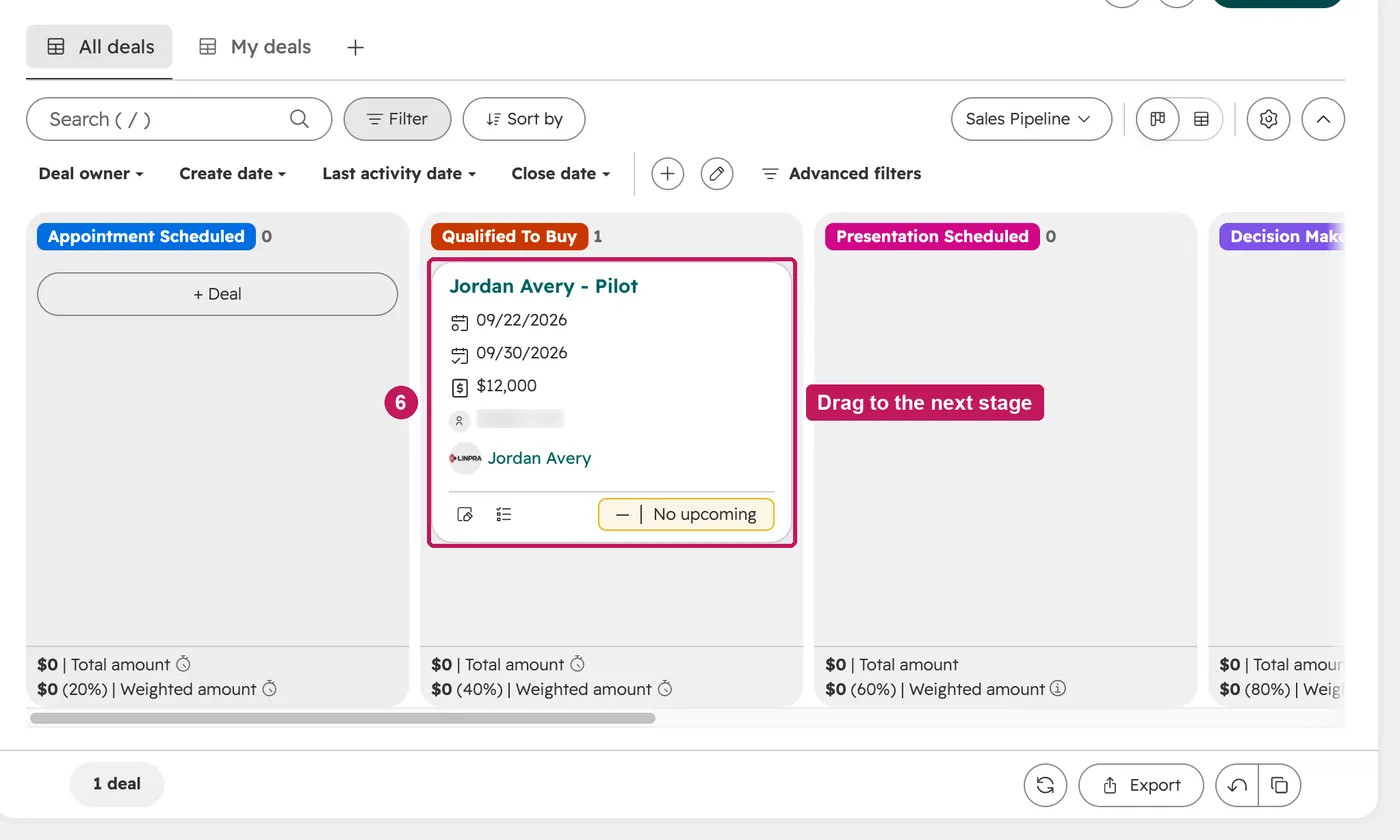
The free plan has one pipeline, the default Sales Pipeline, whose stages run from Appointment scheduled (20%) through Qualified to buy (40%), Presentation scheduled (60%), Decision maker bought-in (80%) and Contract sent (90%) to Closed won and Closed lost. A column's weighted amount is its total amount multiplied by that stage's probability.
Source: HubSpot’s Set up and customize pipelines help article, updated 8 September 2026, checked 26 September 2026.