HubSpot CRM tutorial for beginners
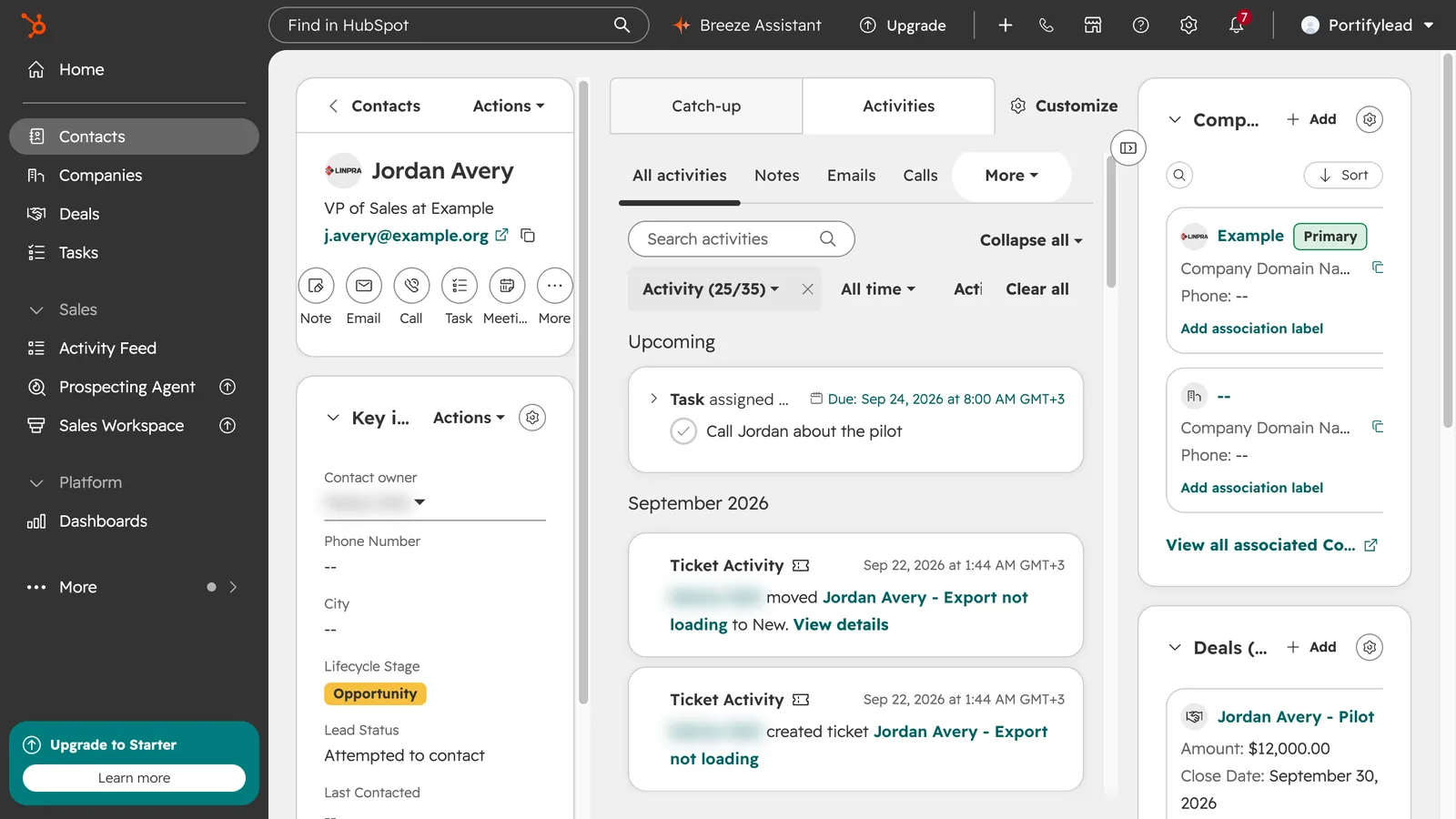
How do I find my way around the HubSpot CRM?
Contacts, Companies, Deals and Tasks sit in the left navigation. Each opens a table with saved views as tabs above it. Open a record to see its properties on the left, its activity in the middle and its associated records on the right. New records start from the Add button at the top right of each table.
- In the left navigation, find Contacts, Companies, Deals and Tasks.
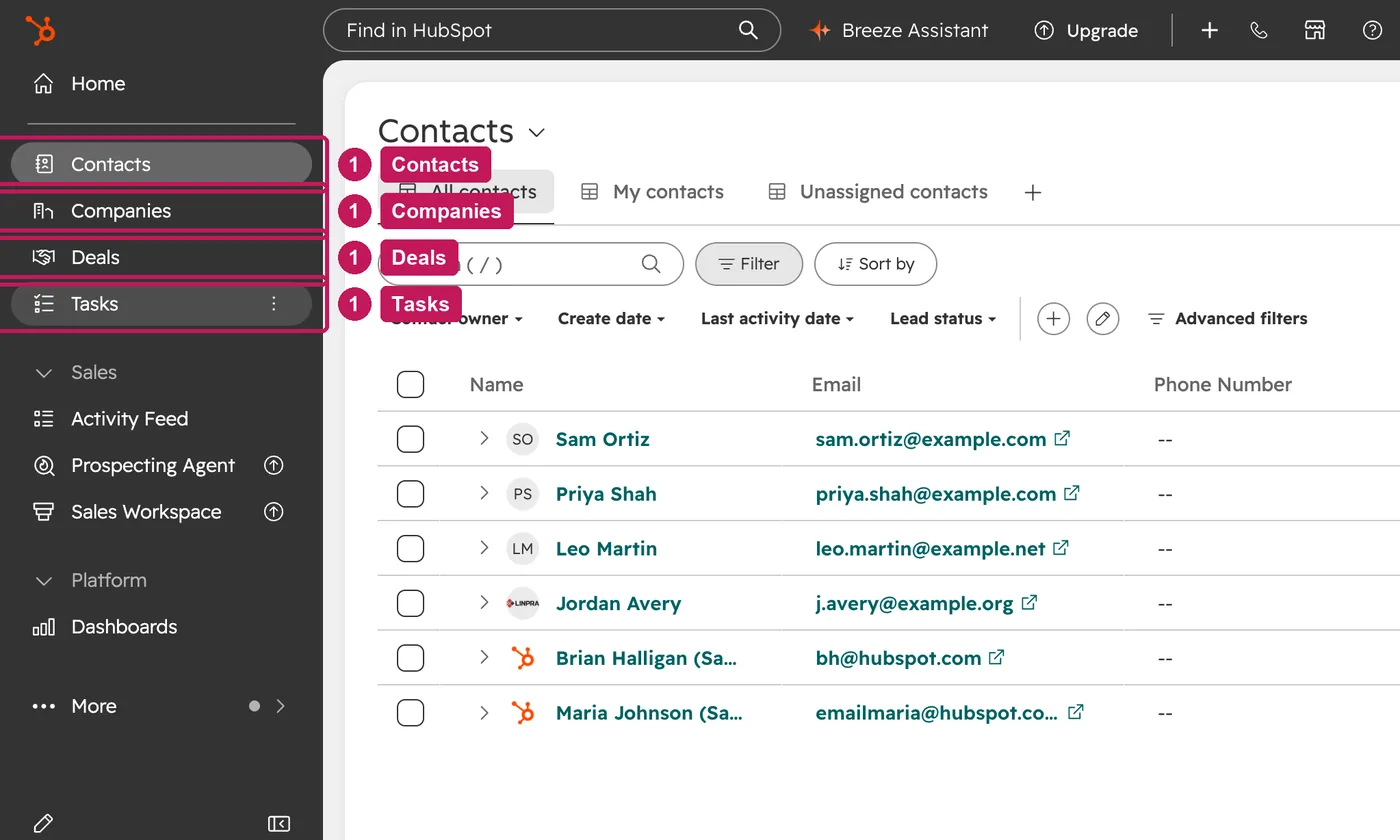
- The tabs above the table are saved views. Click one, such as My contacts, to switch.
- On All contacts, search the table or use Filter to narrow it down.
- Click a name to open the record: properties on the left, activity in the middle, associations on the right.
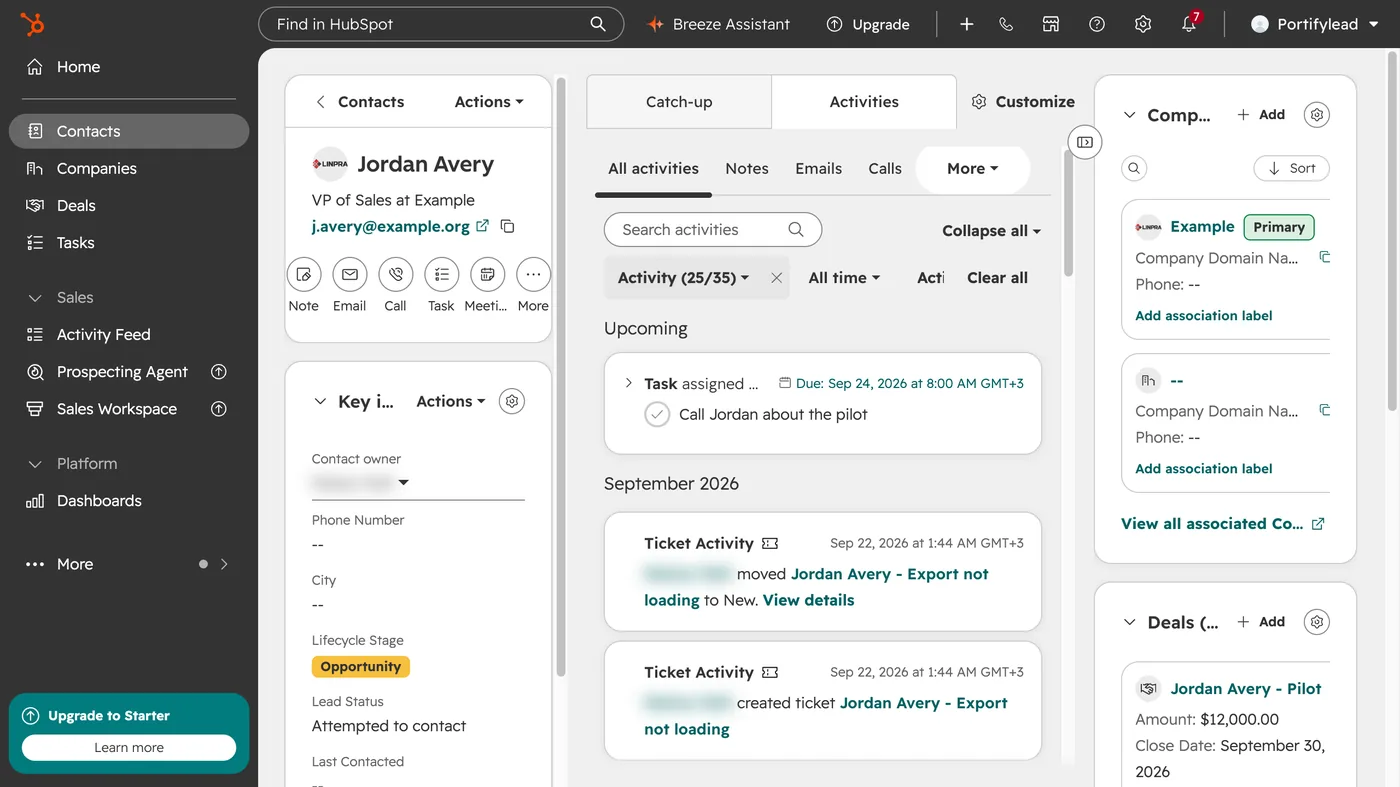
- The left panel shows the contact's details, activity buttons and key properties.
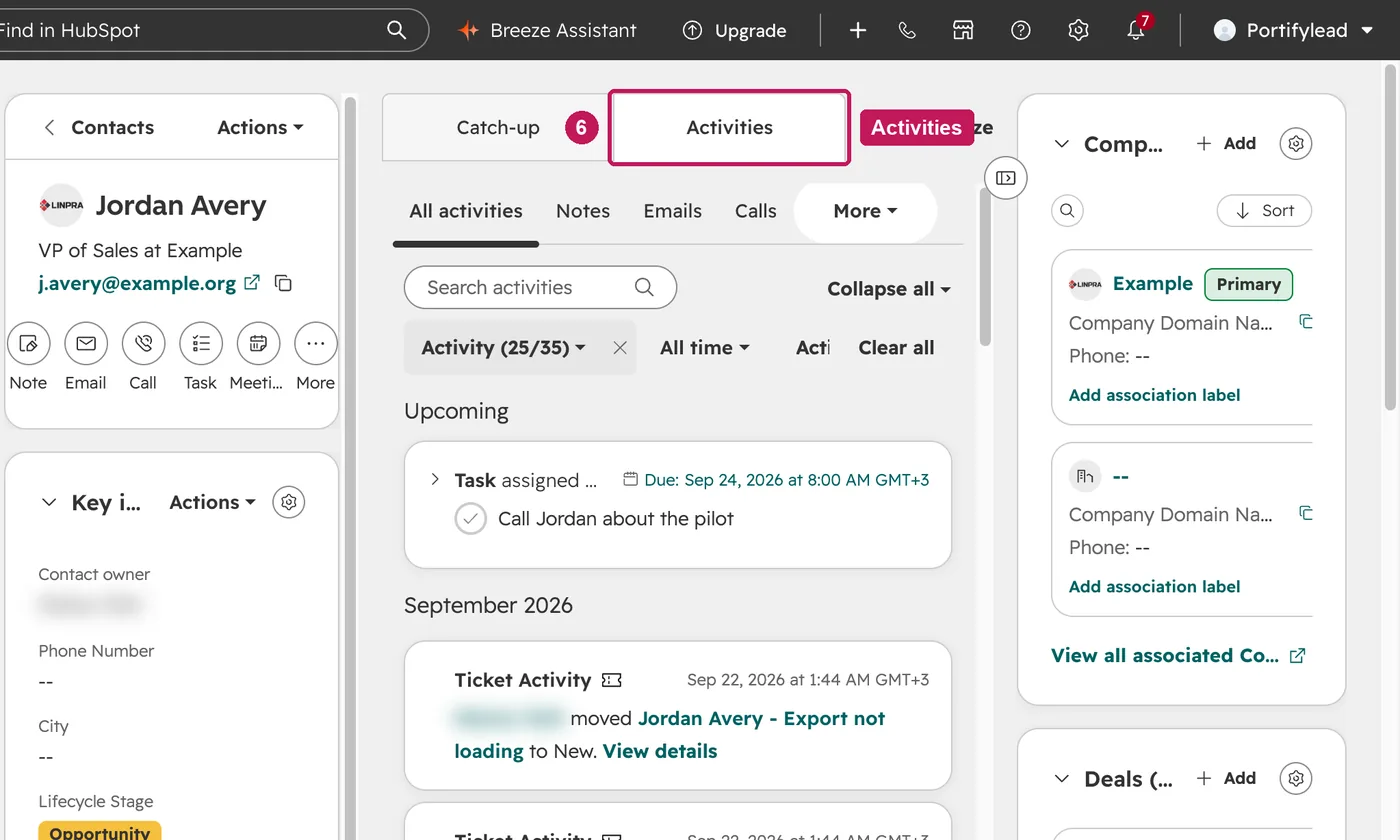
- In the middle, open Activities to see the contact's timeline.
- On the right, see the contact's associated companies and deals.
- To create a record, go to its table.
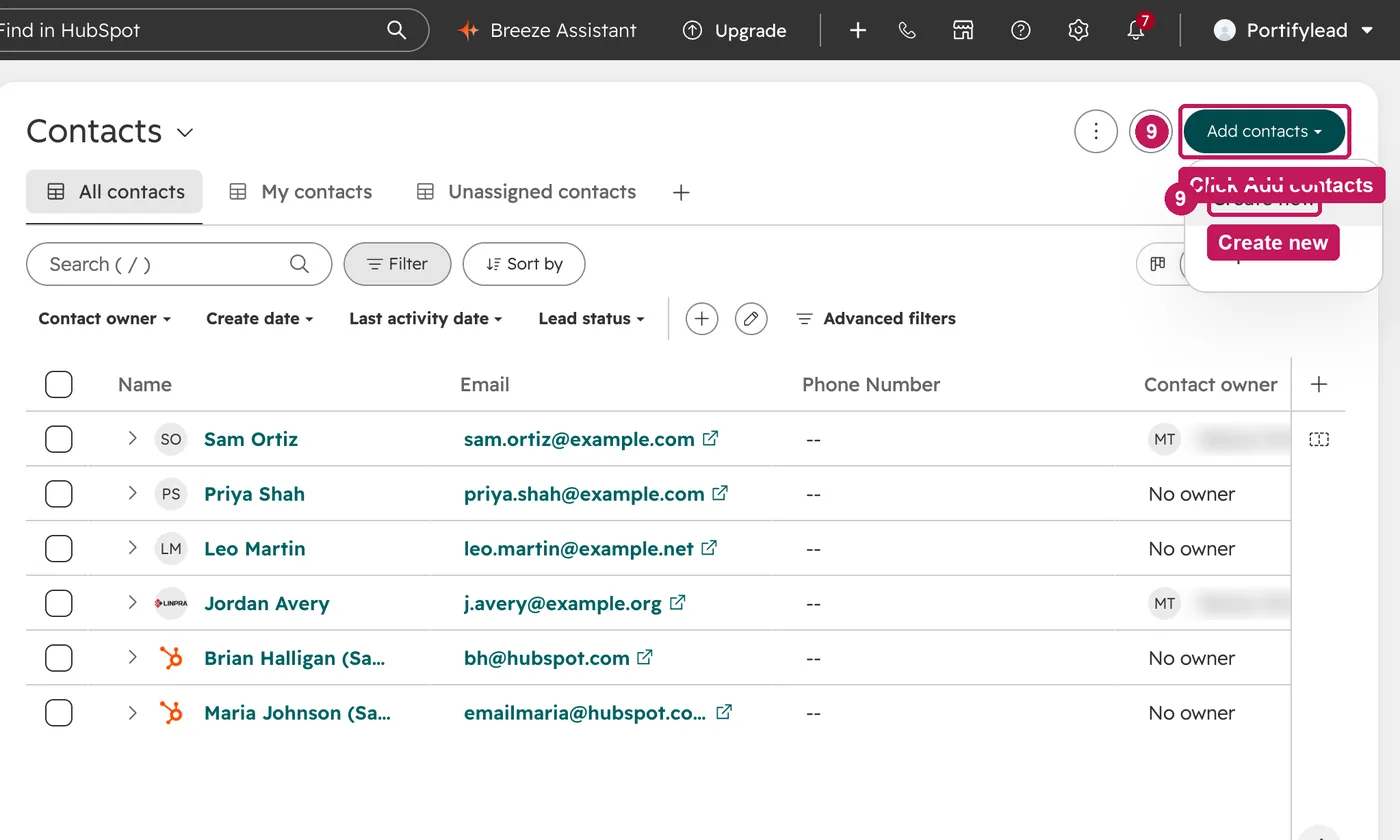
- Click Add contacts, then Create new or Import. Companies and deals work the same way.
Every record page has three areas. The left sidebar shows the record's name, email and key properties, with Actions for things like merging or deleting it. The middle column holds tabs, such as Activities, a timeline of the activities and engagements on the record. The right sidebar shows its associated records, such as the contact's companies and deals.
Source: HubSpot’s Understand and use the record page layout help article, updated 9 September 2026, checked 26 September 2026.