Tutorials
Salesforce
How to create a report in Salesforce
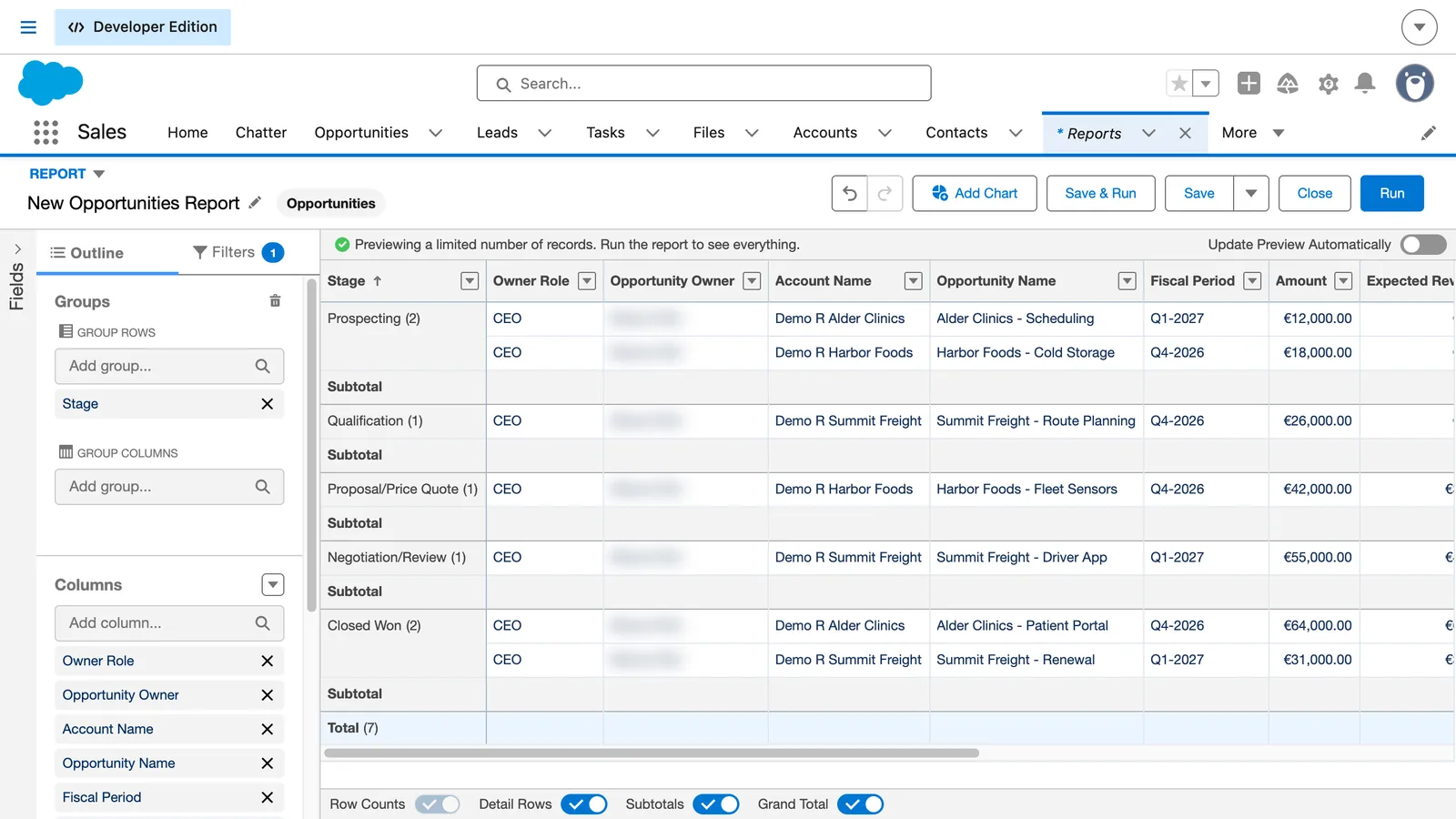
How do I create a report in Salesforce?
On the Reports tab, click New Report, choose a report type and click Start Report. Set the filters, add a group, then click Save & Run and give the report a name.
- Open the Reports tab and click New Report.
- Pick a category, then the report type, here Opportunities.
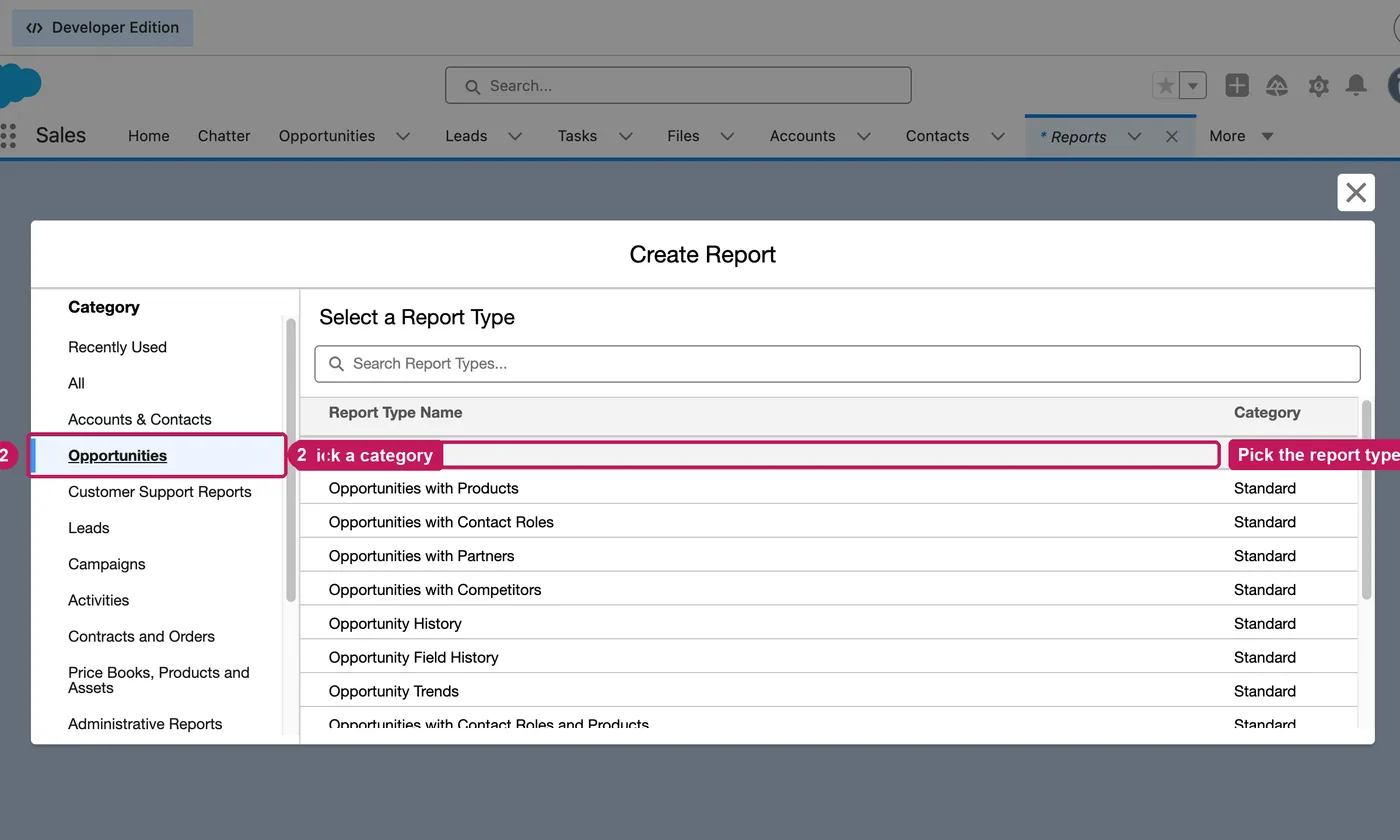
- Click Start Report. The builder opens with a preview.
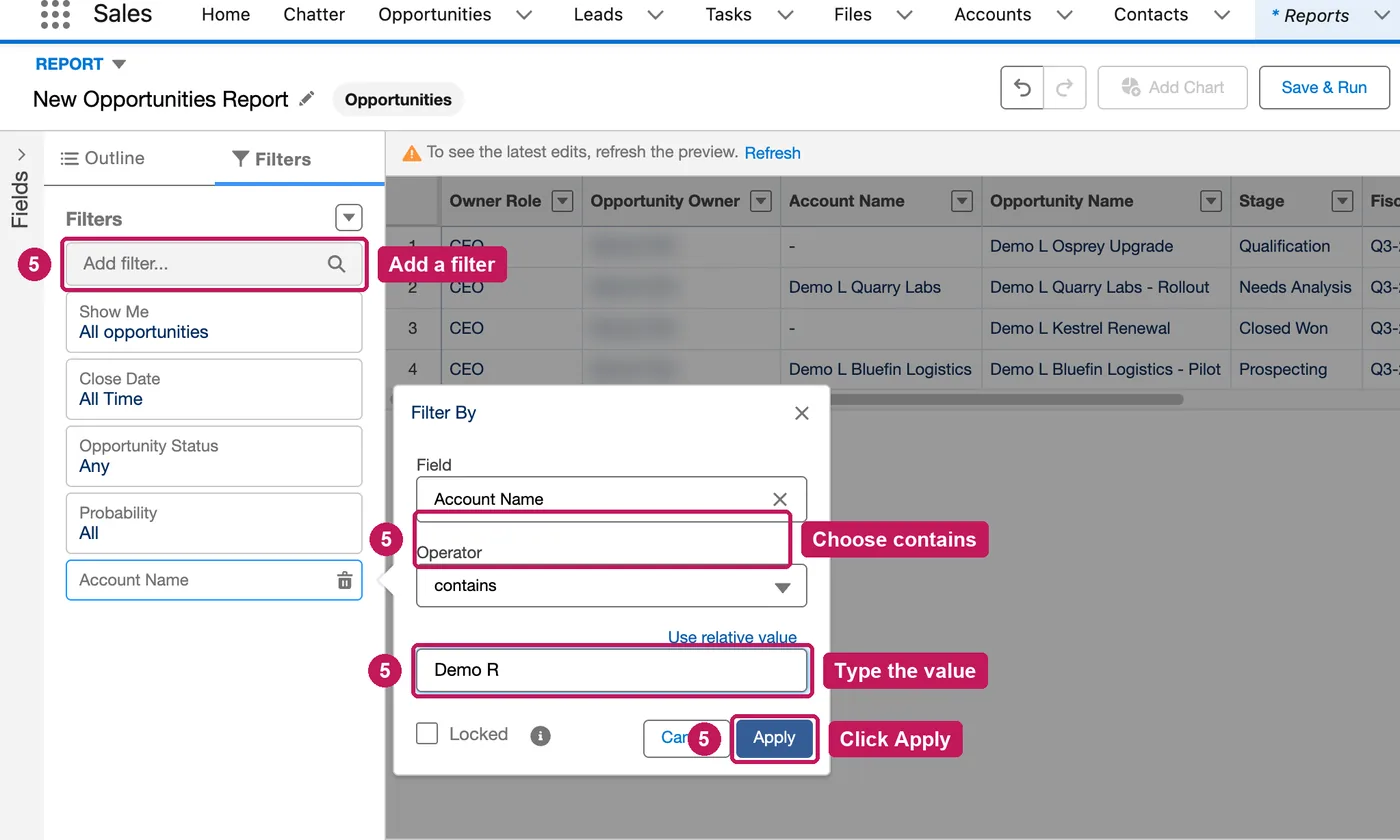
- Open Filters, click Close Date, choose All Time and click Apply.
- Add a field filter, for example Account Name contains a value, and click Apply.
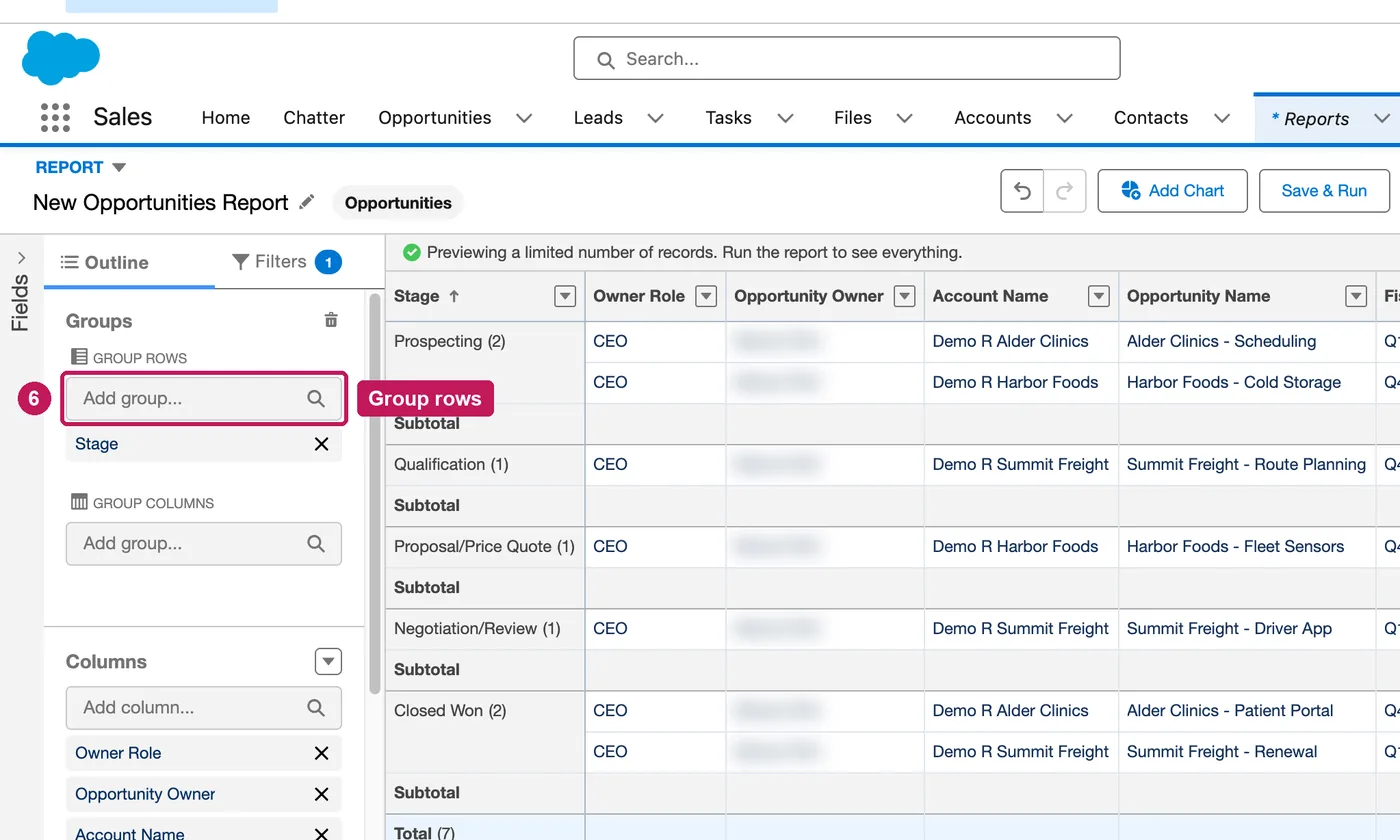
- In Outline, add a group, for example Stage, and refresh the preview.
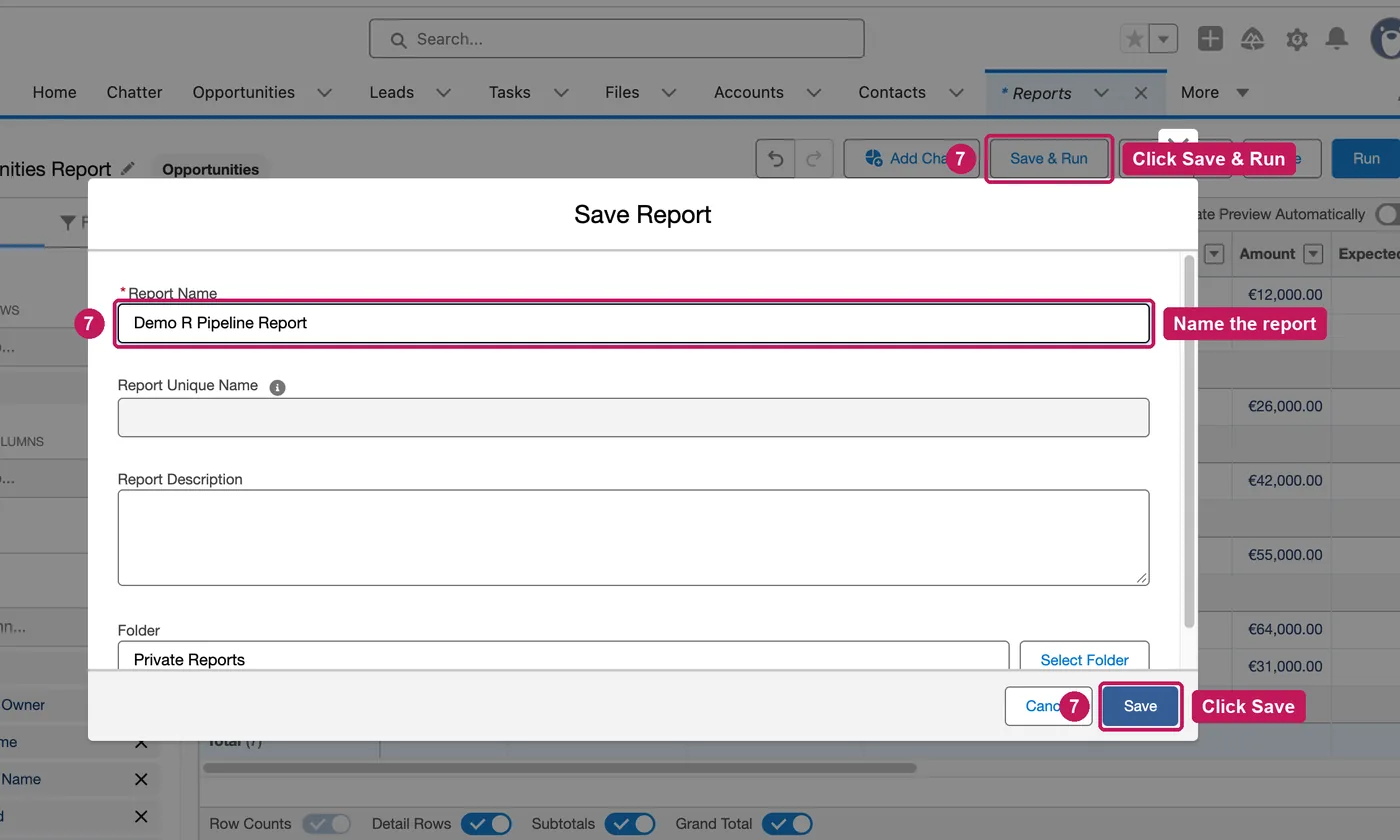
- Click Save & Run, name the report and click Save. Salesforce runs it.
The report type decides which records the report returns and which fields you can use. Most report types start with a Show Me filter and a date filter. You can group a report by up to two rows and two columns, and the preview shows a limited number of records until you run it.
Source: Salesforce’s Build a Report in Lightning Experience help article, checked 26 September 2026.