Tutorials
HubSpot
How to create a list in HubSpot
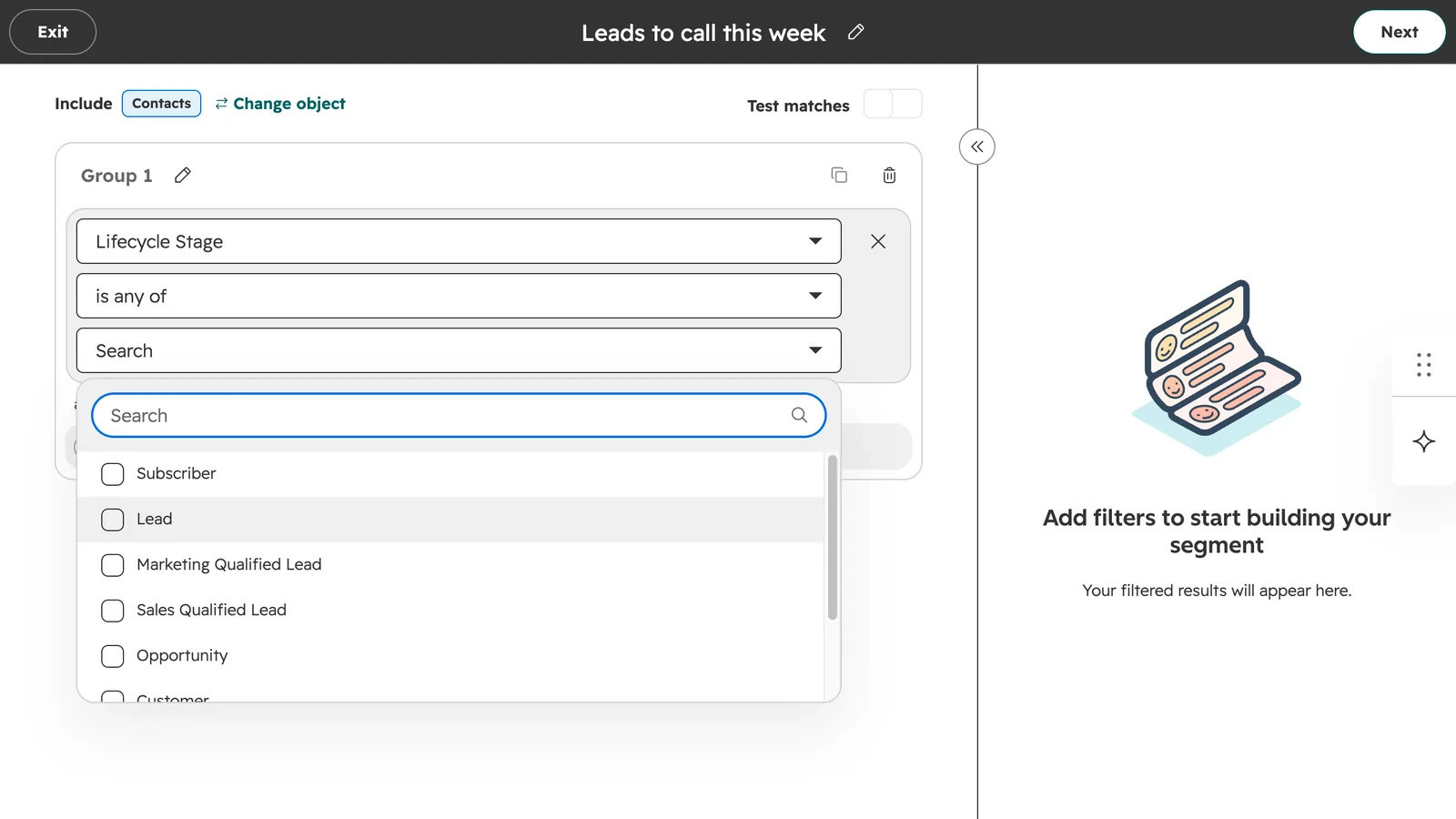
How do I create a list in HubSpot?
HubSpot now calls lists segments. Go to CRM, then Segments, click Create segment, then Manually, add a filter such as Lifecycle stage is Lead, and save it as active or static.
- Go to CRM, then Segments. HubSpot now calls lists segments.
- Click Create segment, then Manually.
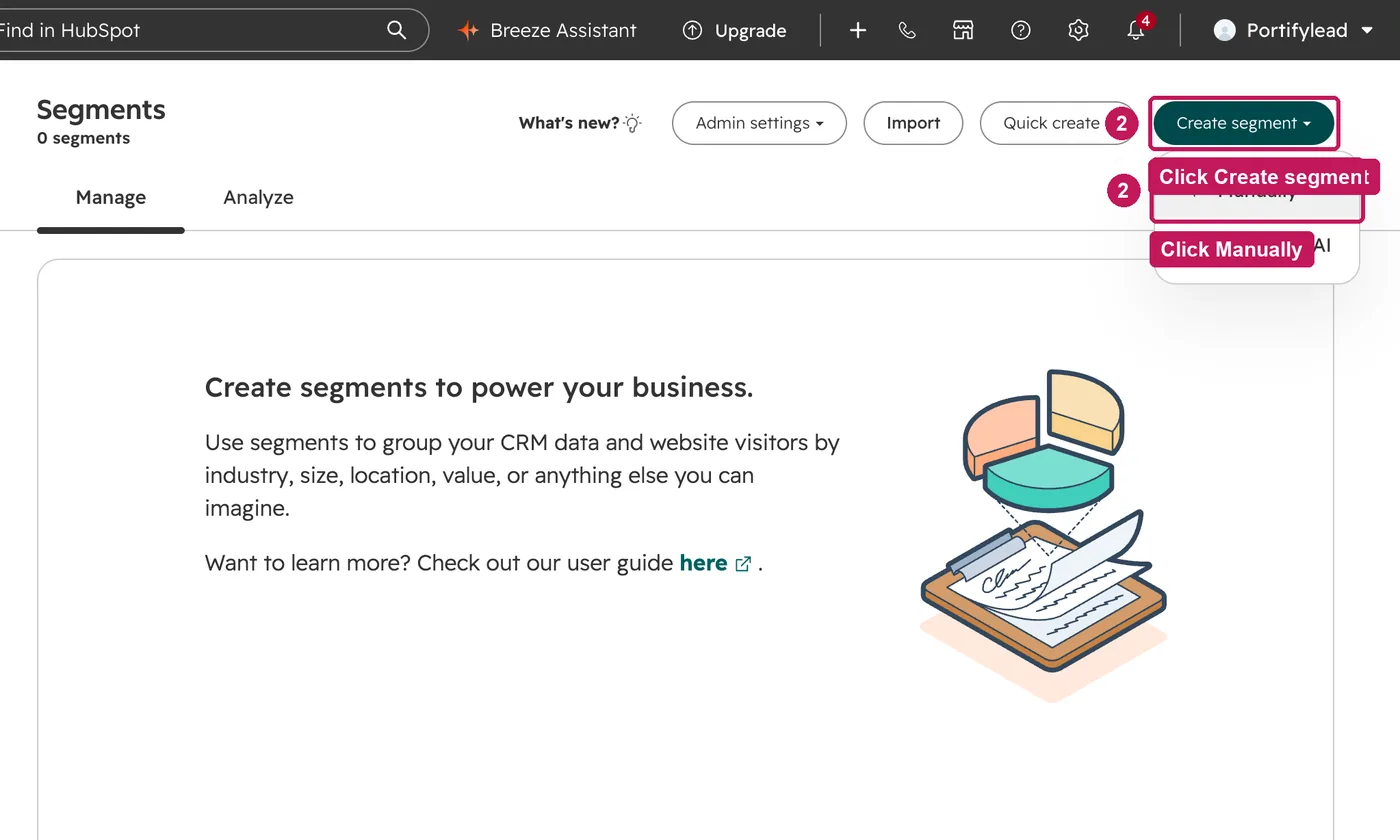
- Keep Contacts selected and click Next.
- Click the name at the top and type a new one.
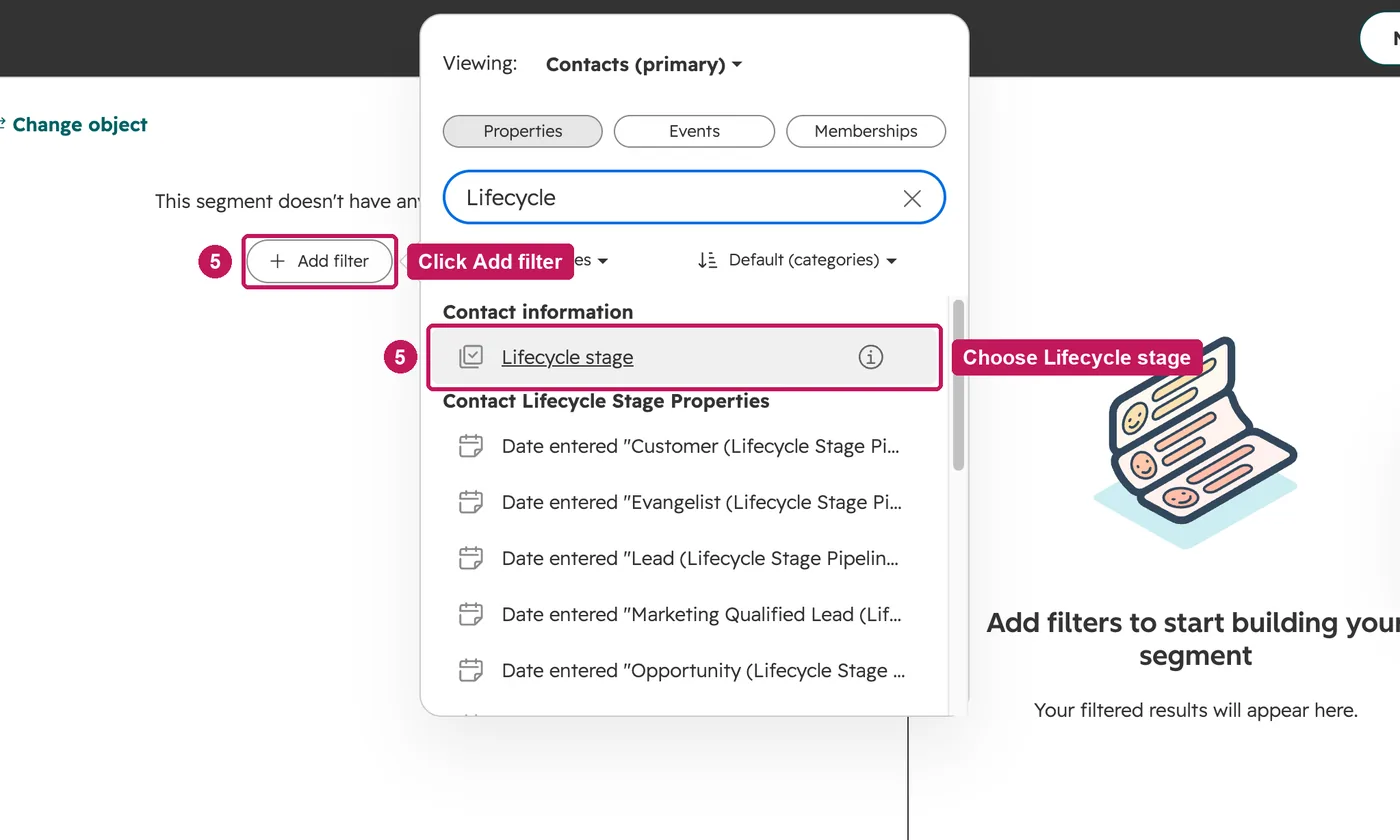
- Click Add filter, search for the property, and choose it.
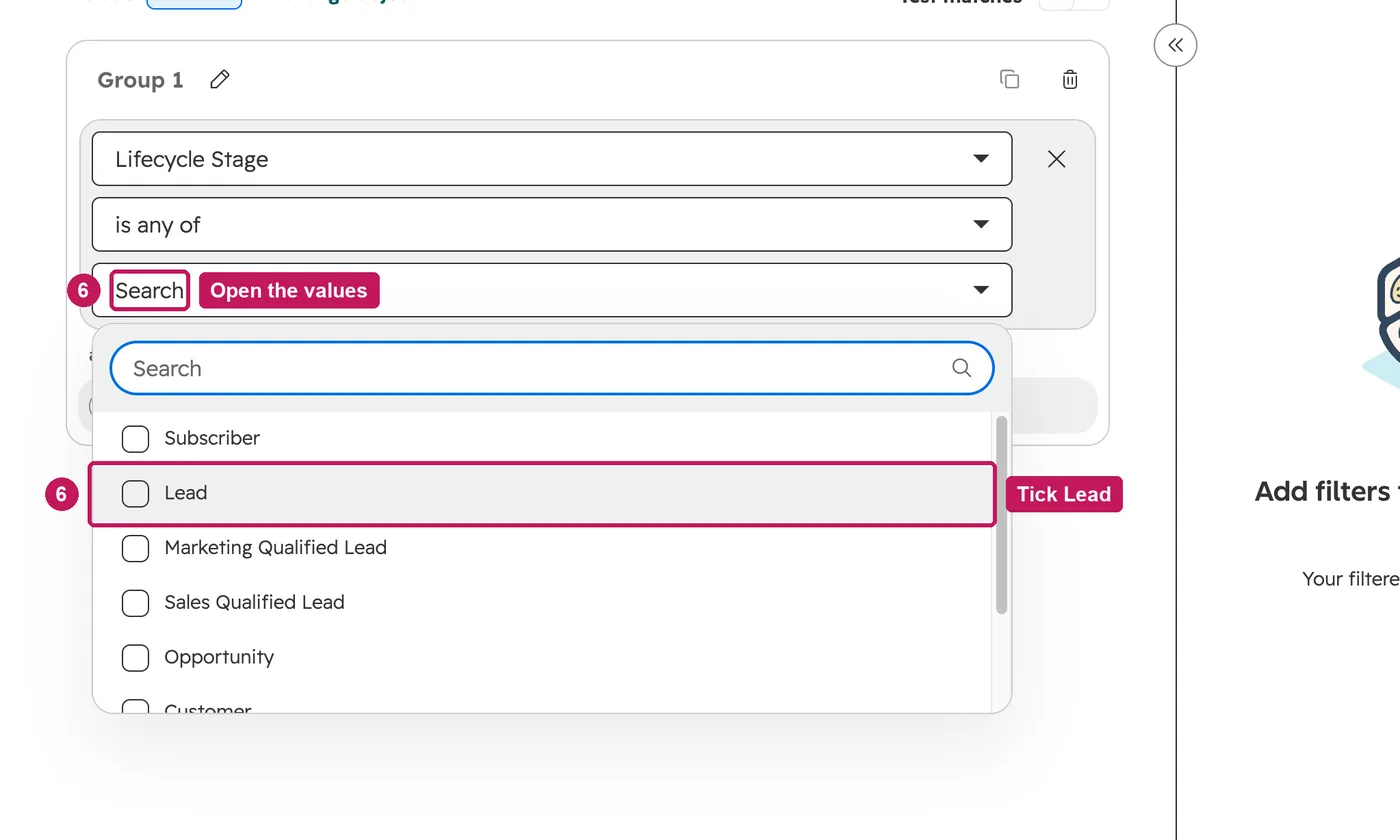
- Choose the values to match. The preview shows who matches.
- Click Next, choose Active or Static, and click Save and process segment.
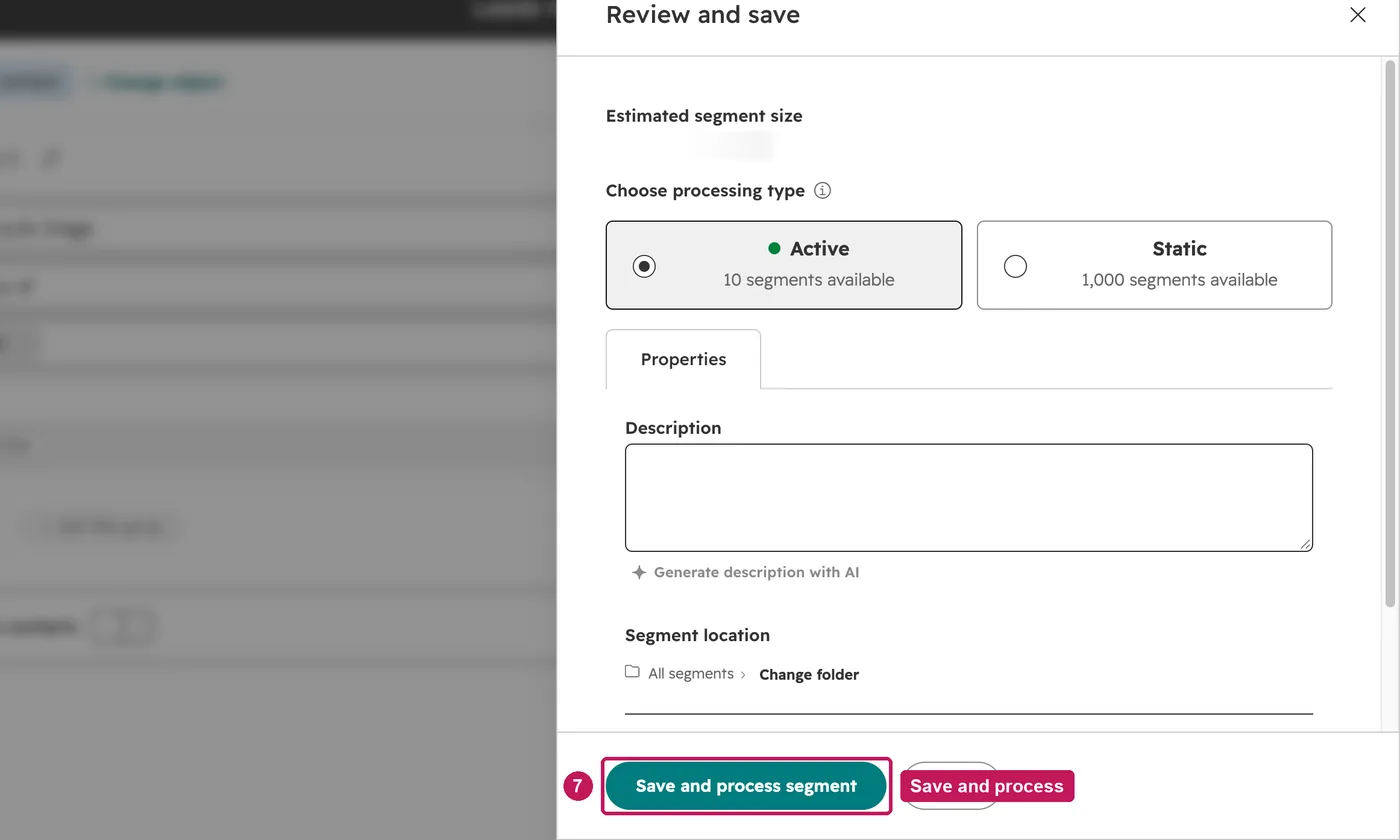
HubSpot renamed lists to segments. An active segment adds and removes contacts as they start or stop matching its filters; a static segment only changes when you add or remove contacts yourself. Creating segments needs the Edit Segment permission.
Source: HubSpot’s Create active or static segments help article, updated 14 September 2026, checked 26 September 2026.