Tutorials
Salesforce
How to use Salesforce: a tour for beginners
How do I get around Salesforce?
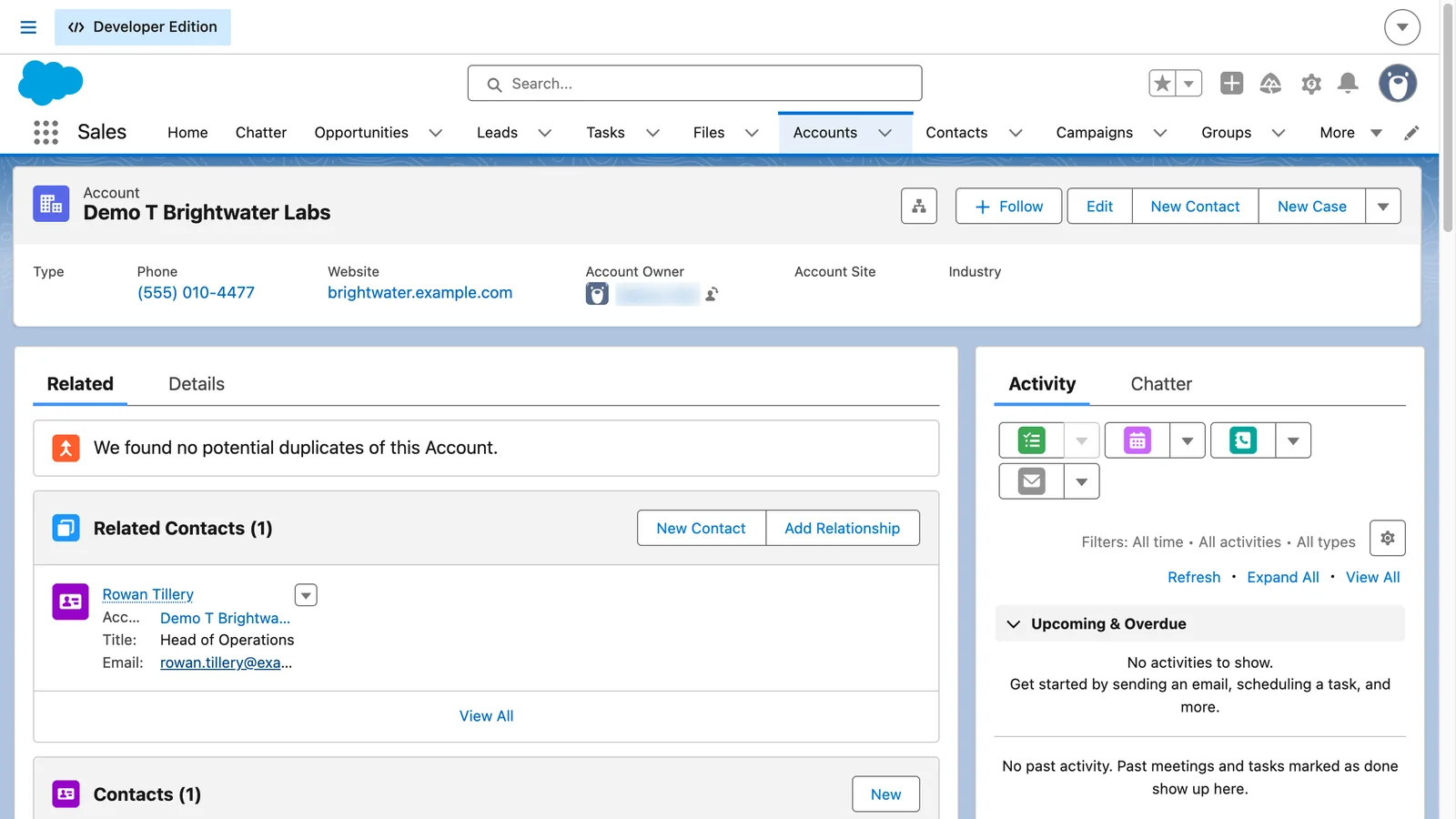
Pick an app from the App Launcher, then use the tabs in the navigation bar to open a list of records. Switch the list view, open a record to see its details, related records and activity, find anything with the search box at the top, and start a new record with New.
- Click the App Launcher, the grid of dots at the top left, and search for the app.
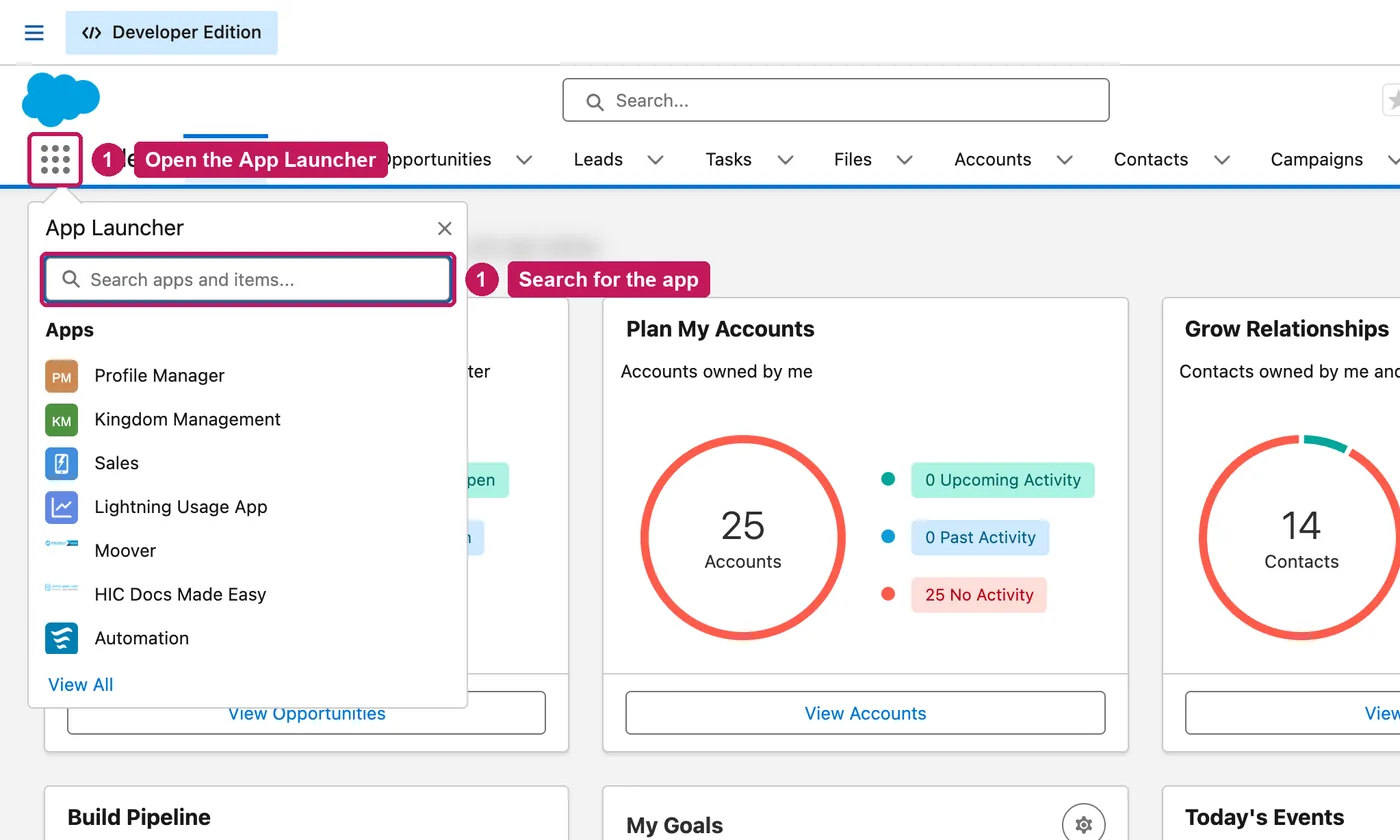
- Pick the app. Its tabs appear in the navigation bar across the top.
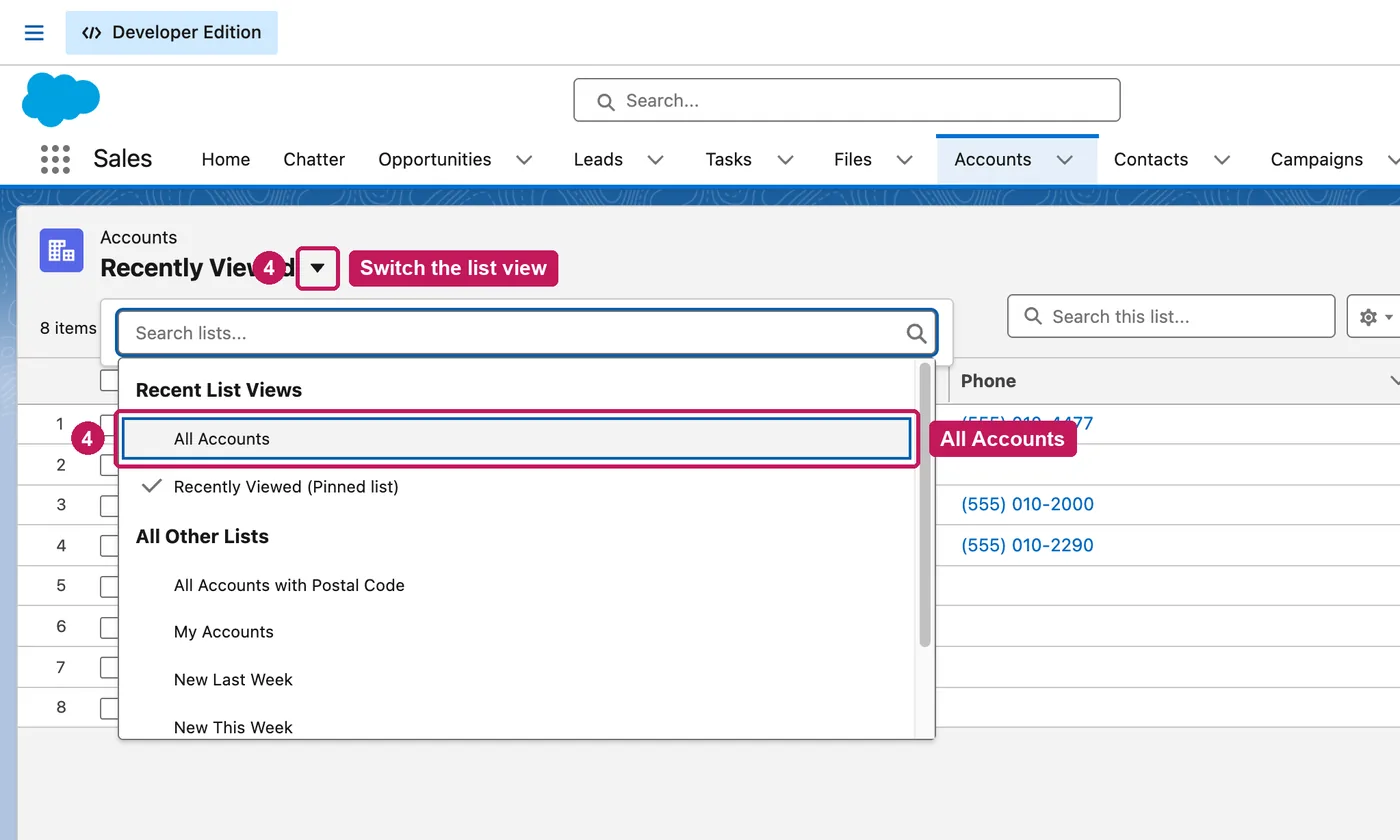
- Click a tab, such as Accounts, to open a list of those records.
- Click the arrow beside the list's name and choose another list view, such as All Accounts.
- Click a name to open the record: key fields at the top, related records below, activity on the right.
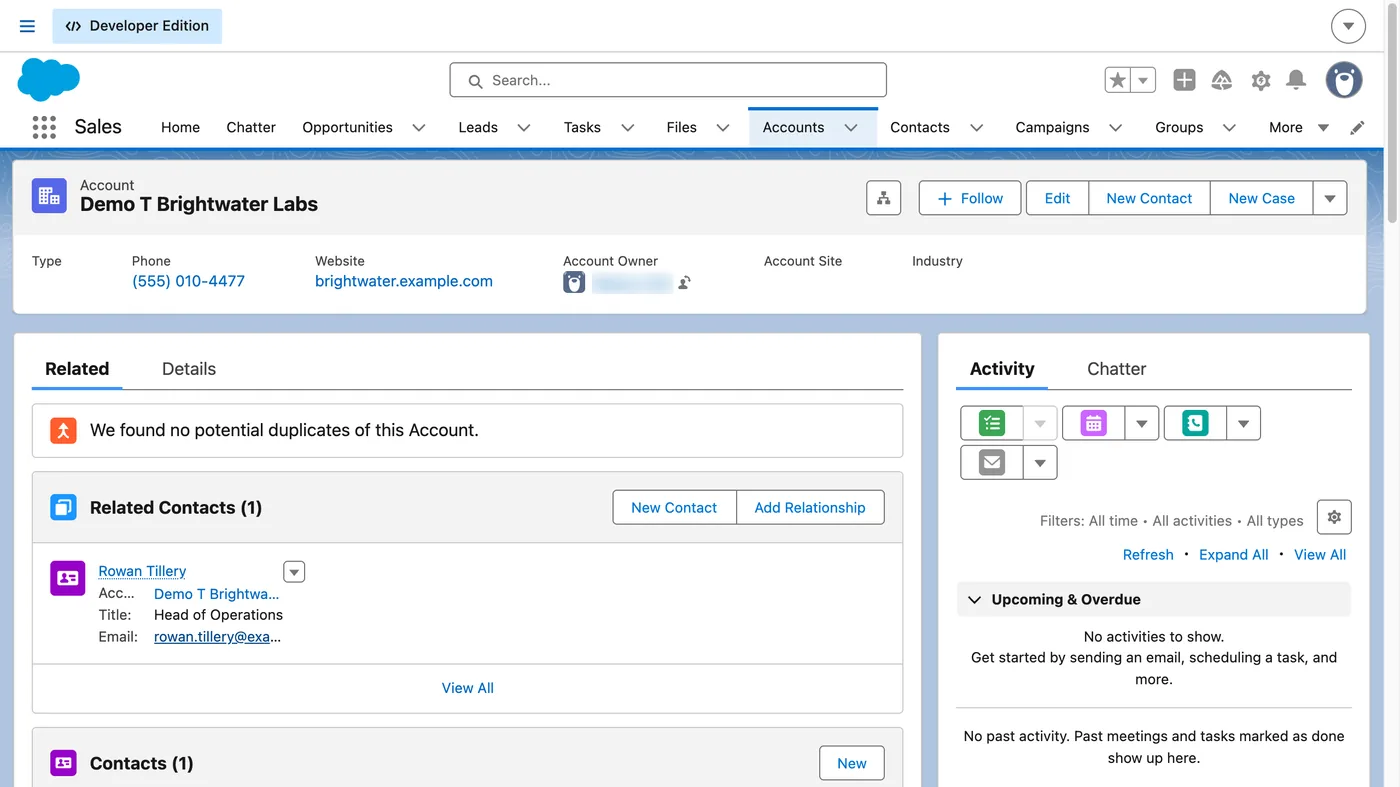
- Open the Details tab to see and edit every field.
- On the Related tab, each list shows the linked records and has its own New button.
- Type a name into the search box at the top and pick the record from the suggestions.
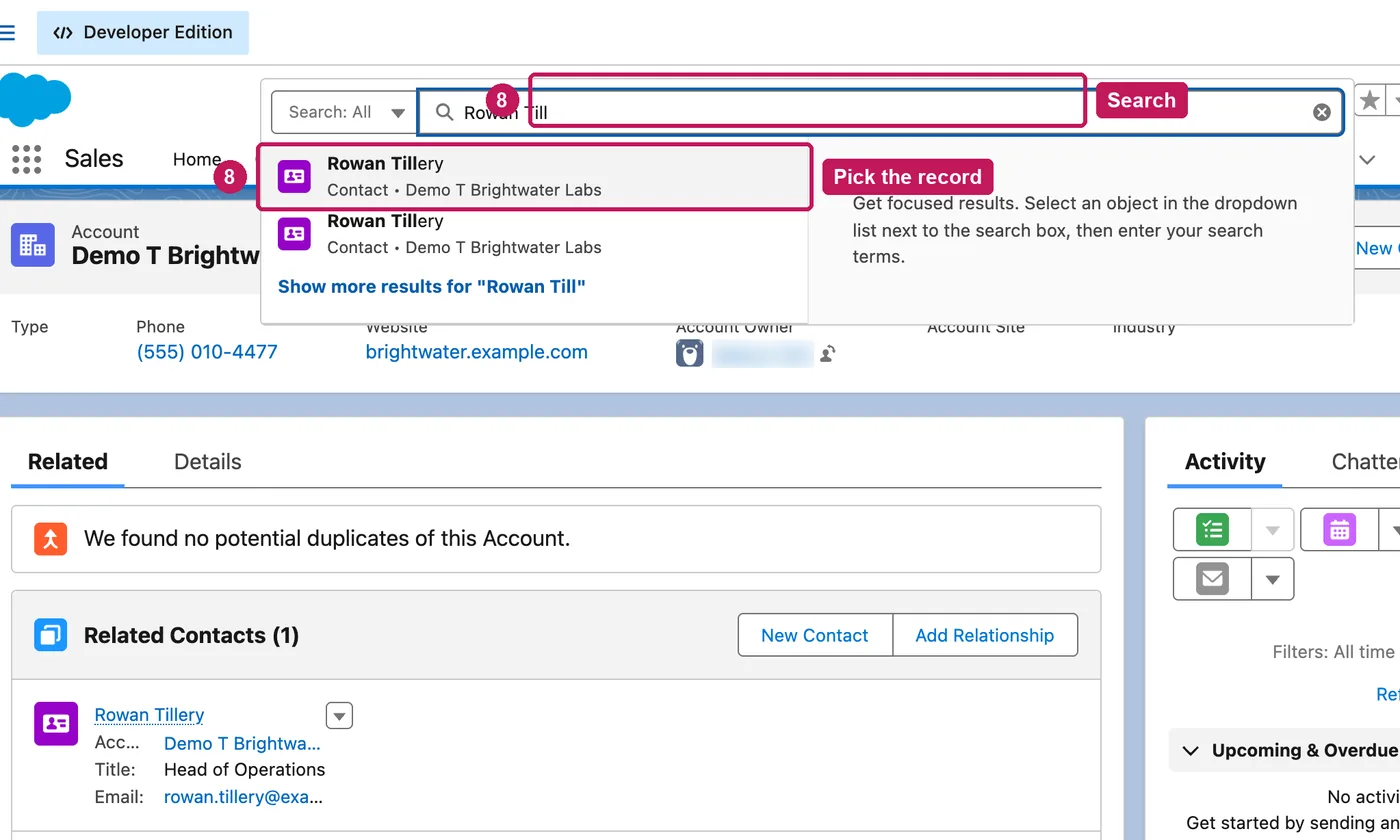
- A contact page has the same layout, with its account linked at the top.
- To create a record, open its tab and click New. Required fields are marked with a red star.
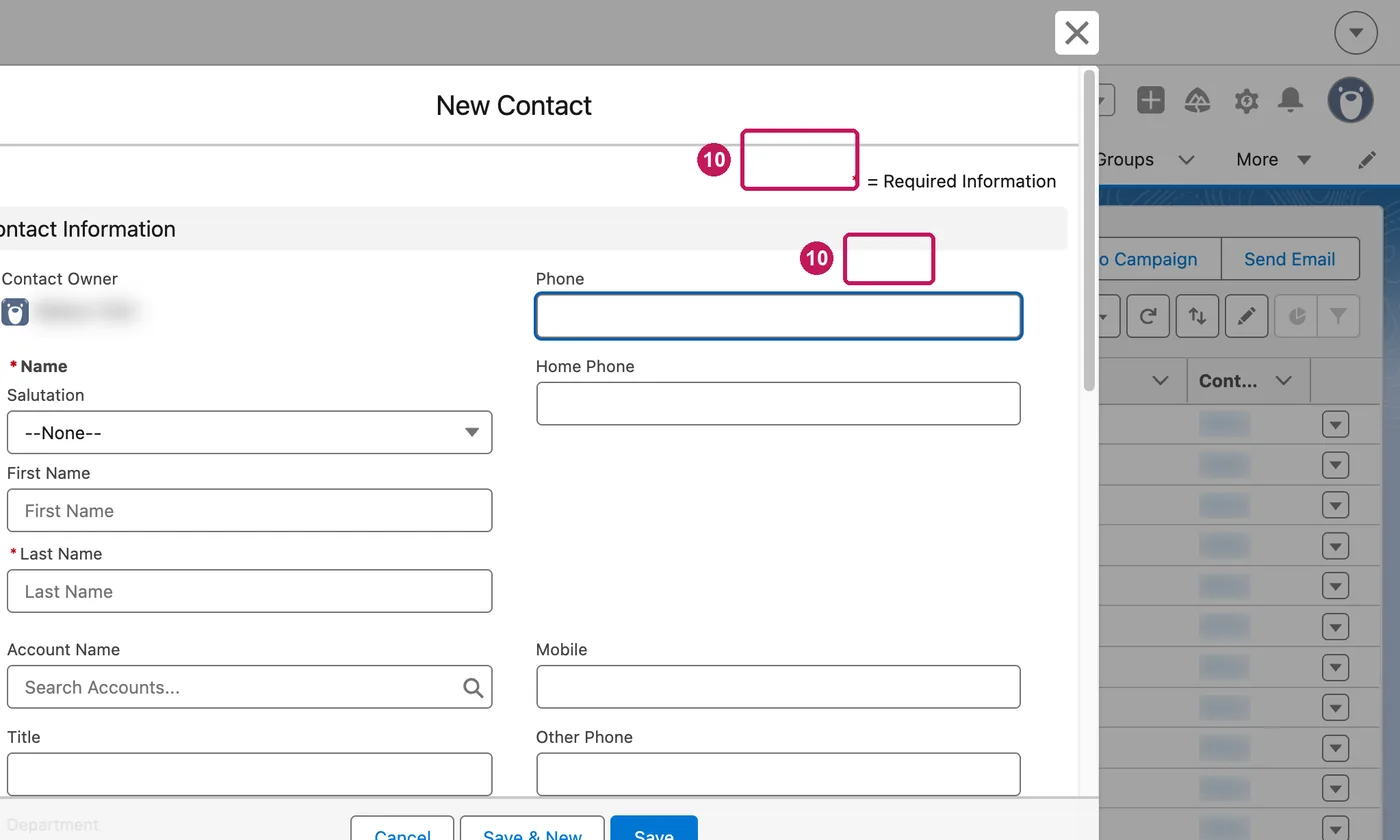
- Fill in the fields and click Save, or Cancel to close the form.
Click the search box at the top of any page and it lists your recent items first. As you type, it suggests matching records, and you can pick one to go straight to it, or press Enter to see full results across everything you can search.
Source: Salesforce’s Search for Records in Lightning Experience help article, checked 22 September 2026.