Tutorials
HubSpot
How to change lifecycle stage and lead status in HubSpot
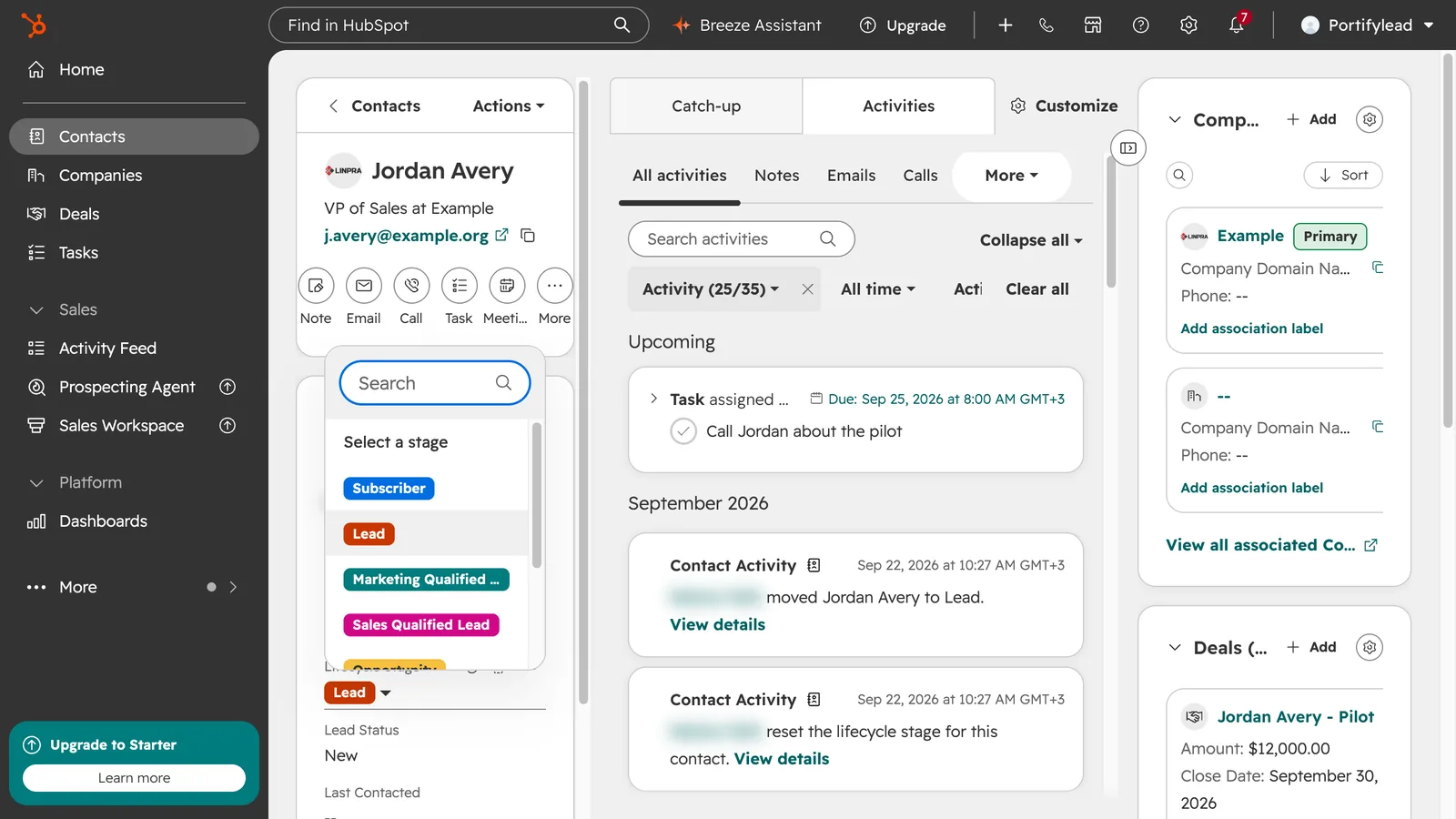
How do I change a contact's lifecycle stage in HubSpot?
Open the contact, click Lifecycle stage in the left panel and pick the new stage; Lead status, right below it, works the same way. HubSpot saves each change straight away.
- In HubSpot, go to CRM, then Contacts, and open the contact.
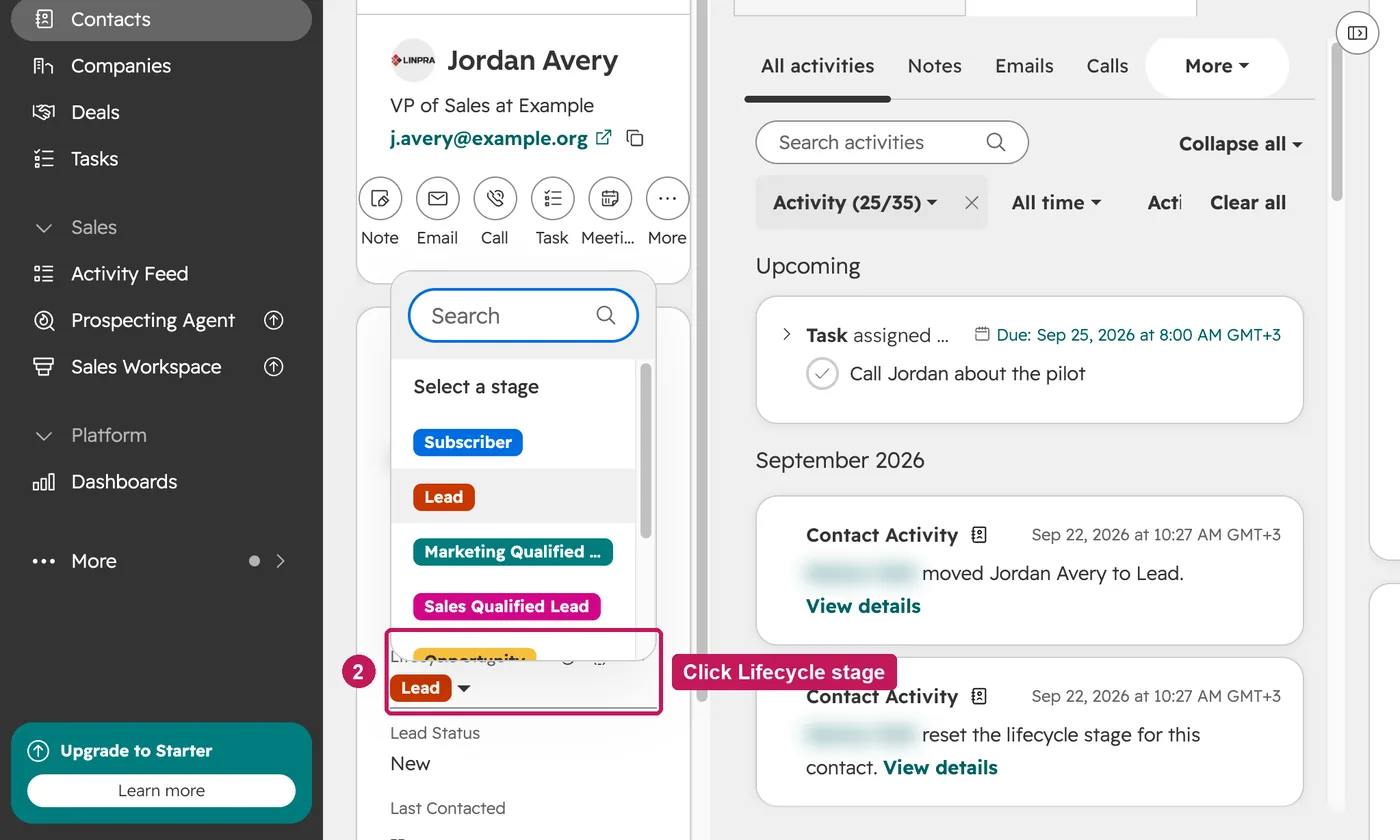
- In the left panel, click Lifecycle stage to see the stages.
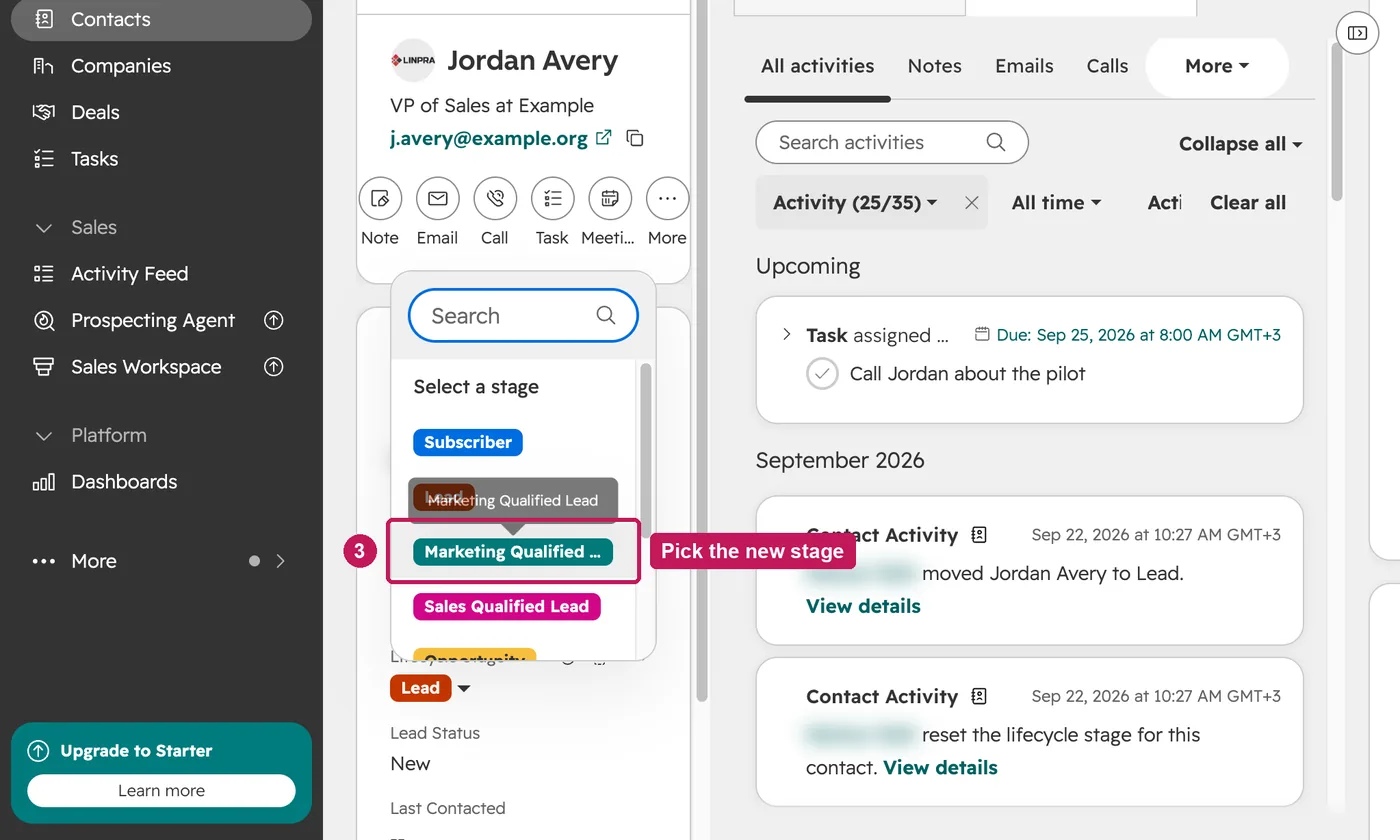
- Pick the new stage. HubSpot saves it straight away.
- Click Lead status, right below, to see where the sales conversation stands.
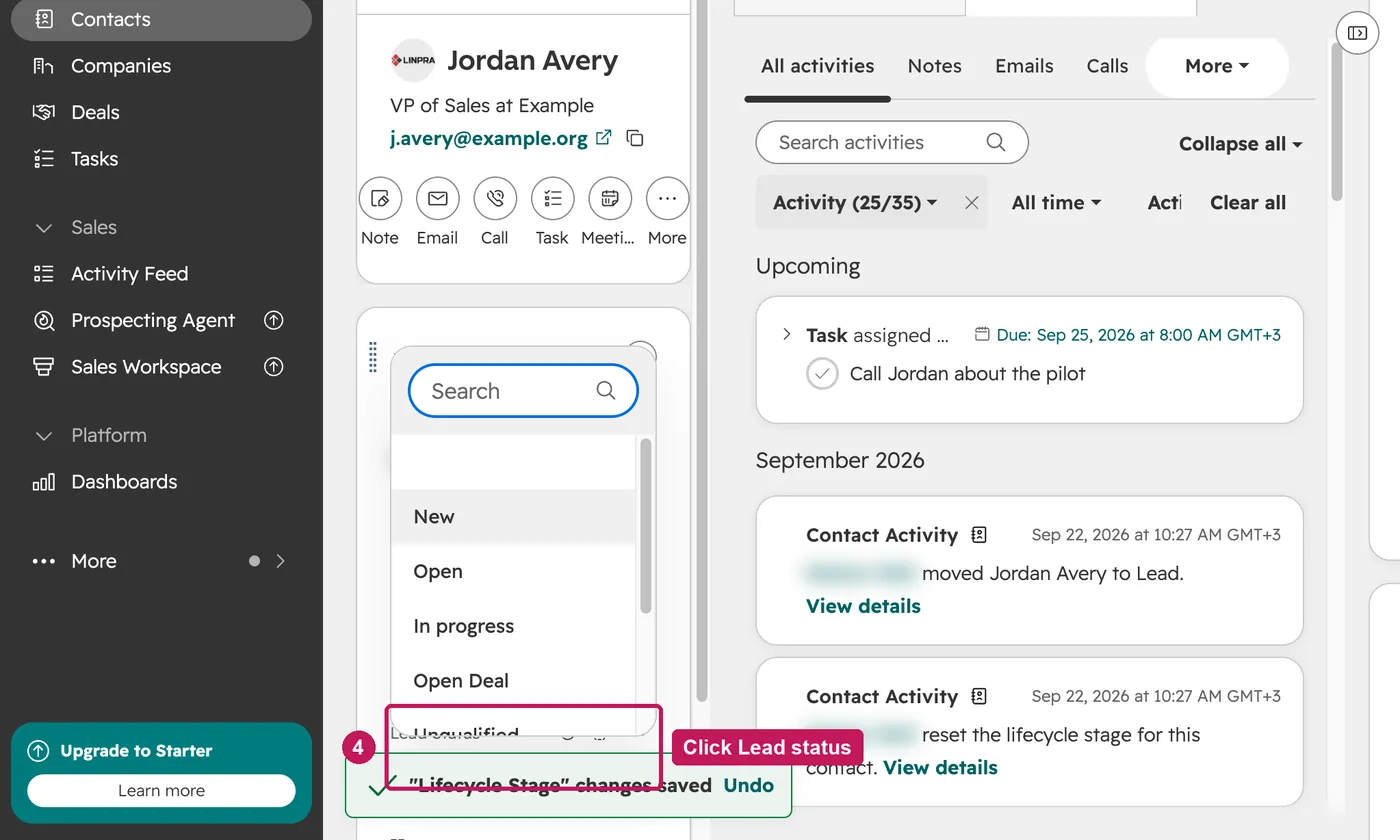
- Choose the new lead status. Both values are saved on the record.
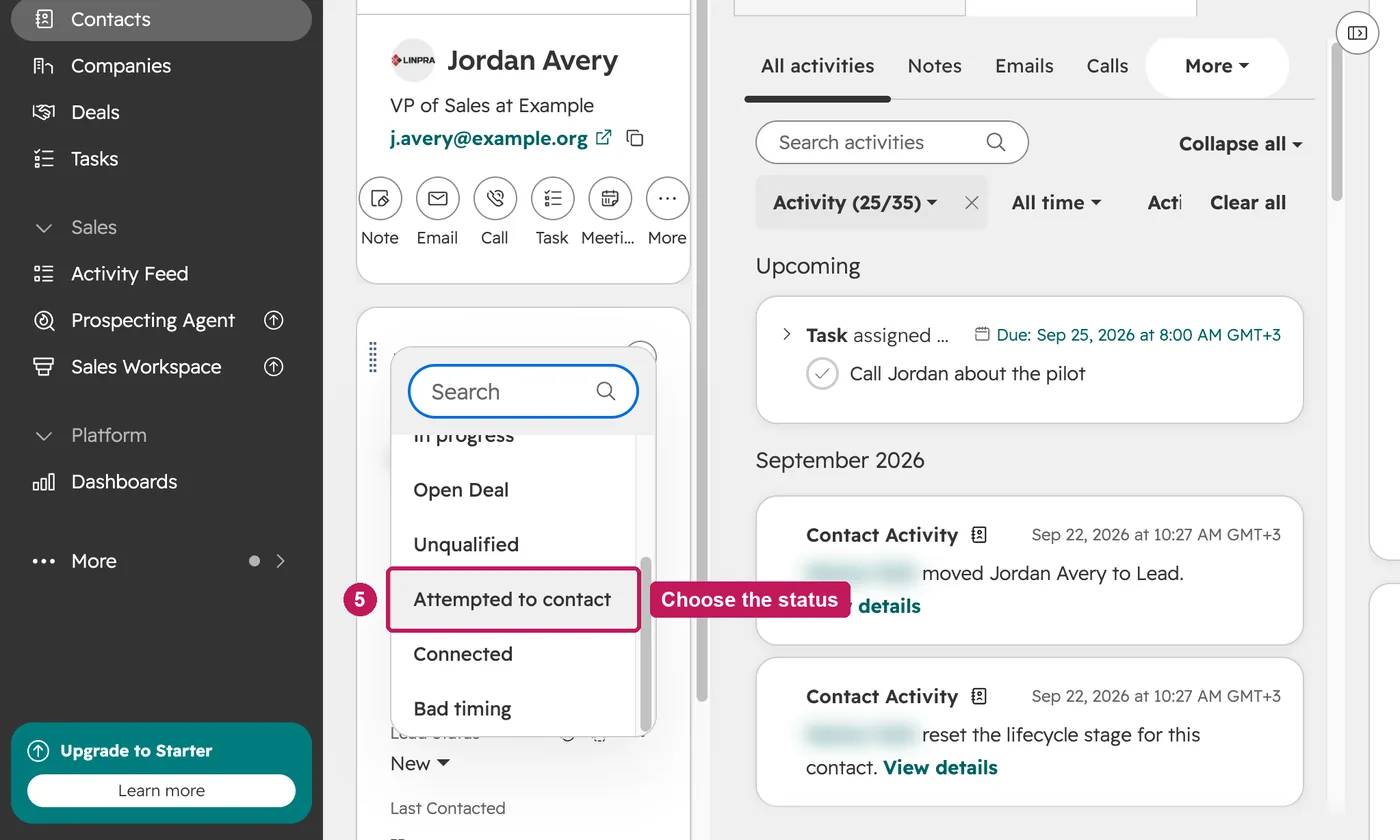
You can set an earlier stage by hand, for example to move a contact back from Opportunity to Lead. Imports, forms, workflows and the API only move a contact forward, unless the value is cleared first. Your account's lead status values can differ from the defaults: New, Open, In progress, Open deal, Unqualified, Attempted to contact, Connected and Bad timing.
Source: HubSpot’s Use lifecycle stages help article, updated 17 July 2026, checked 22 September 2026.