Tutorials
Salesforce
How to create an email template in Salesforce
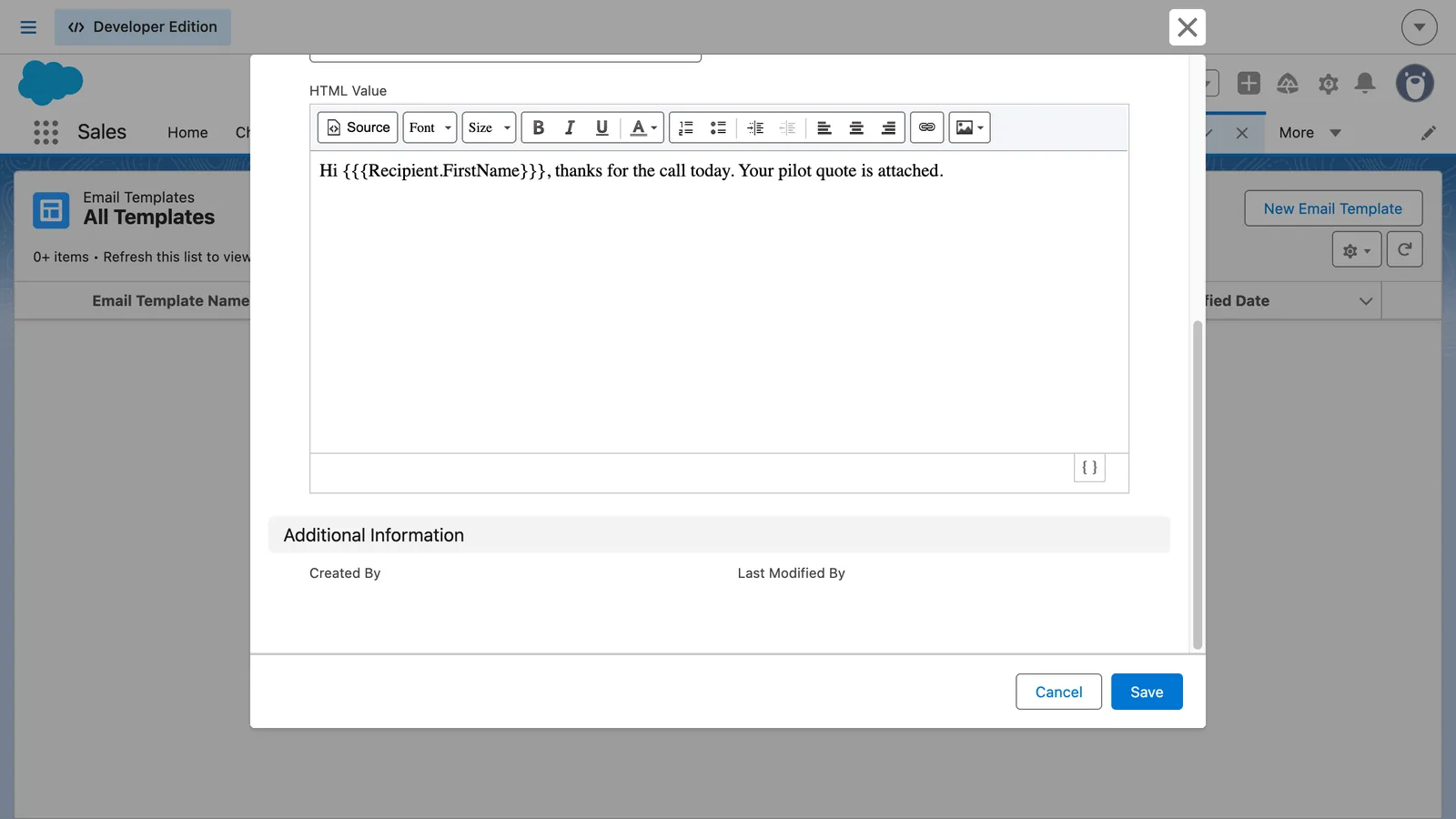
How do I create an email template in Salesforce?
Open Email Templates, click New Email Template, name the template and add a subject, then write the message in HTML Value, inserting merge fields such as the recipient's first name, and click Save. The template is then ready to pick when you write an email.
- Open Email Templates and click New Email Template.
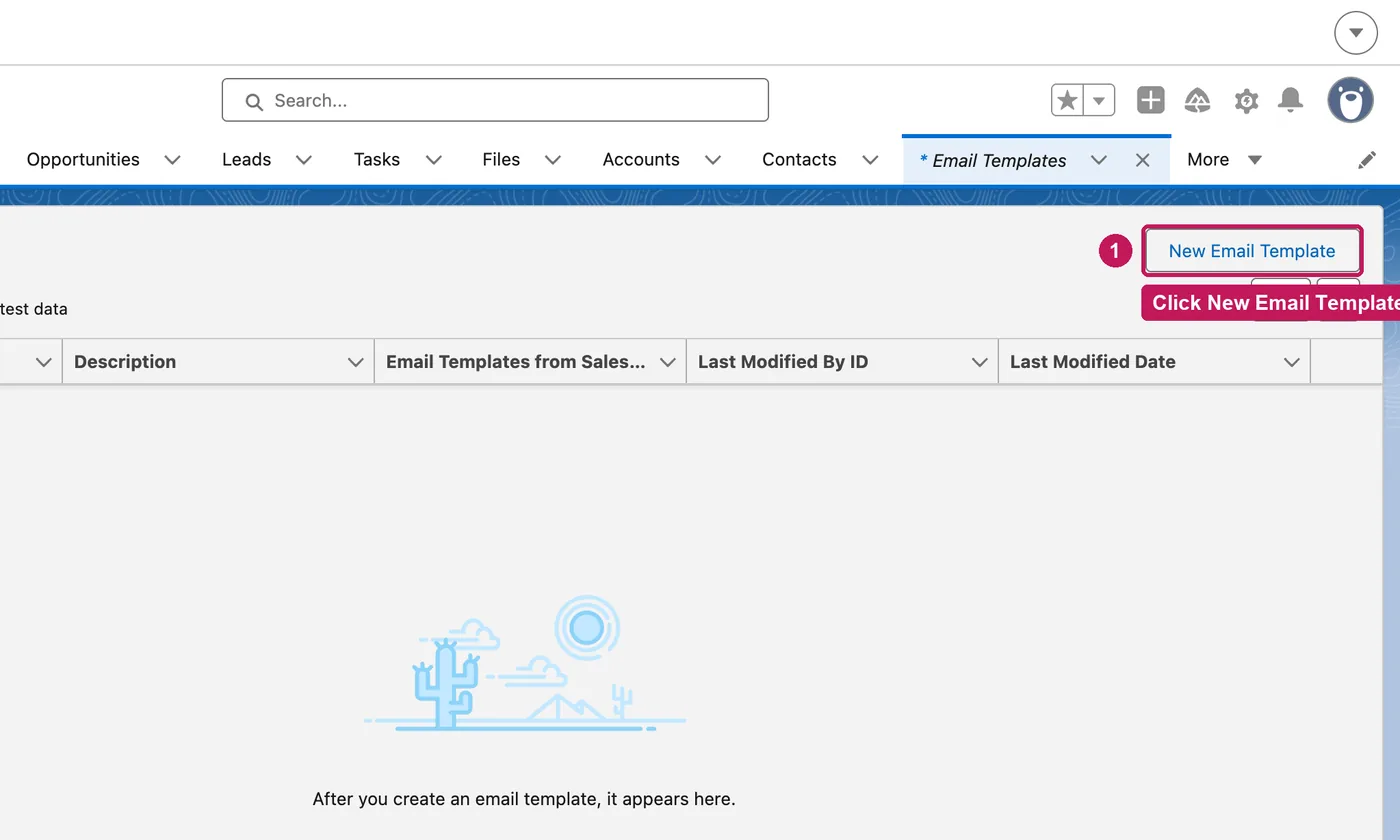
- Name the template and add a subject.
- Click into HTML Value and start the message.
- Click the merge field button, find First Name, and click Insert.
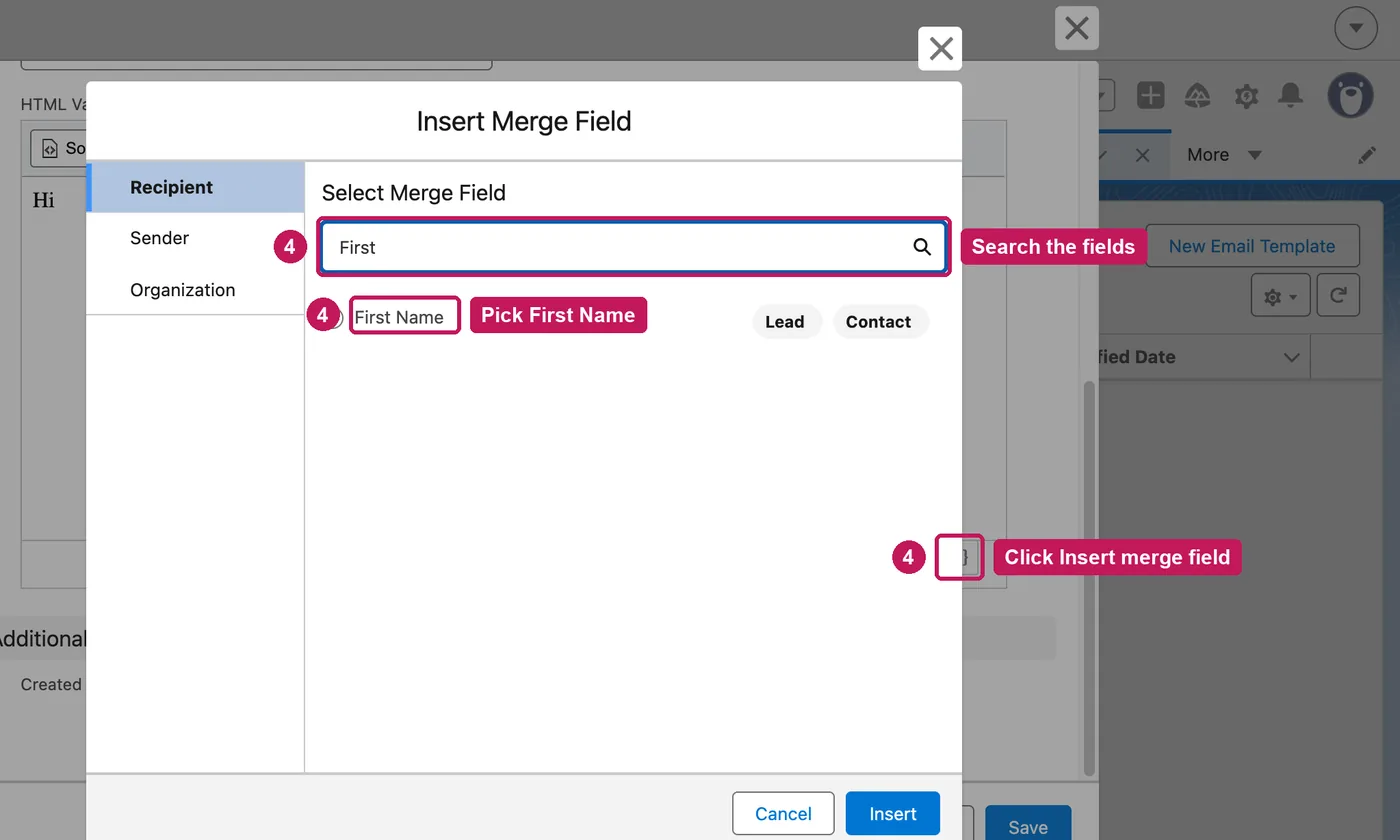
- Finish the message. The merge field is filled in when the email is sent.
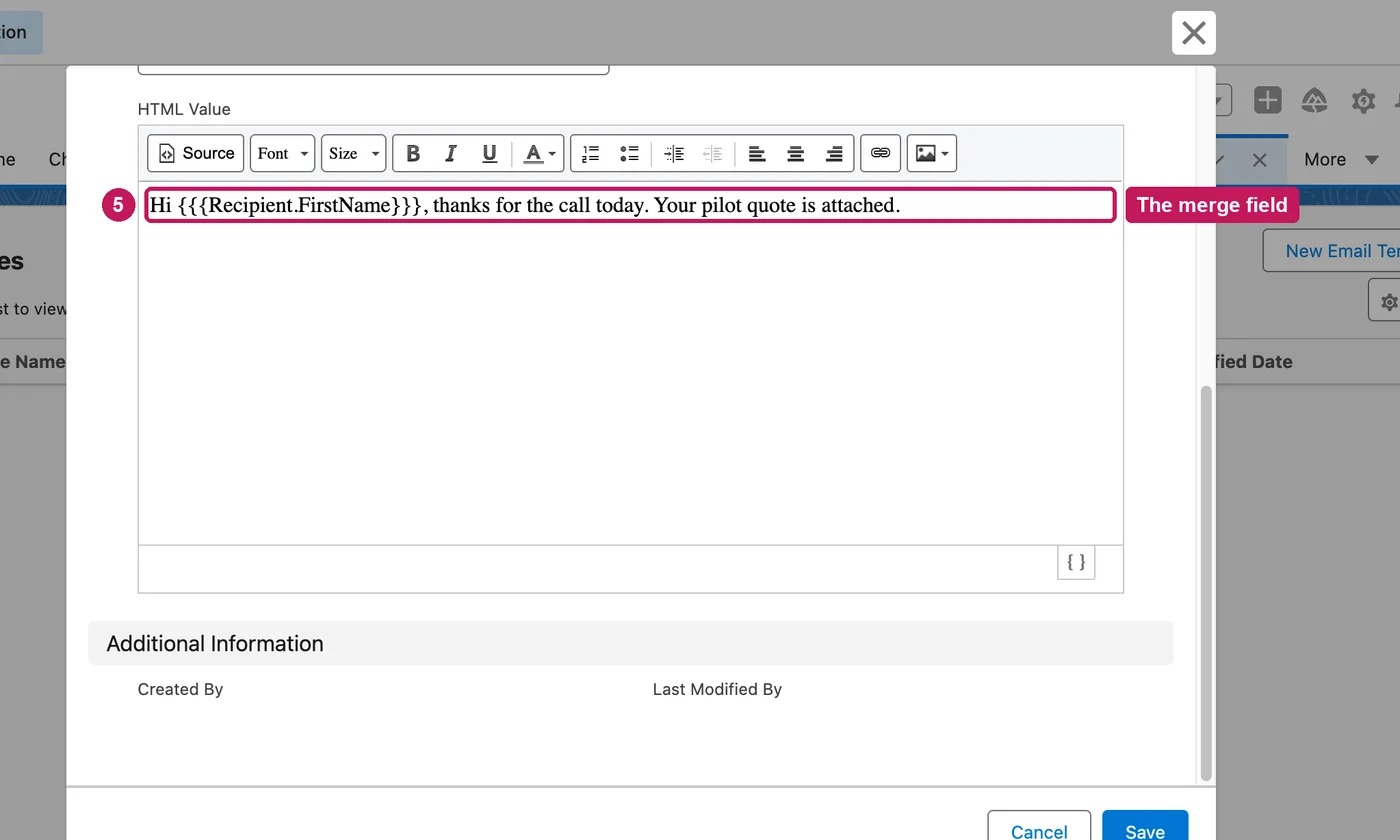
- Click Save. The template is ready to use when you write an email.
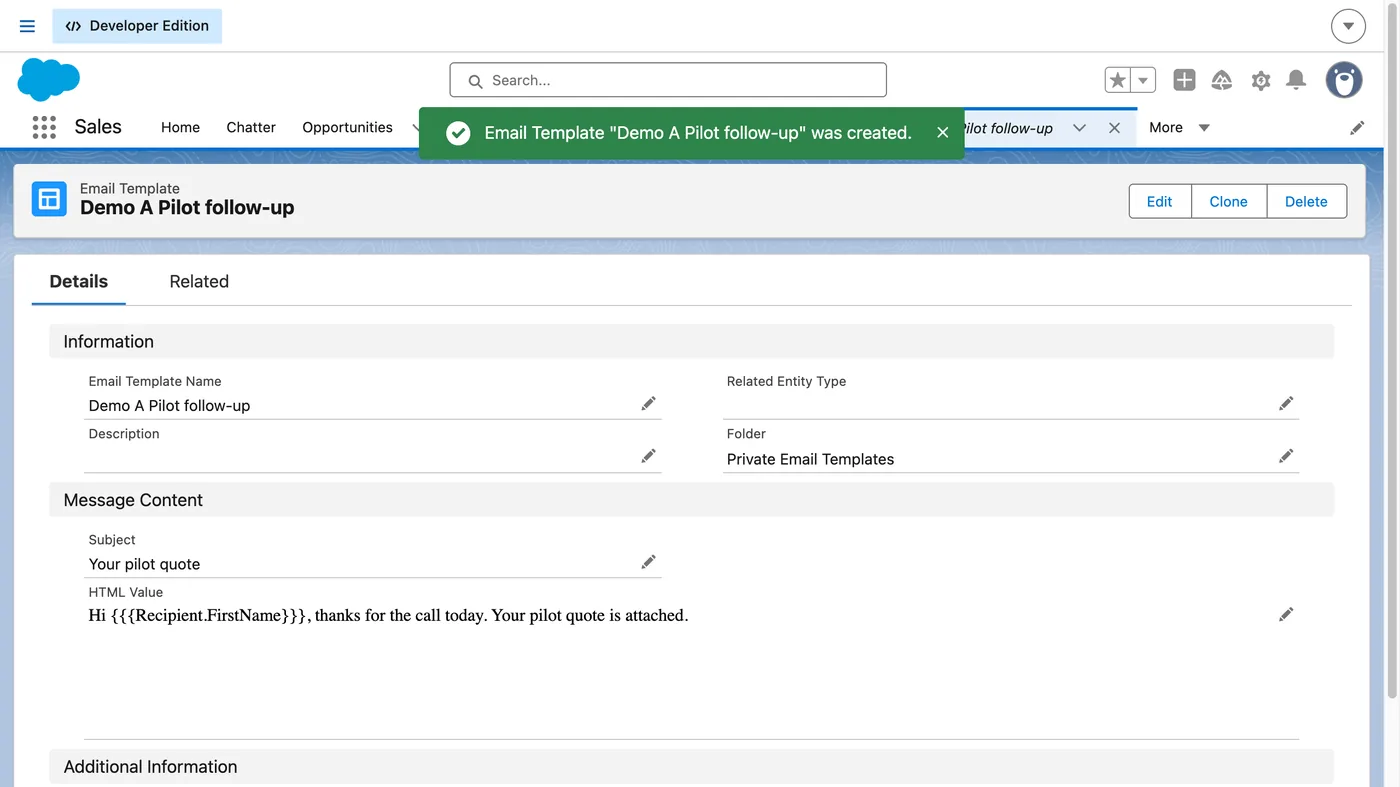
Templates you create are private to begin with, and you can make them available to others in your org. Merge fields in the subject line have to be typed in by hand; in the body, use the merge field button. To limit a template to one kind of Related To record, choose it under Related Entity Type. A free org, such as a Developer org, holds up to 500 email templates.
Source: Salesforce’s Create an Email Template in Lightning Experience help article, checked 26 September 2026.