Tutorials
Salesforce
How to create a list view in Salesforce
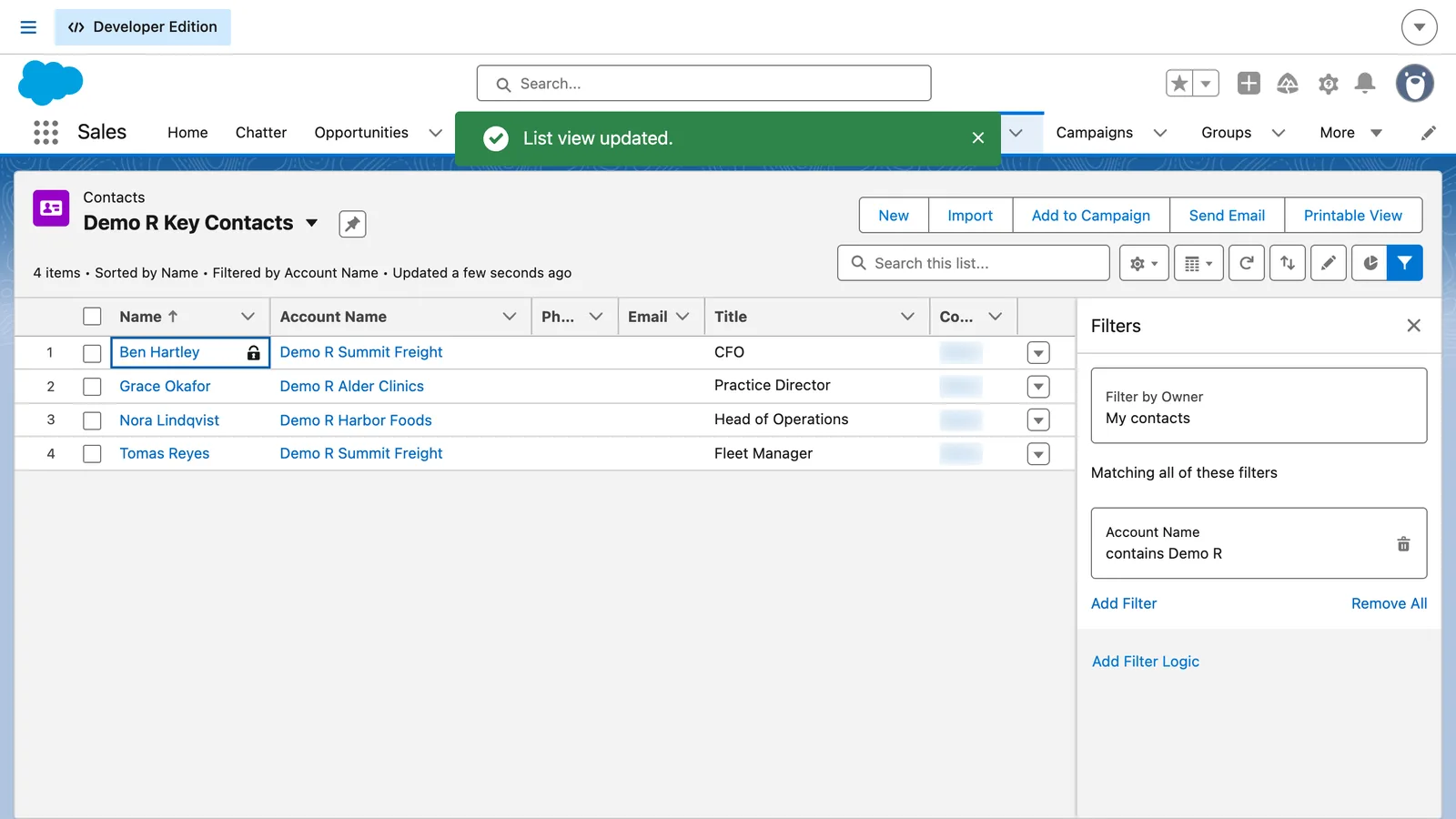
How do I create a list view in Salesforce?
Open the object's tab, click the List View Controls gear and choose New. Name the list, choose who can see it and click Save. Add filters, click Save, then use Select Fields to Display to choose the columns.
- On the Contacts tab, click the List View Controls gear and choose New.
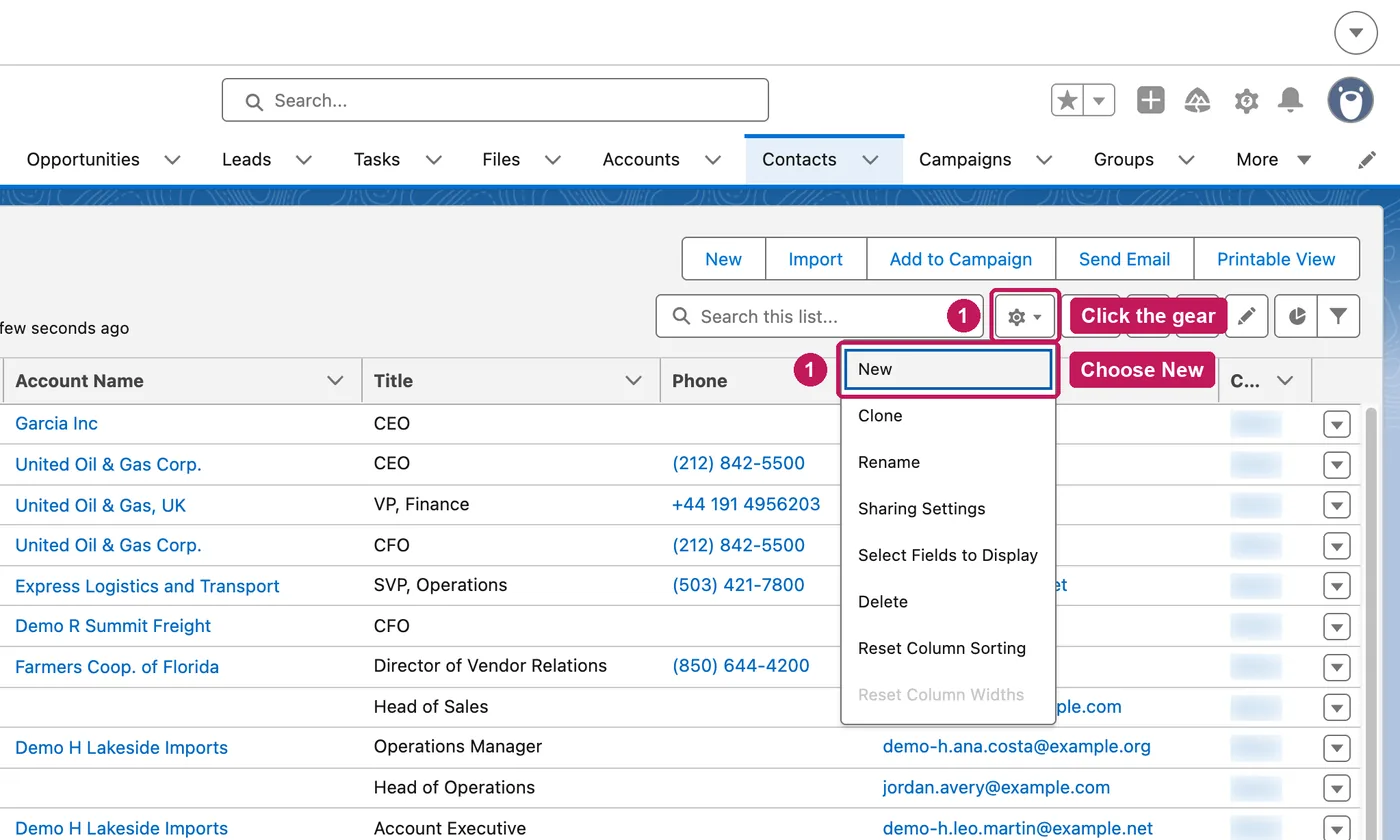
- Name the list, choose who can see it and click Save.
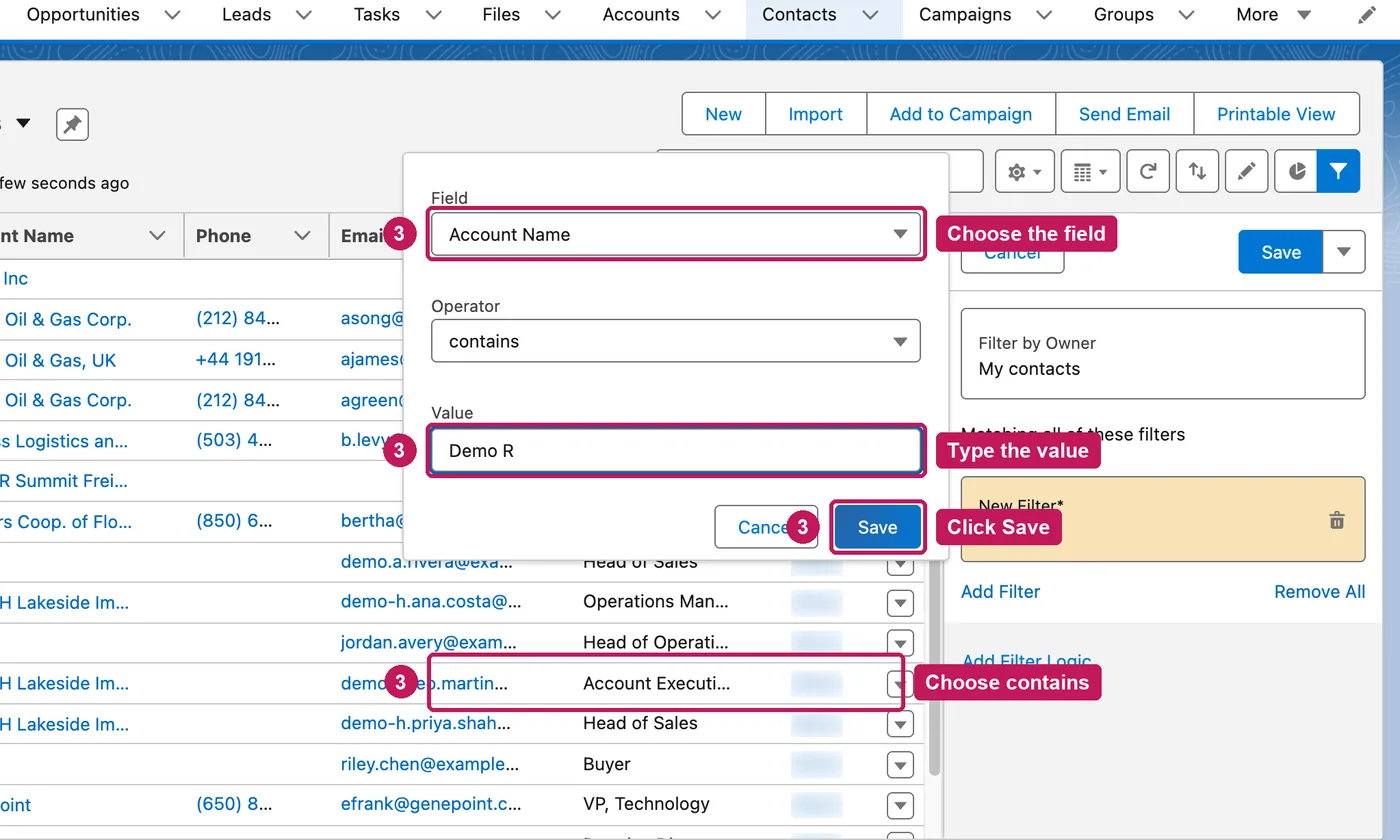
- In Filters, click Add Filter, set the field, operator and value, and click Save.
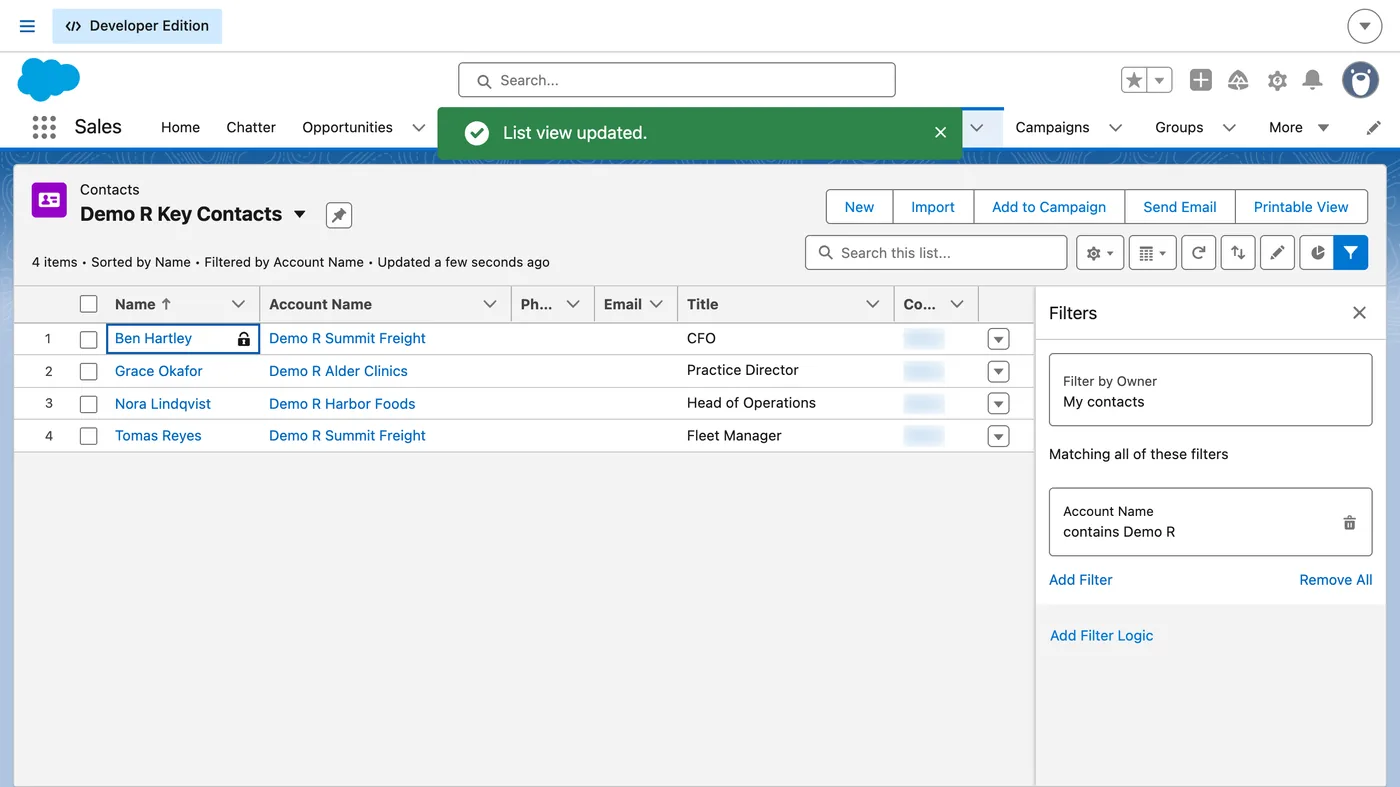
- Click Save at the top of the Filters panel. The list shows only the matching records.
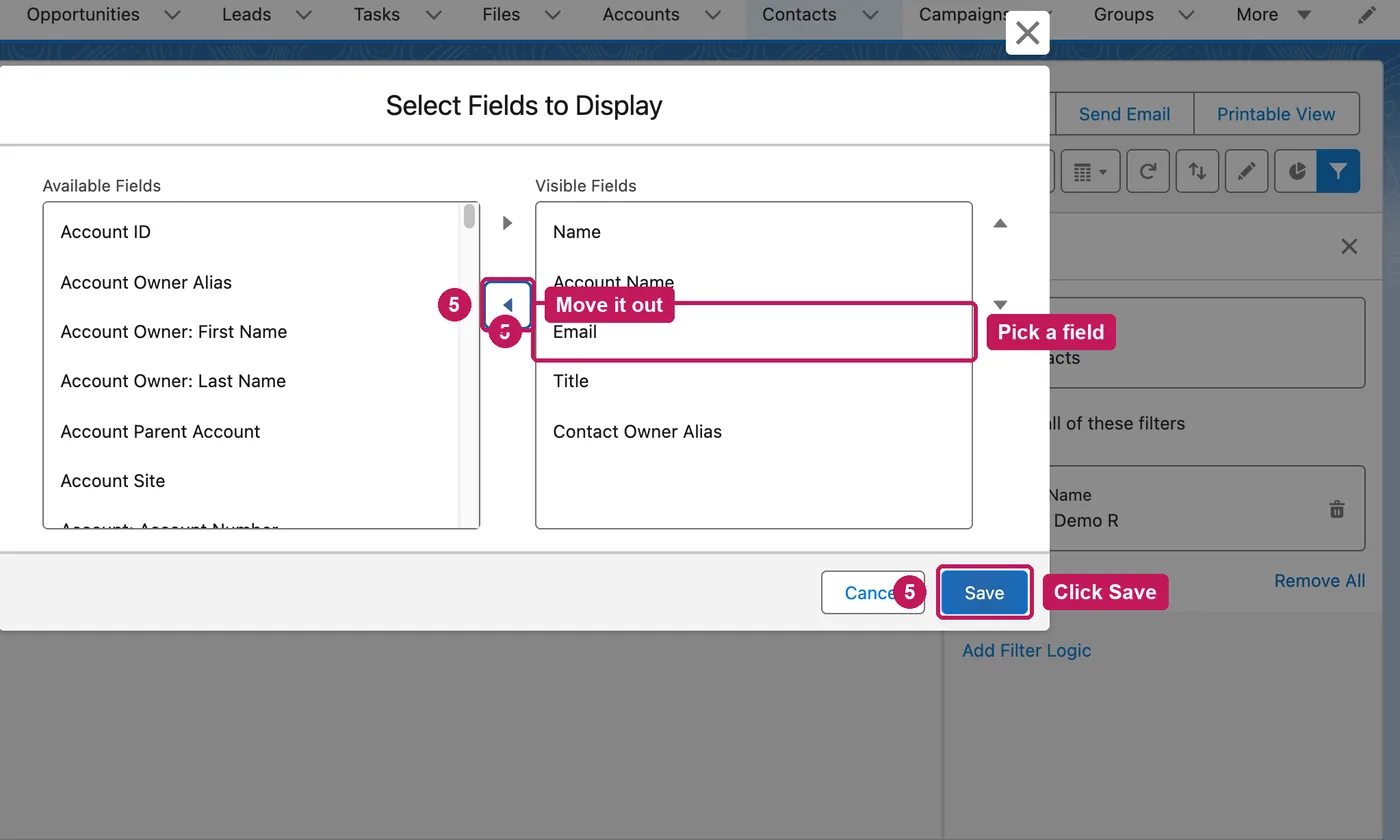
- From the gear, choose Select Fields to Display, move fields in or out of Visible Fields and click Save.
A list view can be seen by just you, by all users, or by groups of users you pick; sharing one needs the right permissions. Filters can be combined with filter logic such as 1 AND (2 OR 3), and every filter number has to appear in it. You can sort a list view by up to five columns, and it only shows records and fields you have access to.
Source: Salesforce’s Create a Custom List View in Lightning Experience help article, checked 26 September 2026.