Tutorials
Salesforce
How to use the Kanban view in Salesforce
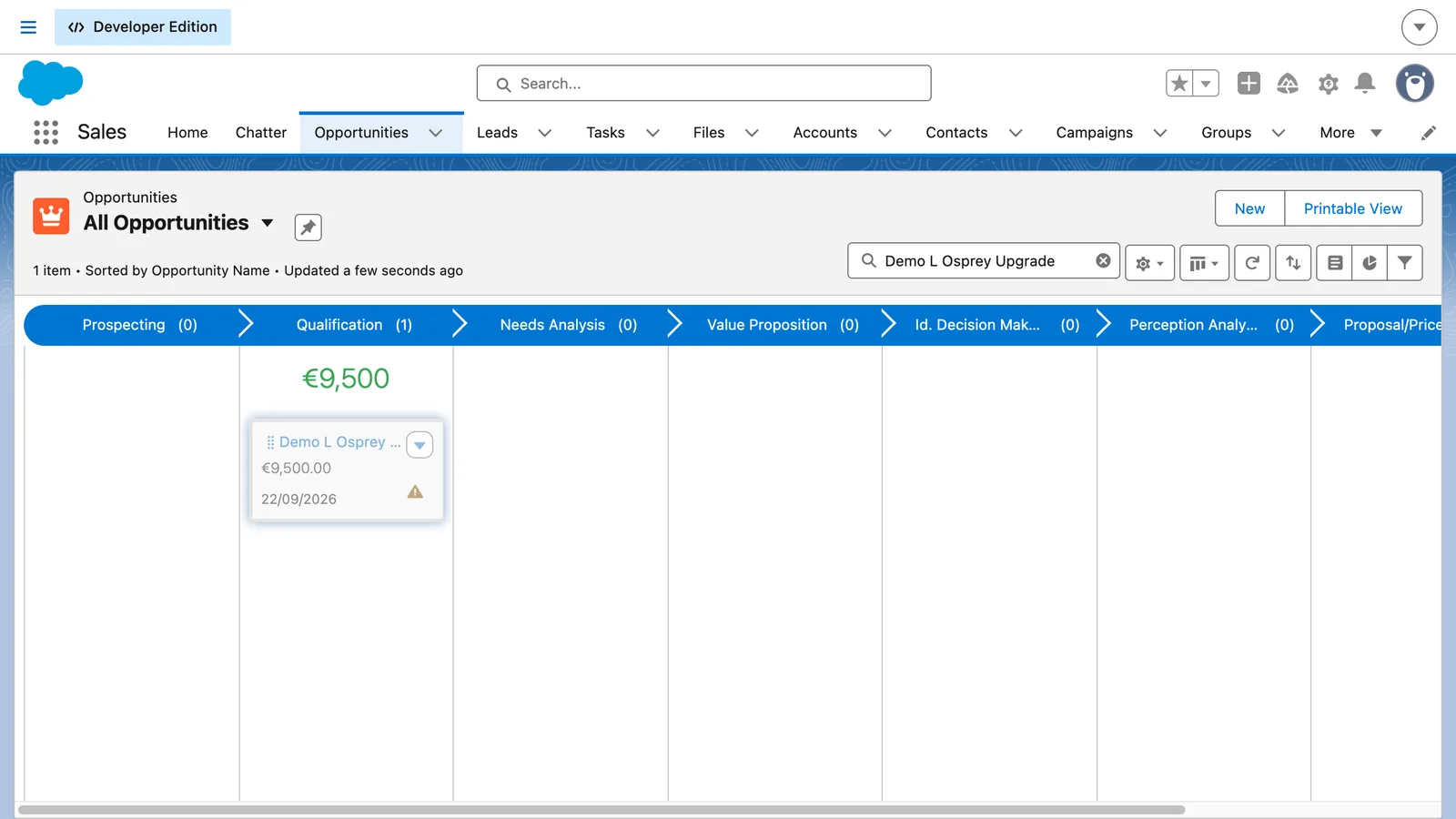
How do I use the Kanban view in Salesforce?
Open a list view, such as All Opportunities, click the display button next to the list search and choose Kanban. Each stage is a column of cards. Search the list to narrow it, drag a card to the next column to update its stage, and switch back to Table from the same button.
- Go to Opportunities and open a list view, such as All Opportunities.
- Click the display button next to the search box and choose Kanban.
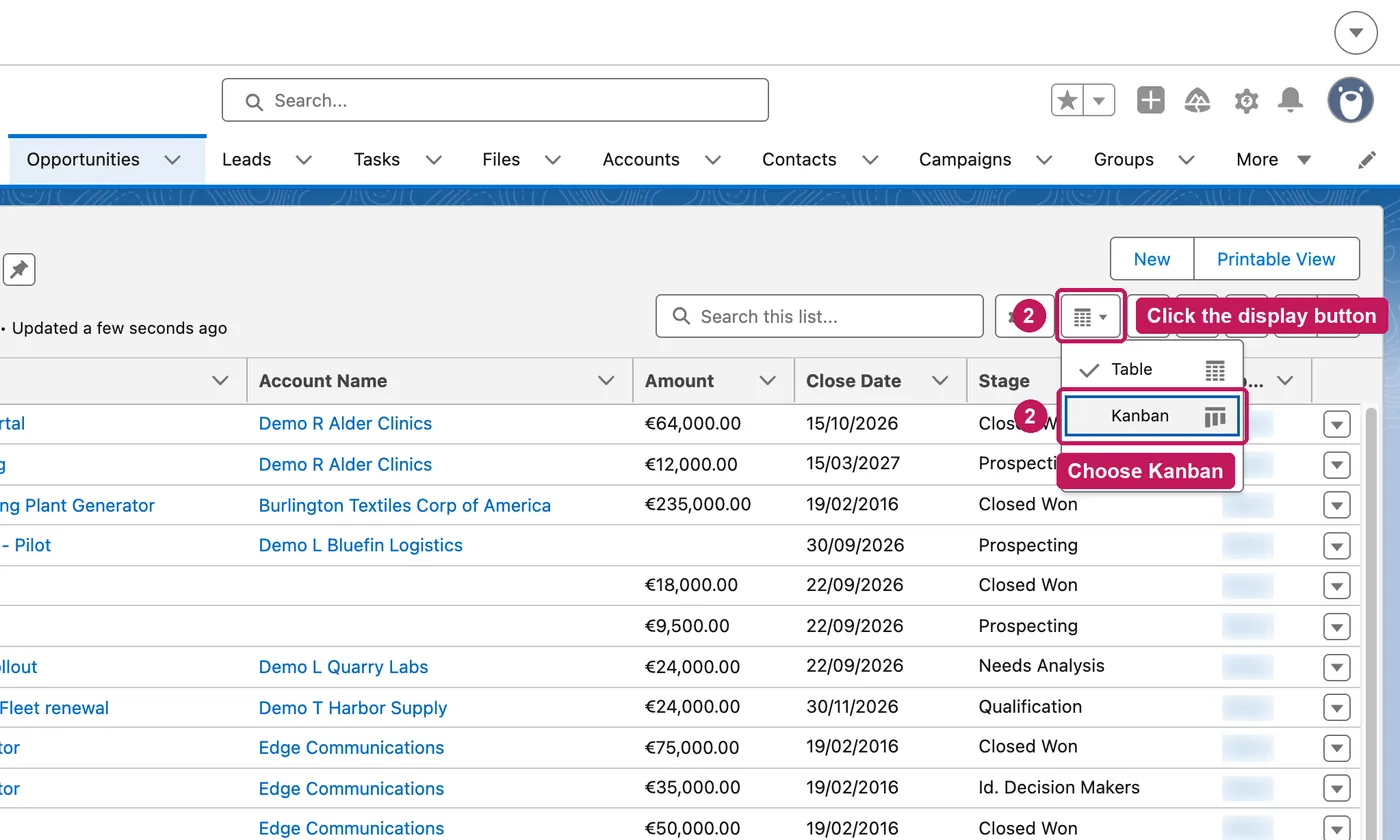
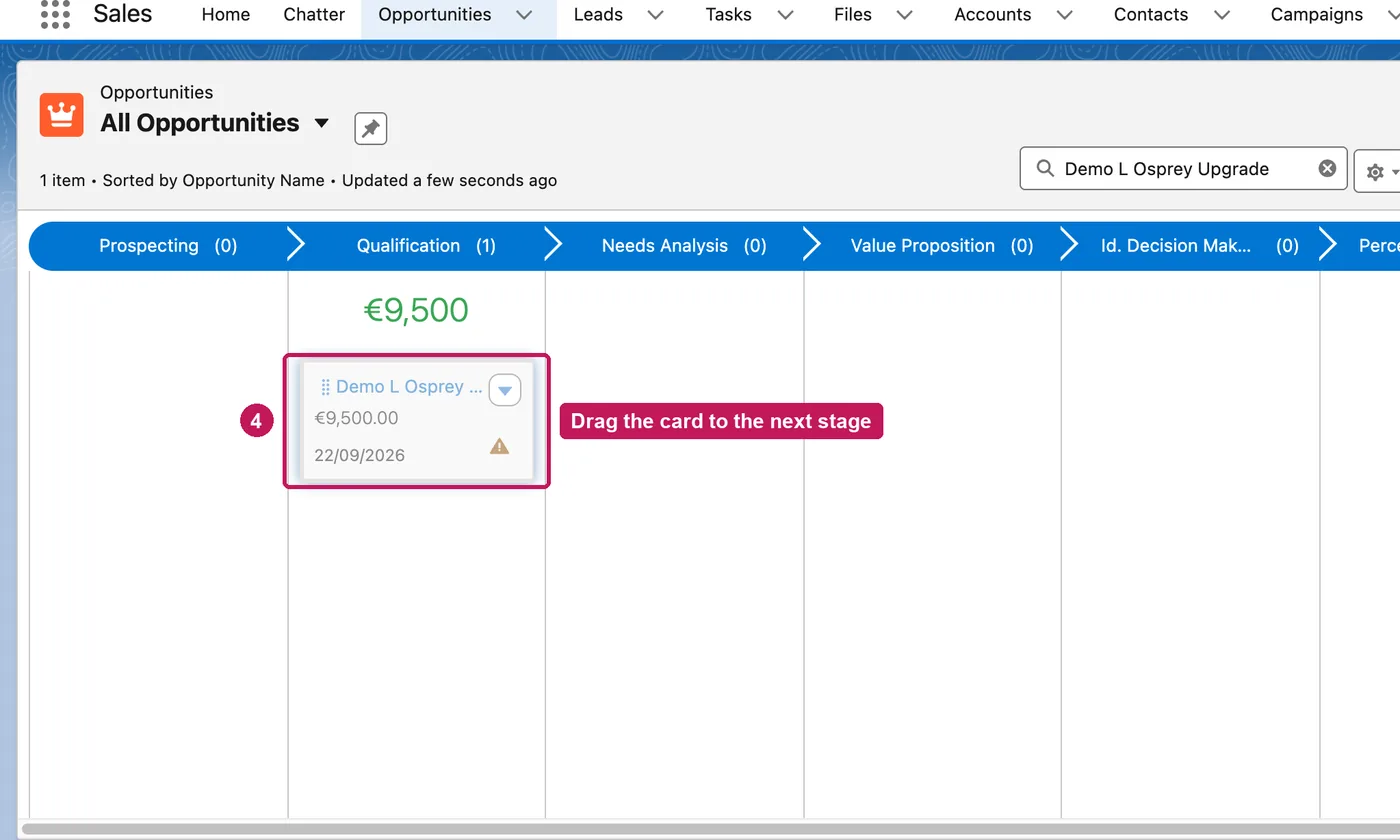
- Each stage is a column of cards. Search the list to find a deal.
- Drag the card to the next stage to update the opportunity.
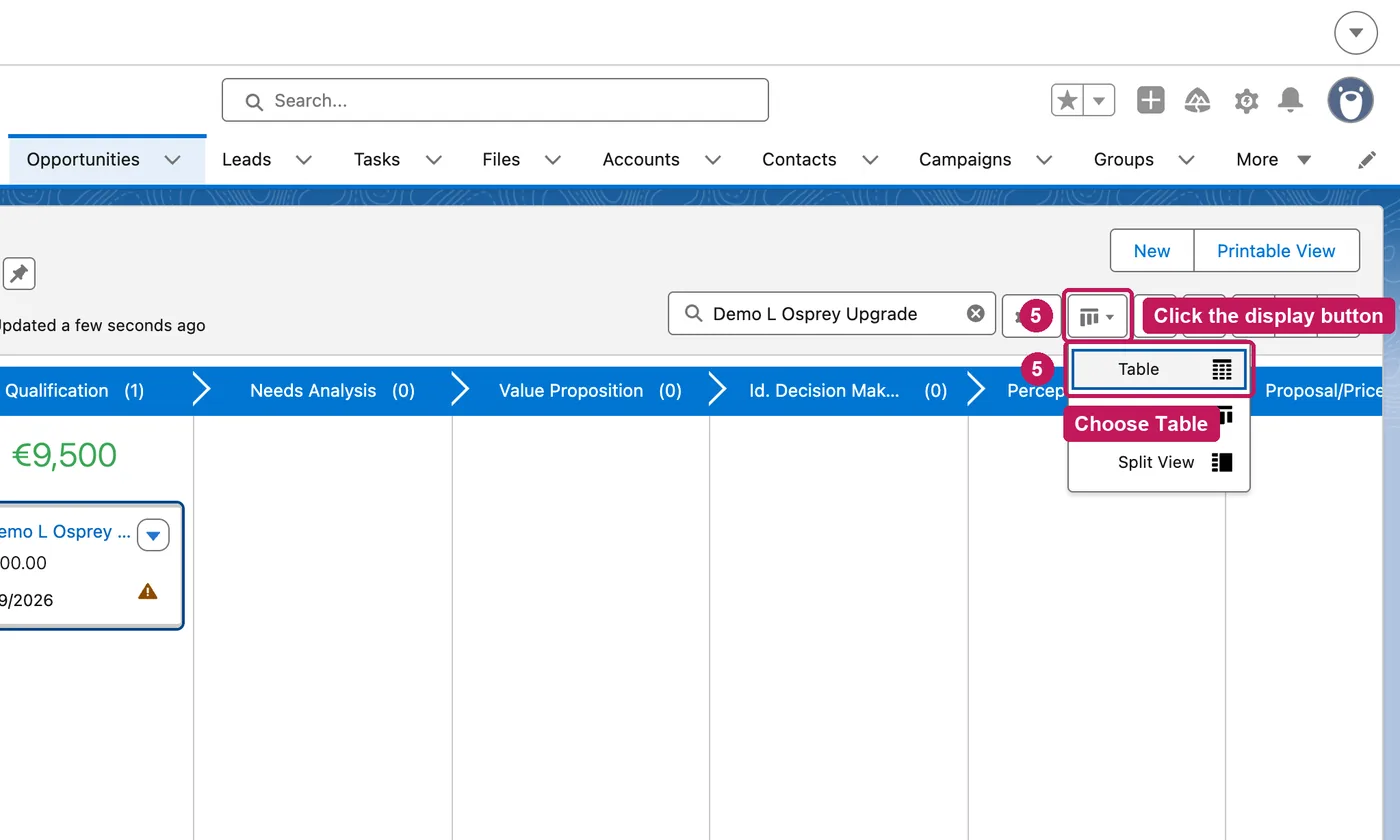
- To go back, click the display button and choose Table.
Each kanban view is based on a list view, and you can switch between the two at any time. Search or filter the list to narrow the cards. You need edit access to a record to drag its card to another column. On opportunities, hover over a card's alert for a tip on moving the deal ahead.
Source: Salesforce’s Work in a Kanban View help article, checked 26 September 2026.