Tutorials
Salesforce
How to merge accounts in Salesforce
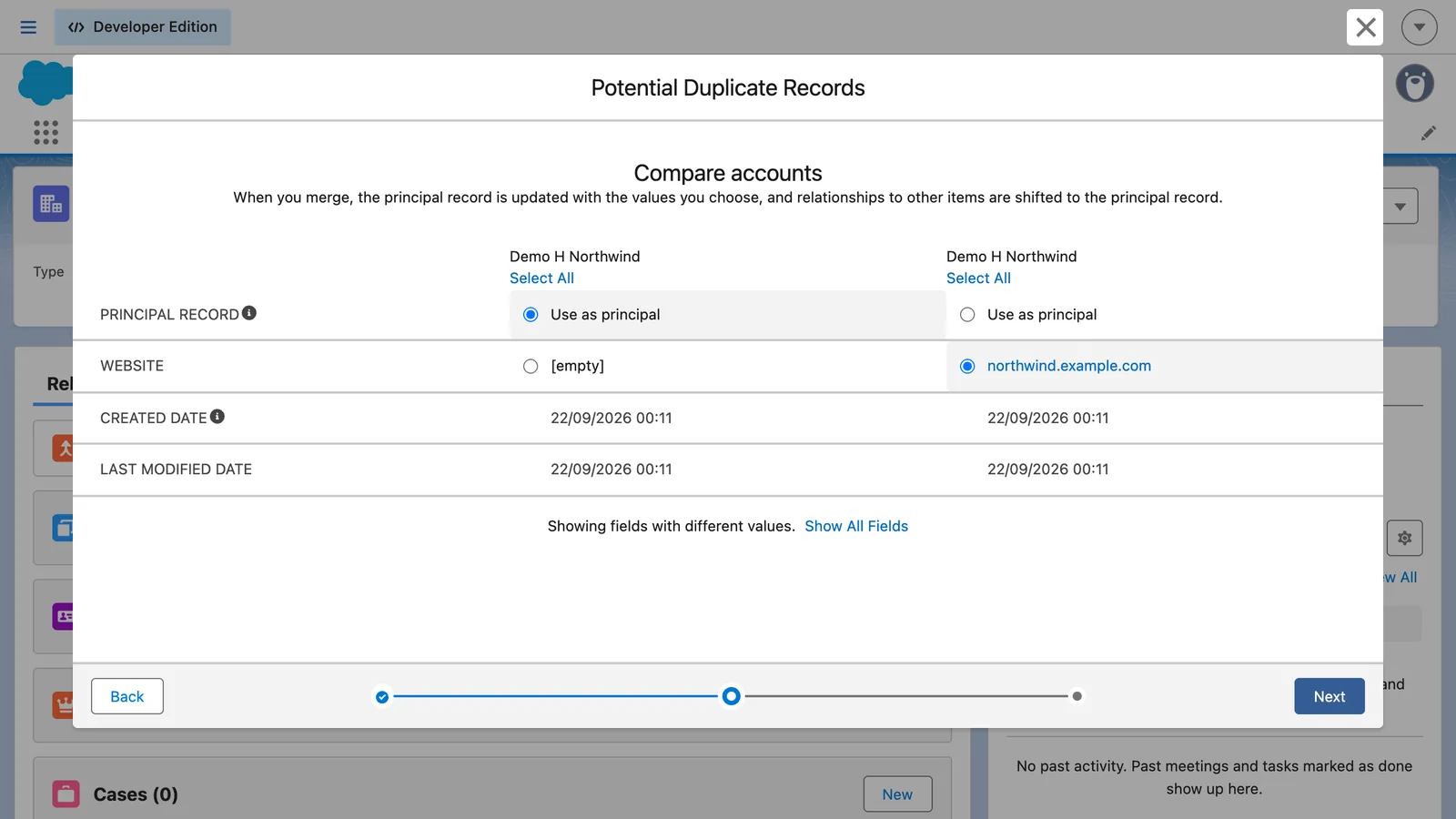
How do I merge accounts in Salesforce?
Open one of the duplicate accounts and click View Duplicates. Select up to three accounts to merge and click Next. Choose the principal record and the field values to keep, click Next, then click Merge.
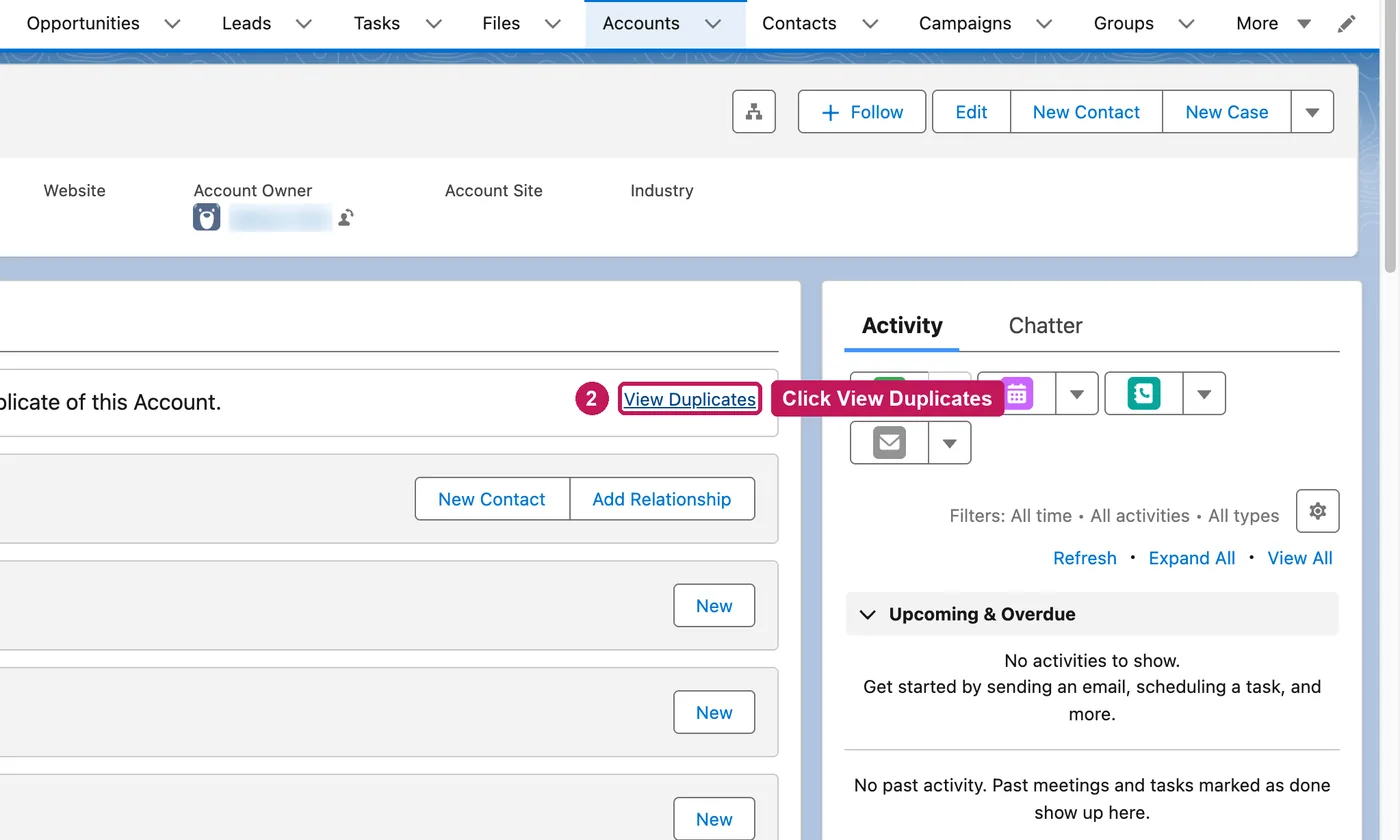
- Open one of the duplicate accounts. Salesforce says on the record when it finds a possible duplicate.
- Click View Duplicates.
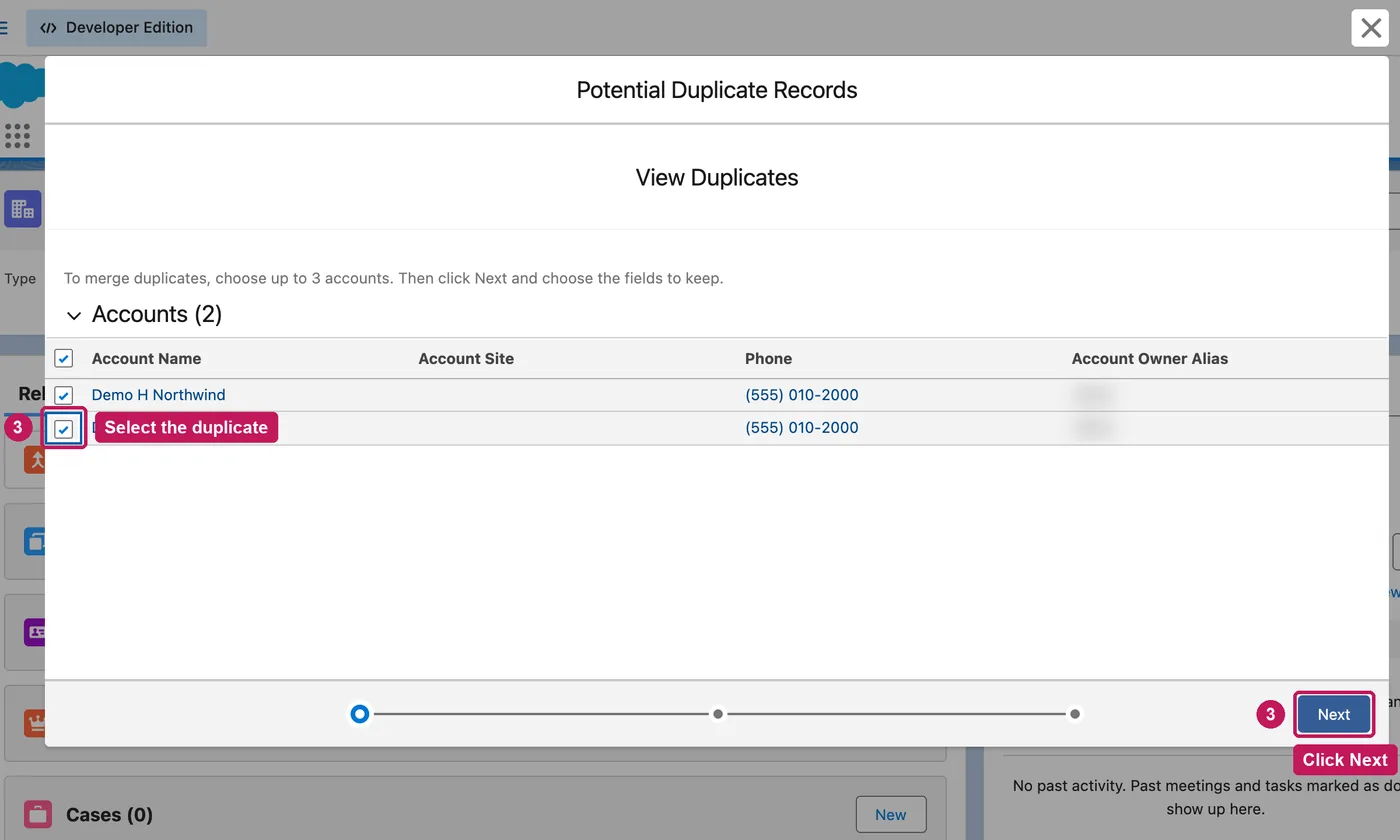
- Select the accounts to merge, up to three, and click Next.
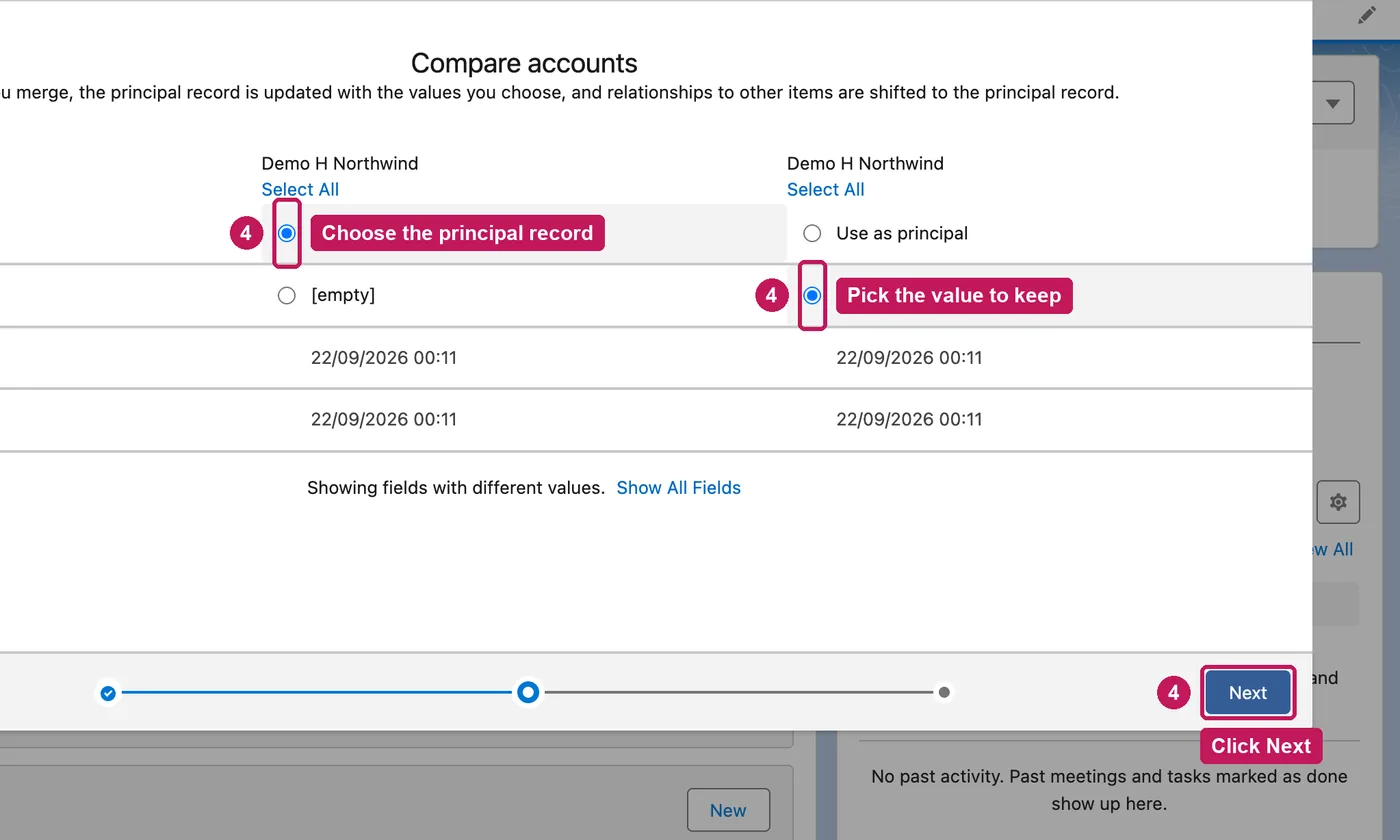
- Choose the principal record and the value to keep for each field that differs, then click Next.
- Click Merge. The other accounts move to the Recycle Bin.
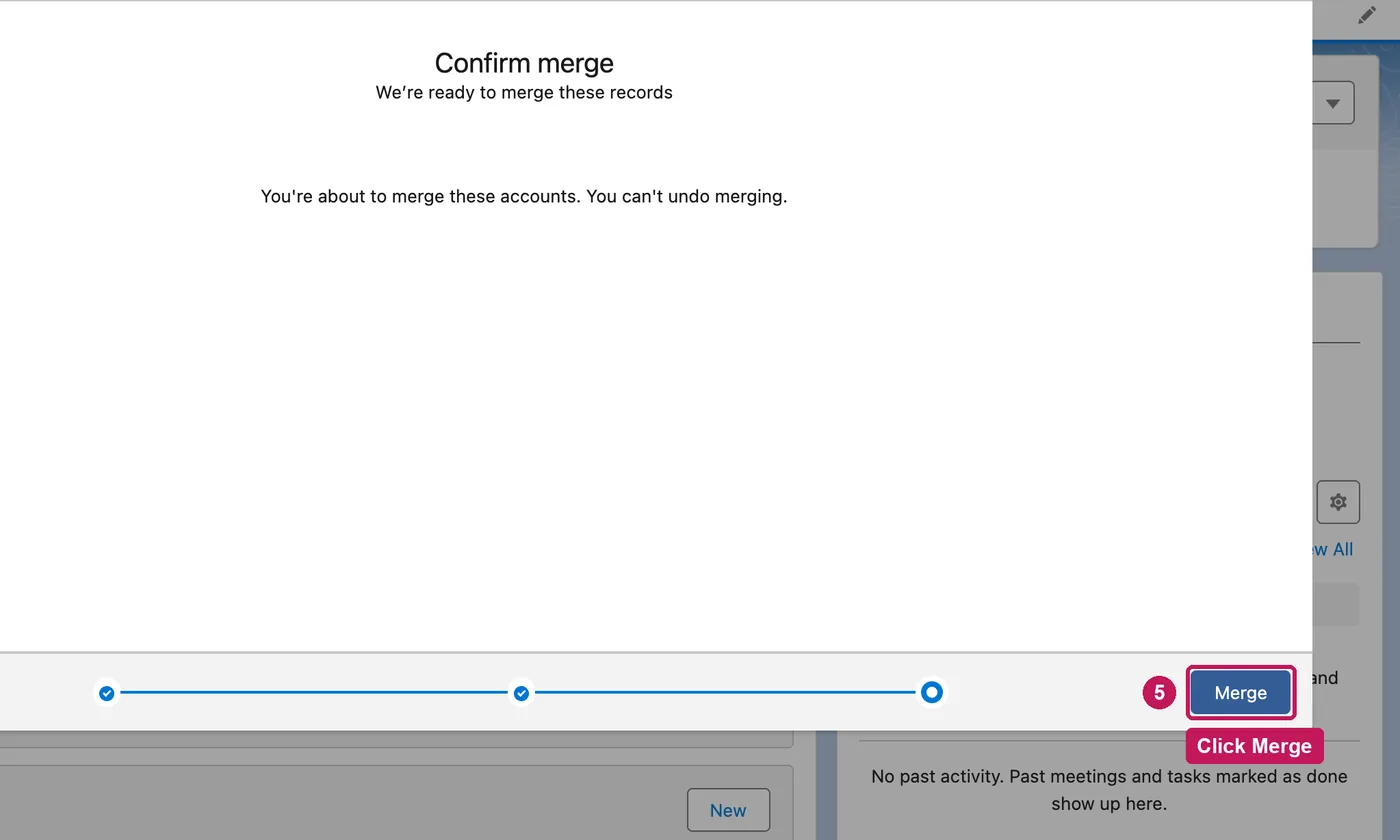
You can merge up to three accounts at once, and the accounts that aren't the principal record move to the Recycle Bin. Merging needs Delete permission on accounts, and you must be an admin, the account owner, or above the owner in the role hierarchy. Accounts that Salesforce's duplicate rules don't flag can be merged with the merge tool in Salesforce Classic.
Source: Salesforce’s Merge Duplicate Accounts in Lightning Experience help article, checked 26 September 2026.