Tutorials
Salesforce
How to use Chatter in Salesforce
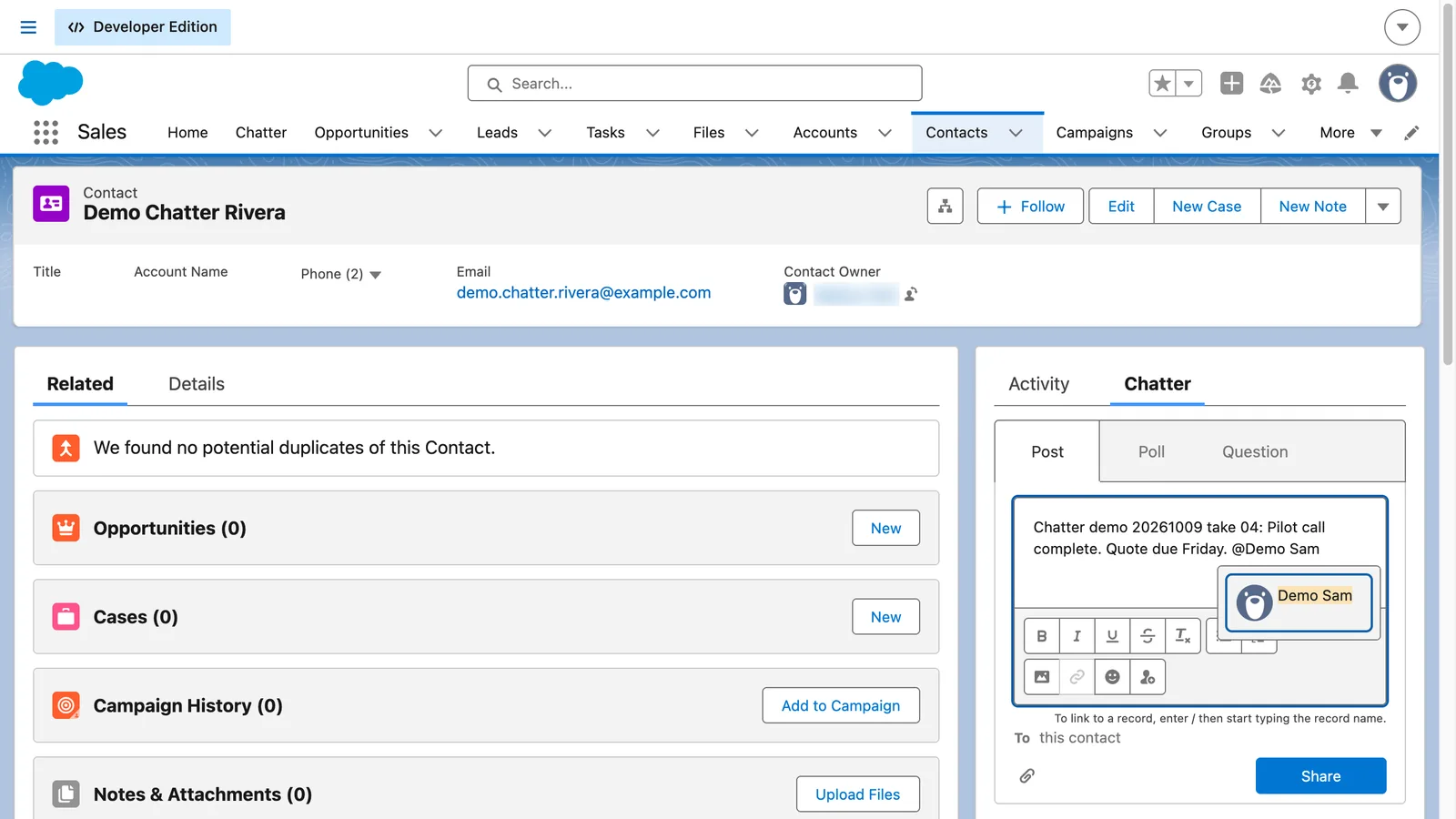
How do I post and mention someone in Salesforce Chatter?
Open the record, click the Chatter tab, click Share an update and write your post. Type @ and a name to mention a colleague, then click Share. Under the post, click Like, or write a comment and click Comment.
- Open the record, for example a contact.
- Click the Chatter tab next to Activity.
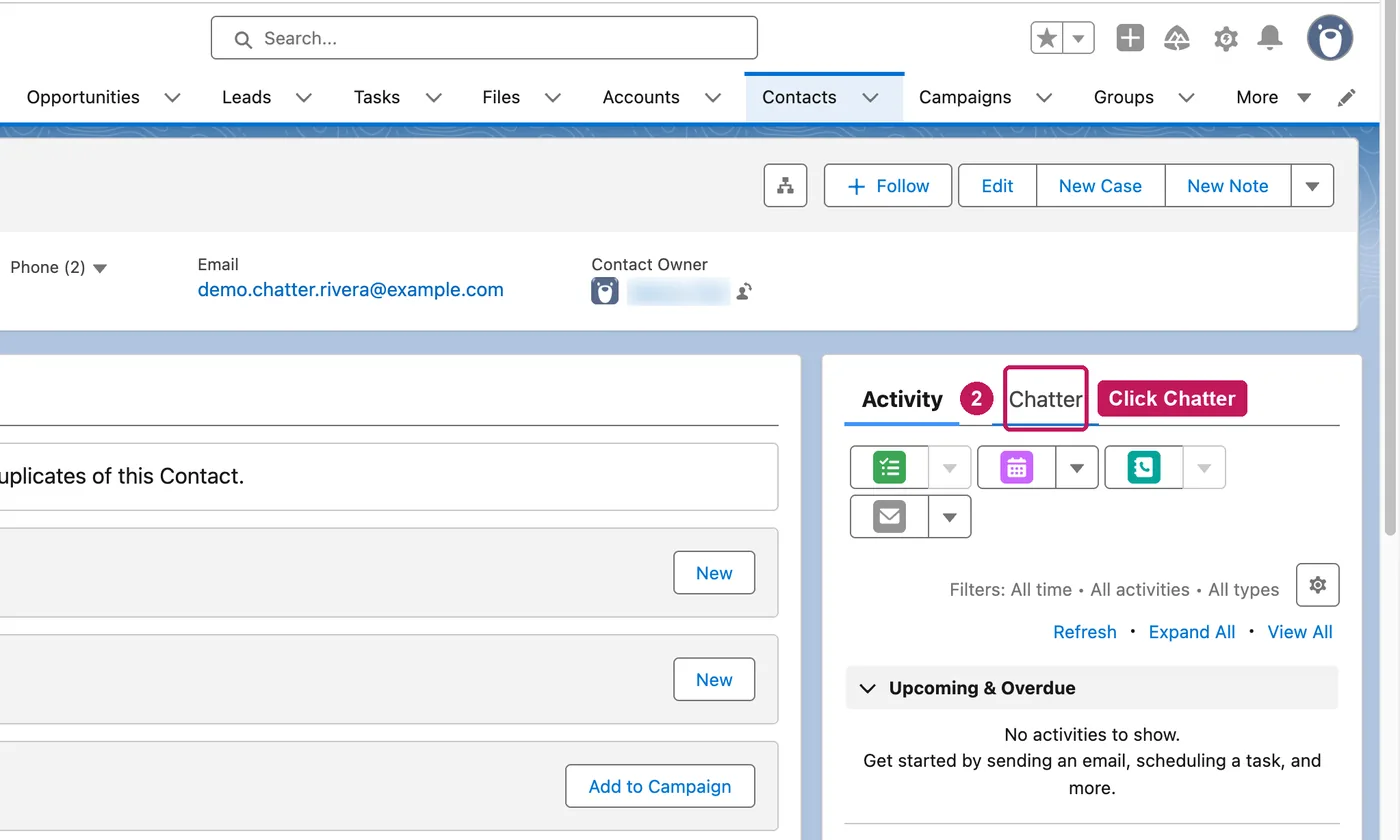
- Click Share an update and write your post.
- Type @ and a name, then pick the person from the list.
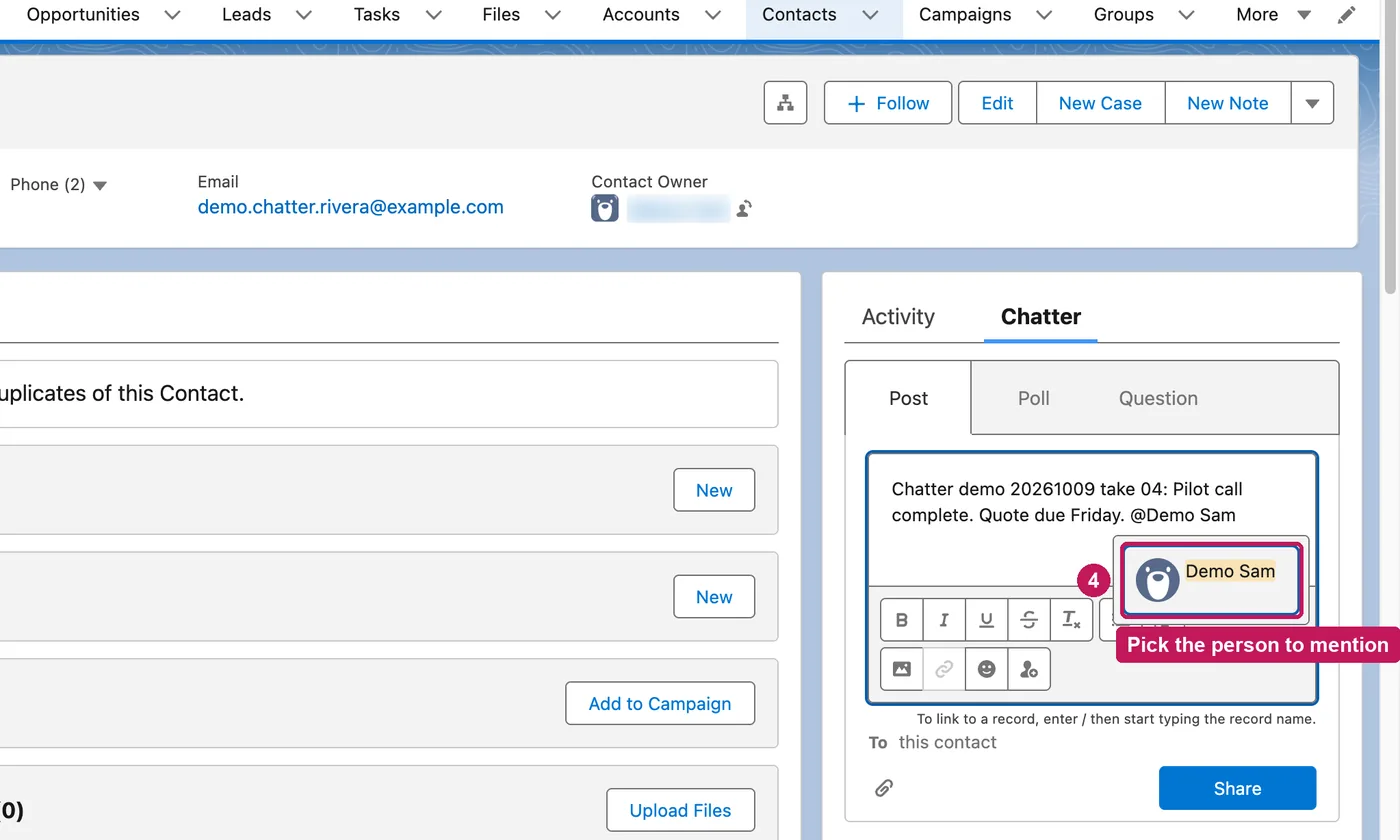
- Click Share. The post appears in the feed.
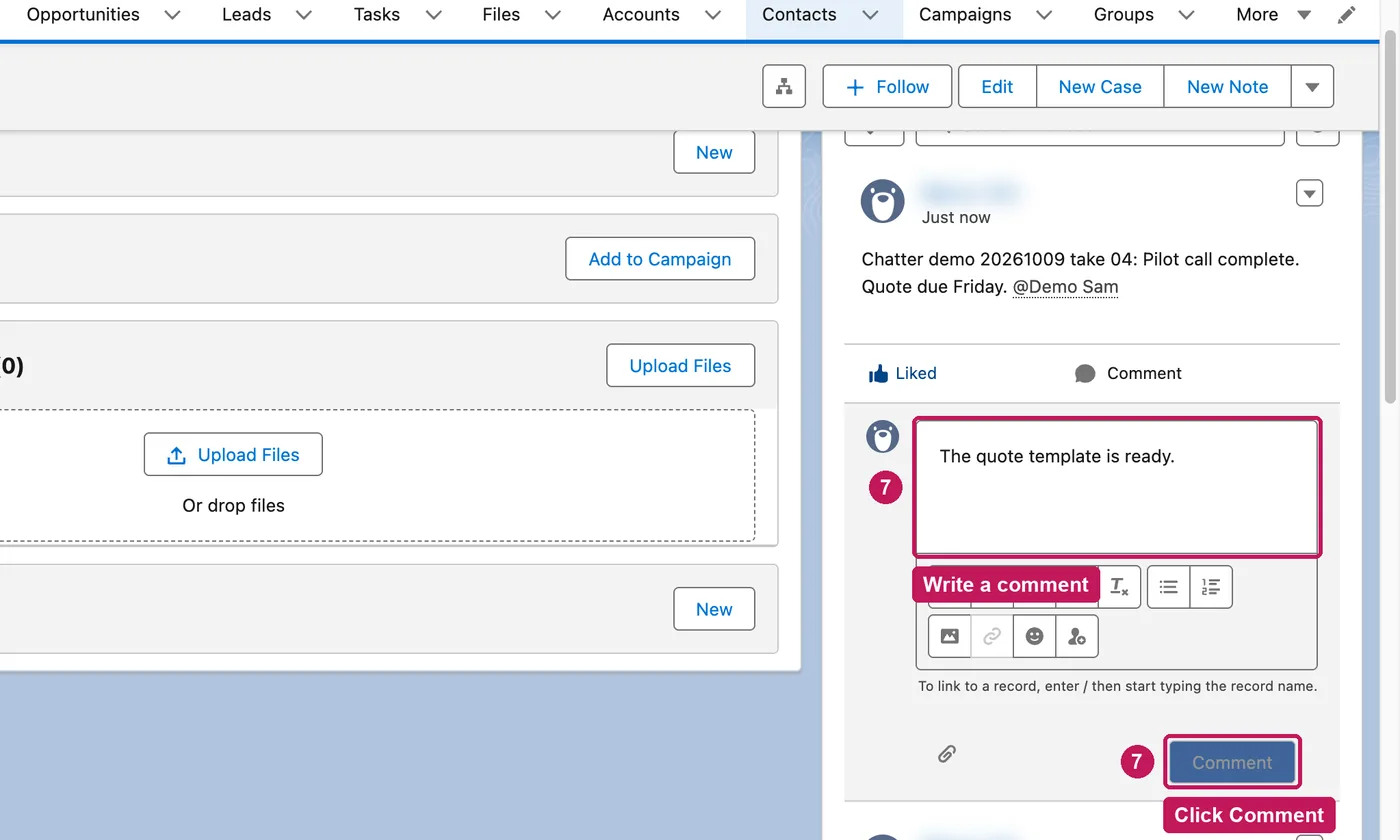
- Click Like under the post.
- Write a comment and click Comment.
A mention does not grant access to a record. Mentioning yourself does not send you a notification.
Source: Salesforce’s @Mention People and Groups in Chatter Posts and Comments help article, checked 11 October 2026.