How to merge contacts in HubSpot
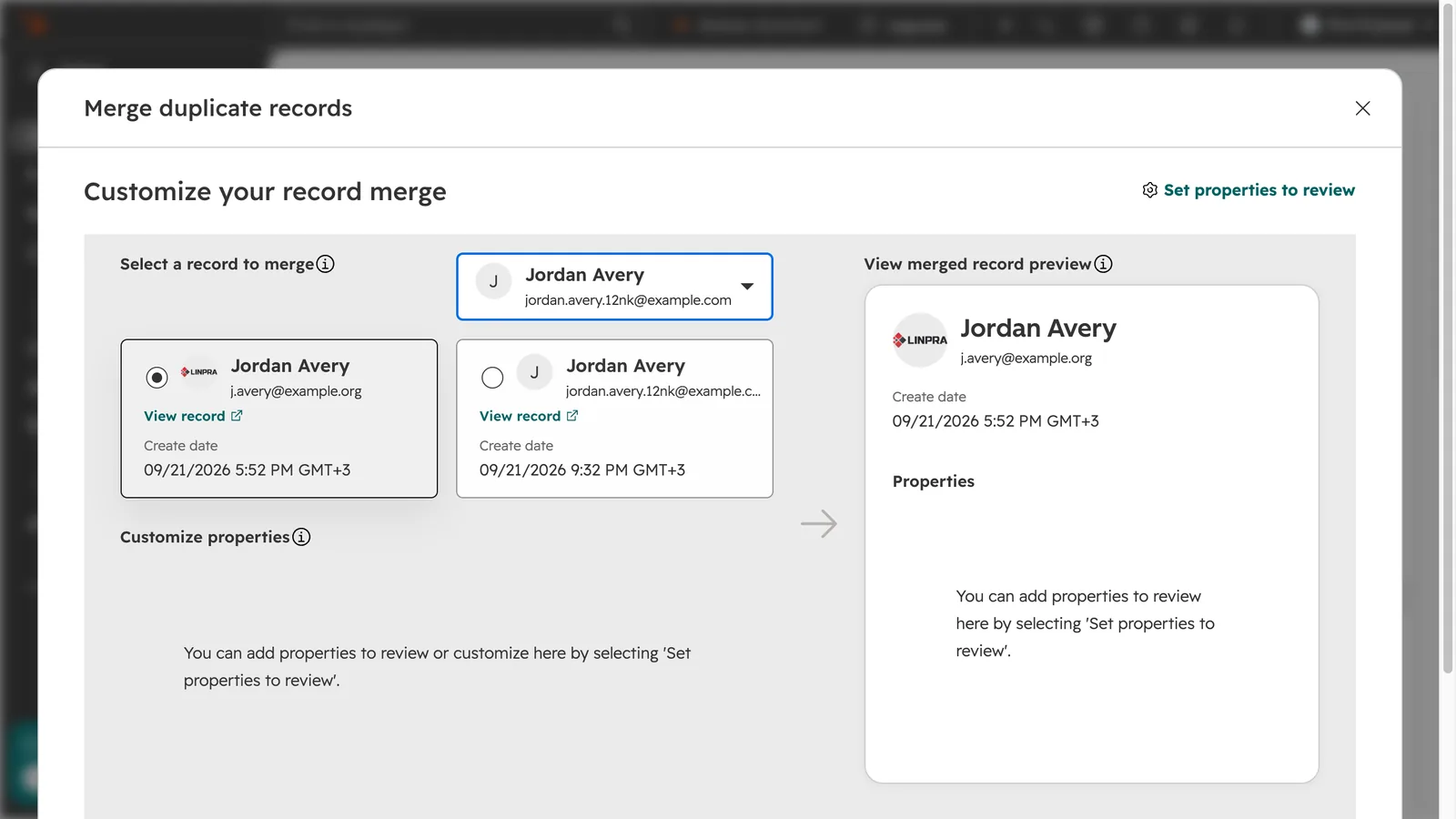
Open the contact you want to keep, click Actions, then Merge, and pick the duplicate. Choose which property values to keep, then click Merge. The contact you opened stays, and the other one’s email becomes a secondary email. A merge cannot be undone, so check the pair first. That is HubSpot’s own process, checked 21 September 2026.
PortifyLead saves LinkedIn contacts into HubSpot and checks for an existing contact by email every time it saves, so duplicate contacts are the problem we design around every day. Here is how HubSpot’s own tools handle the ones that already got in.
| What | What the merged contact keeps |
|---|---|
| Property values | The primary contact’s values. Where the primary is empty, the secondary’s value fills it. |
| Email address | The primary’s email stays primary. The secondary’s email is added as a secondary email. |
| Create date | The older of the two. |
| Lifecycle stage | The stage furthest down the funnel, so Lead plus Customer gives Customer. |
| Activities and timeline | Both contacts’ activities, on one timeline. Syncing them can take up to 30 minutes. |
| Associations | All associations from both contacts. |
| Static lists (segments) | The secondary contact is removed from all of them. |
| Active workflows | Both contacts are unenrolled. |
| Record ID | A new record ID. Links using either old ID still open the merged contact. |
| Number of form submissions and conversions | Added together. |
How do I merge two contacts in HubSpot?
Merge from the contact you want to keep. That contact is the primary: it stays in your account, and the other one is folded into it.
- In HubSpot, go to CRM, then Contacts.
- Click the name of the contact you want to keep.
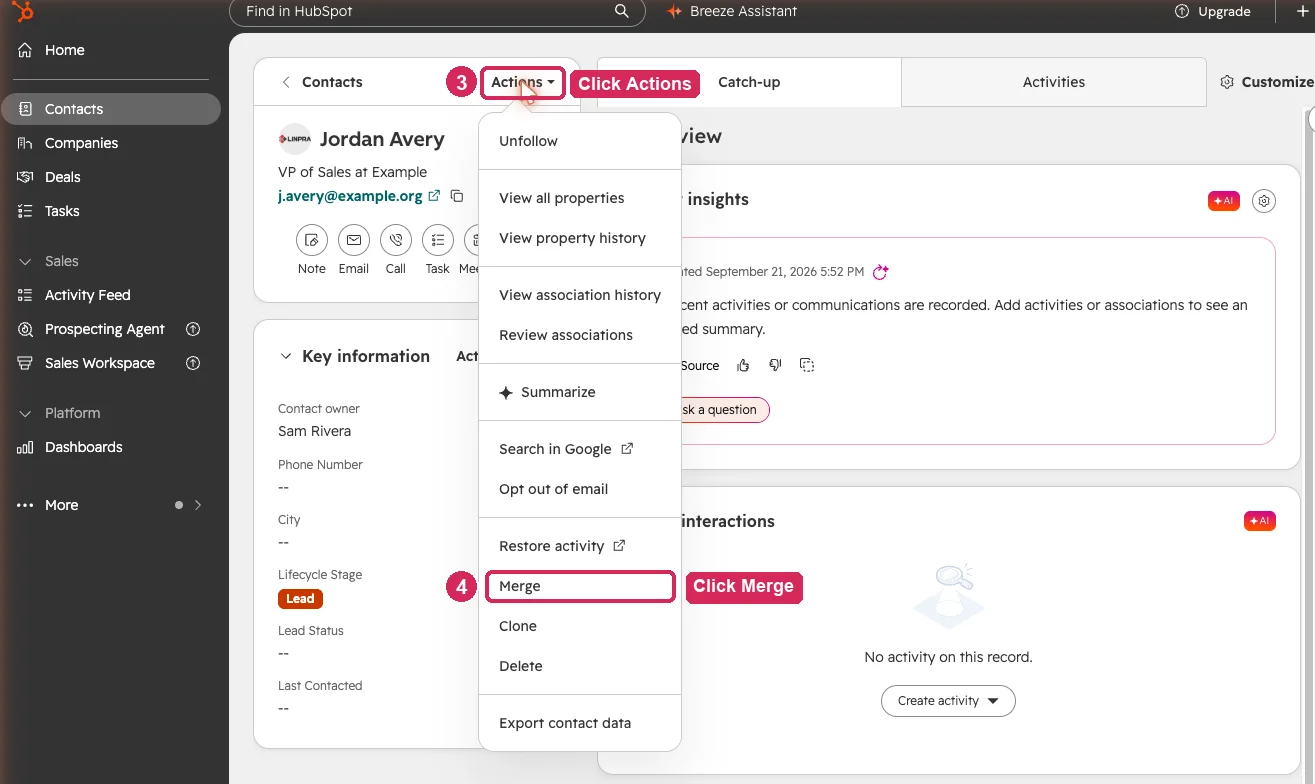
- In the left panel, click Actions.
- Click Merge.
- Search for the duplicate and select it.
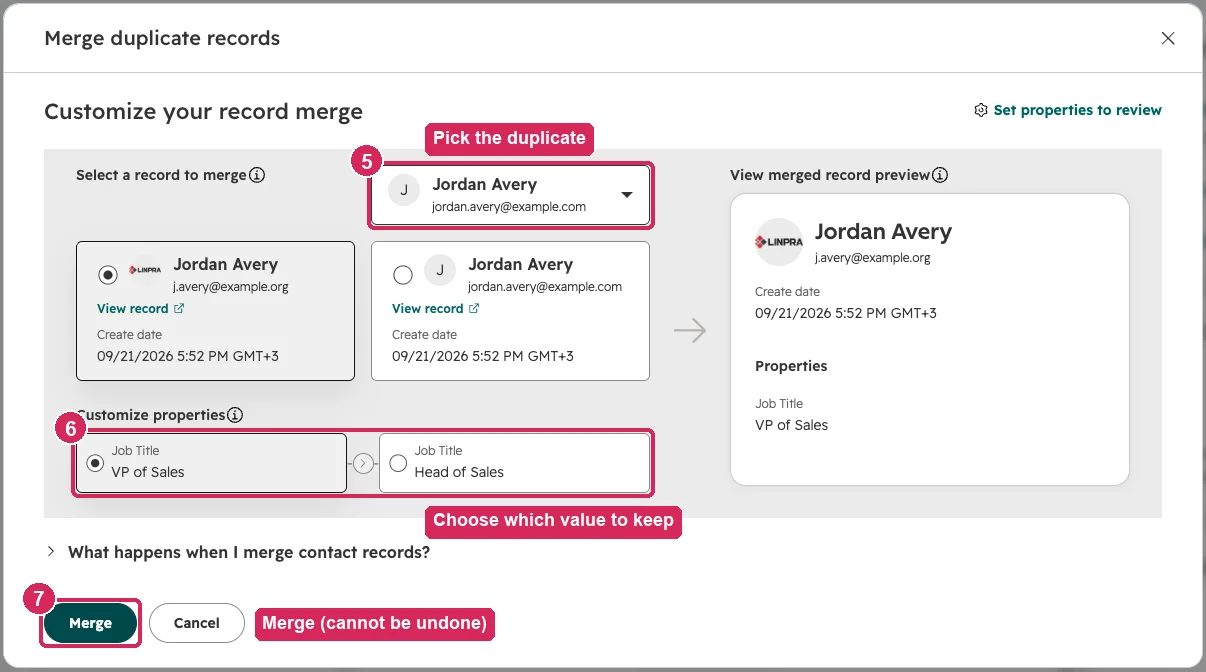
- Review the property values side by side. The primary’s values are selected; click any value from the other contact you would rather keep. Use “Set properties to review” to change which properties are compared.
- Click Merge.
You need the Merge permission, or Super Admin, to see the option. Merging is available on every HubSpot plan, including the free one. If you are on a call with either contact, the merge disconnects it.
What happens to the data when you merge contacts in HubSpot?
HubSpot keeps the primary contact’s property values and fills any empty ones from the duplicate. Emails are not lost: the duplicate’s email becomes a secondary email on the merged contact, and form submissions sent from it later land on the merged contact too.
Three things surprise people. The merged contact gets a new record ID, though links with either old ID still work. Both contacts are taken out of their active workflows, so a nurture sequence stops. And the duplicate is removed from every static list, so check list membership before you merge a contact who is in a list you send from.
Can you unmerge contacts in HubSpot?
No. HubSpot says it is not possible to unmerge records, and that applies to contacts and companies alike. The nearest thing is a workaround: remove the extra email address from the merged contact, then create a new contact with it. The history the two shared stays on the merged contact. The “Merged Contact IDs” property shows which contacts were merged in.
How do I find duplicate contacts in HubSpot?
Use Manage duplicates. Go to CRM, then Contacts, click Actions in the upper right, then Manage duplicates. HubSpot suggests pairs by comparing first name, last name, email address, IP country, phone number, zip code and company name. For each pair, click Review, then “Merge and review next” or “Reject and review next”. A rejected pair stops appearing, and you can undo a rejection within 14 days.
Manage duplicates needs a Professional or Enterprise subscription to any hub (Marketing, Sales, Service, Data Hub) or Smart CRM. On Free and Starter, you find duplicates yourself, for example by sorting a view by name or company, and merge them one pair at a time.
Can you bulk merge duplicates in HubSpot?
Yes, with Data Hub Professional or Enterprise. Those accounts get “Merge all” in Manage duplicates, with a rule for which contact wins each pair: most recent engagement, oldest engagement, created first, created last, or most recently updated. Data Hub Professional shows up to 30,000 suggested pairs and Enterprise up to 100,000. Without Data Hub, merging is one pair at a time.
A merge can fail if a contact has already been part of 250 merges in total, or if the result would pass your account’s association limits.
Why does HubSpot create duplicate contacts?
HubSpot deduplicates contacts on email address. Two records for one person almost always means two different emails, or no email at all.
The usual causes:
- The same person arrives with a work email and a personal email, from a form, an import or a sales tool.
- An import has no email column or empty email cells. HubSpot imports each of those rows as a new contact.
- An import is matched on record ID and the record ID cell is empty, which also creates a new contact.
Creating a contact by hand with an email that already exists is blocked, and a form or import with a matching email updates the existing contact. So the fix upstream is making sure an email is there, and is the right one, before a contact is created.
What we see in the field: an email check catches the repeat, not the second address
PortifyLead saves LinkedIn contacts into HubSpot. When you save, it searches your HubSpot contacts by email. If it finds one, you update that contact instead of creating a second. HubSpot needs an email on every contact, so if the LinkedIn profile shows none, you add it before you save. The LinkedIn profile URL goes to HubSpot’s LinkedIn URL property either way.
That stops the most common repeat: saving someone you already saved last month. What it cannot catch is the same person under a different email. If HubSpot has their personal address and you save them with their work address, the email check finds nothing, and you get a second contact. That is the pair you merge with the steps above, and the LinkedIn URL on both records is a quick way to be sure they are the same person before you do.
Questions
Which contact should be the primary when merging in HubSpot?
The one with the most accurate, most recent data, usually the one your team works from. Its property values win wherever both contacts have a value, and its email stays the primary email.
Does merging contacts in HubSpot delete email history?
No. Emails, calls, meetings and other activities from both contacts move to the merged contact’s timeline. It can take up to 30 minutes for all of them to appear.
Can I merge more than two contacts at once?
Not by hand: a manual merge joins two contacts. To merge a third, merge again from the same primary. Bulk merging many pairs at once needs Data Hub Professional or Enterprise.
Does HubSpot automatically merge duplicate contacts?
HubSpot does not create a duplicate when the email already exists, but it does not merge existing duplicates on its own. With Data Hub Professional or Enterprise you can bulk merge the suggested pairs with a rule you choose.
Can I merge contacts through the HubSpot API?
Yes. HubSpot’s contacts API has a merge endpoint that takes the primary contact’s ID and the ID of the contact to merge into it, with the crm.objects.contacts.write scope. The merged record’s ID comes back in the response.
Can I stop duplicates when saving contacts from LinkedIn to HubSpot?
PortifyLead checks for an existing contact by email when you save from LinkedIn and updates it instead of adding another. It has a Free plan with 15 saves a month, and Pro is $15 a month.
